Your account
How to create an account, sign in, update your details, and delete your account.
Creating an account Open the menu and press Create Free Account.
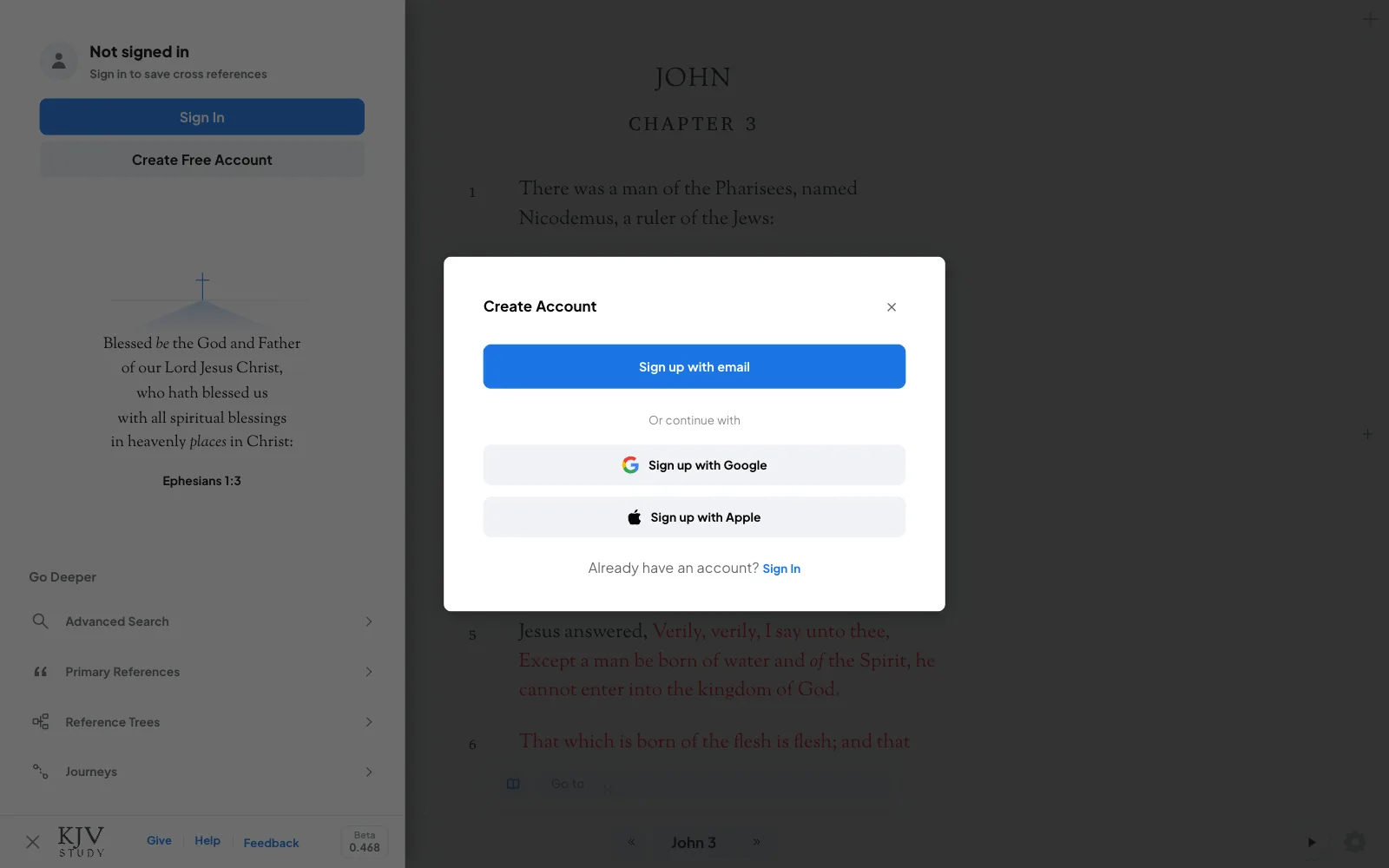
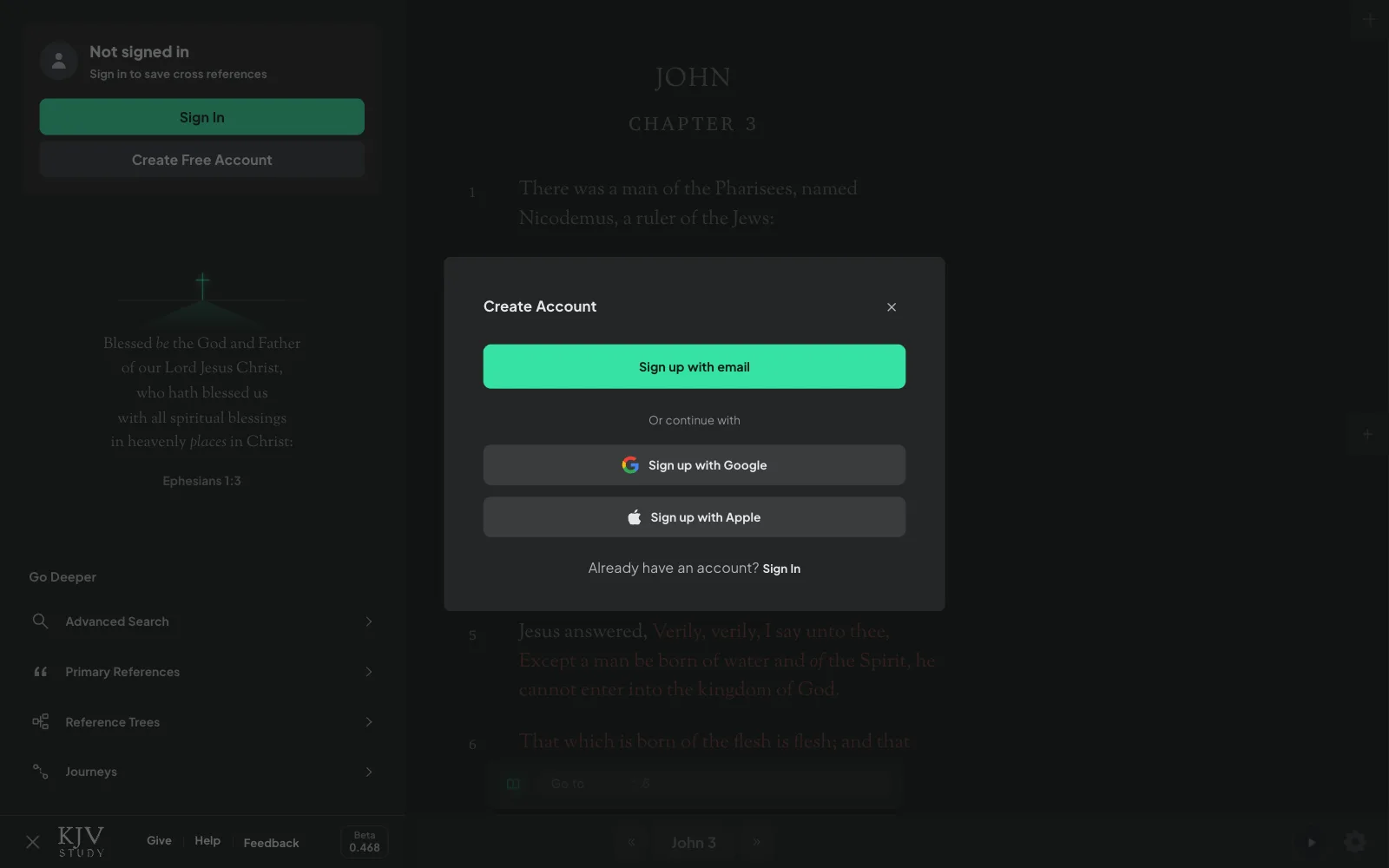
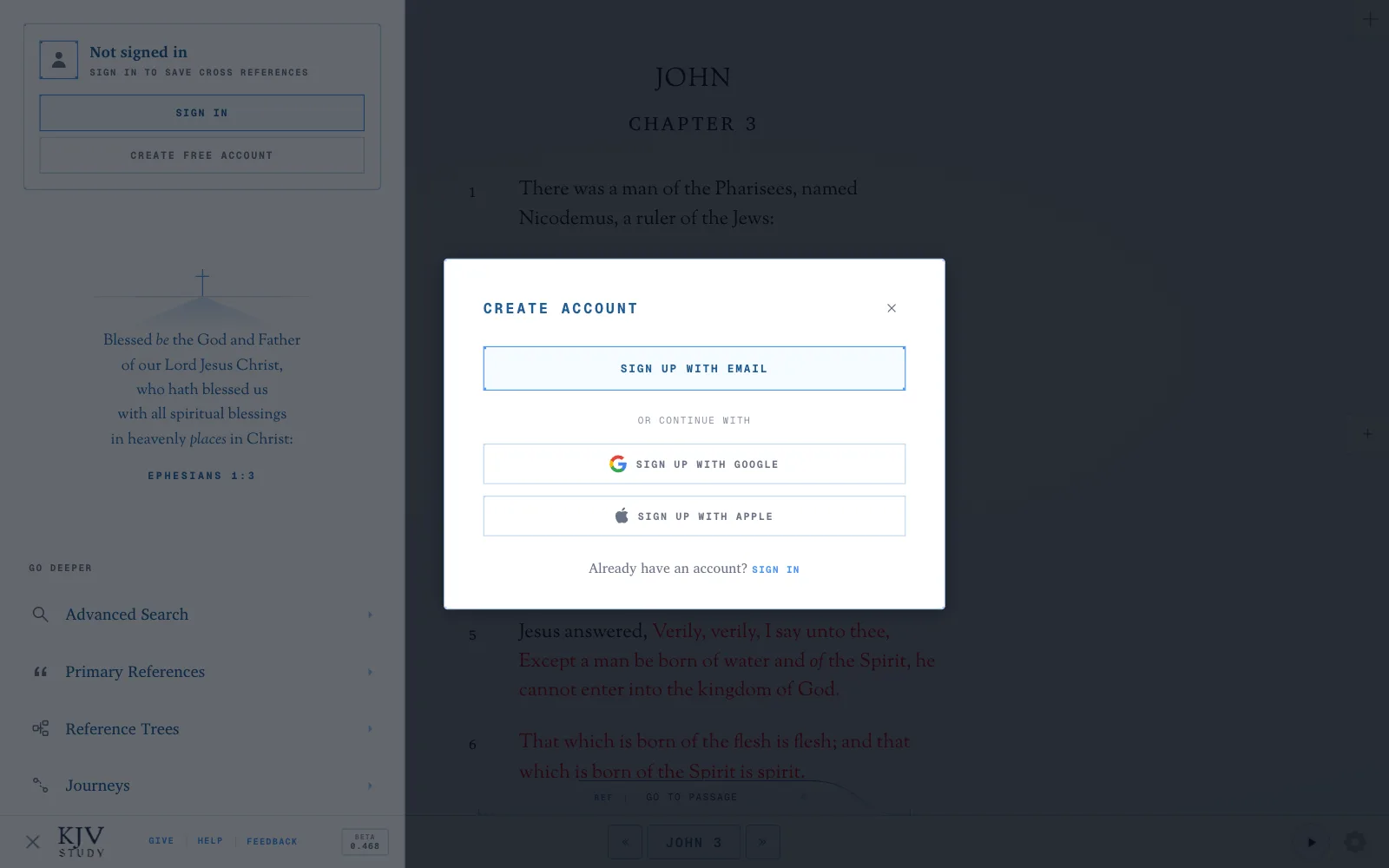
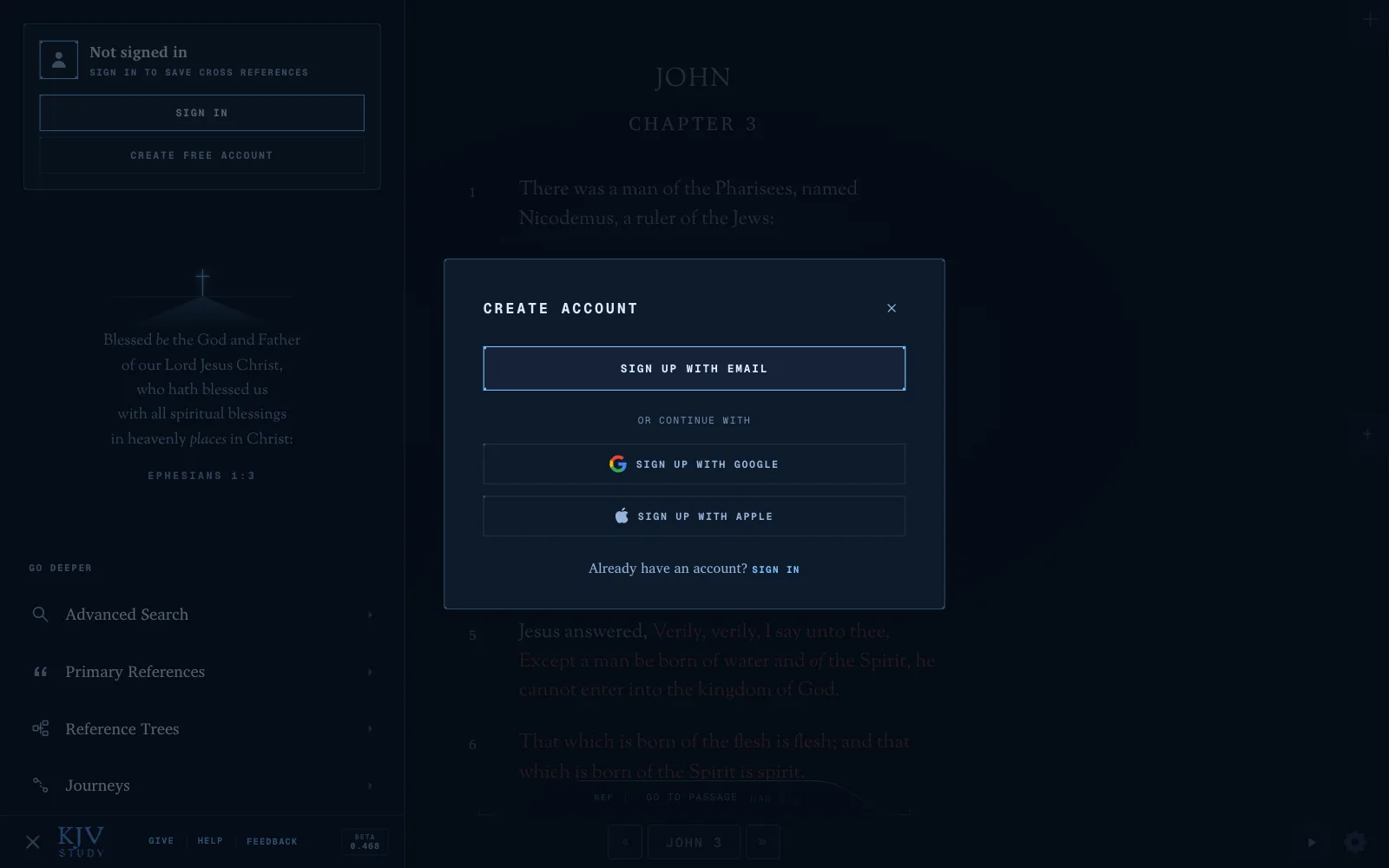
Open the menu and press Create Free Account. You can sign up with your email, Google or Apple.
- With email, enter your name, username, email address, date of birth and password. Usernames can have 3 to 20 letters, numbers or underscores, and you'll see straight away whether yours is available.
- We'll email you a confirmation link. Open it, then sign in.
- If you use Google or Apple, you'll be asked for your date of birth the first time you sign in.
You must be 13 or older to have an account. Readers of any age can read and study without one.
Signing in Open the menu and press Sign In.
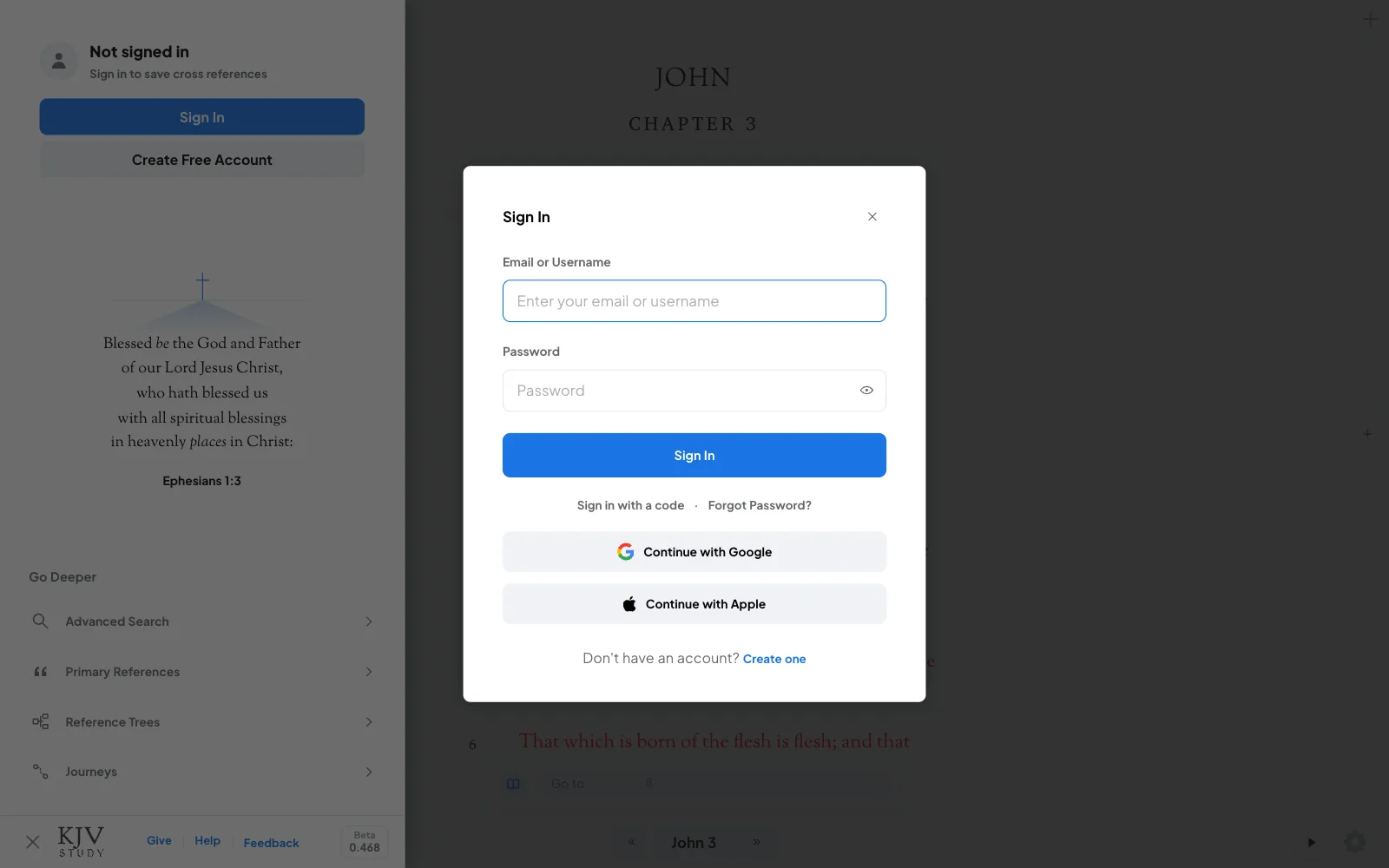
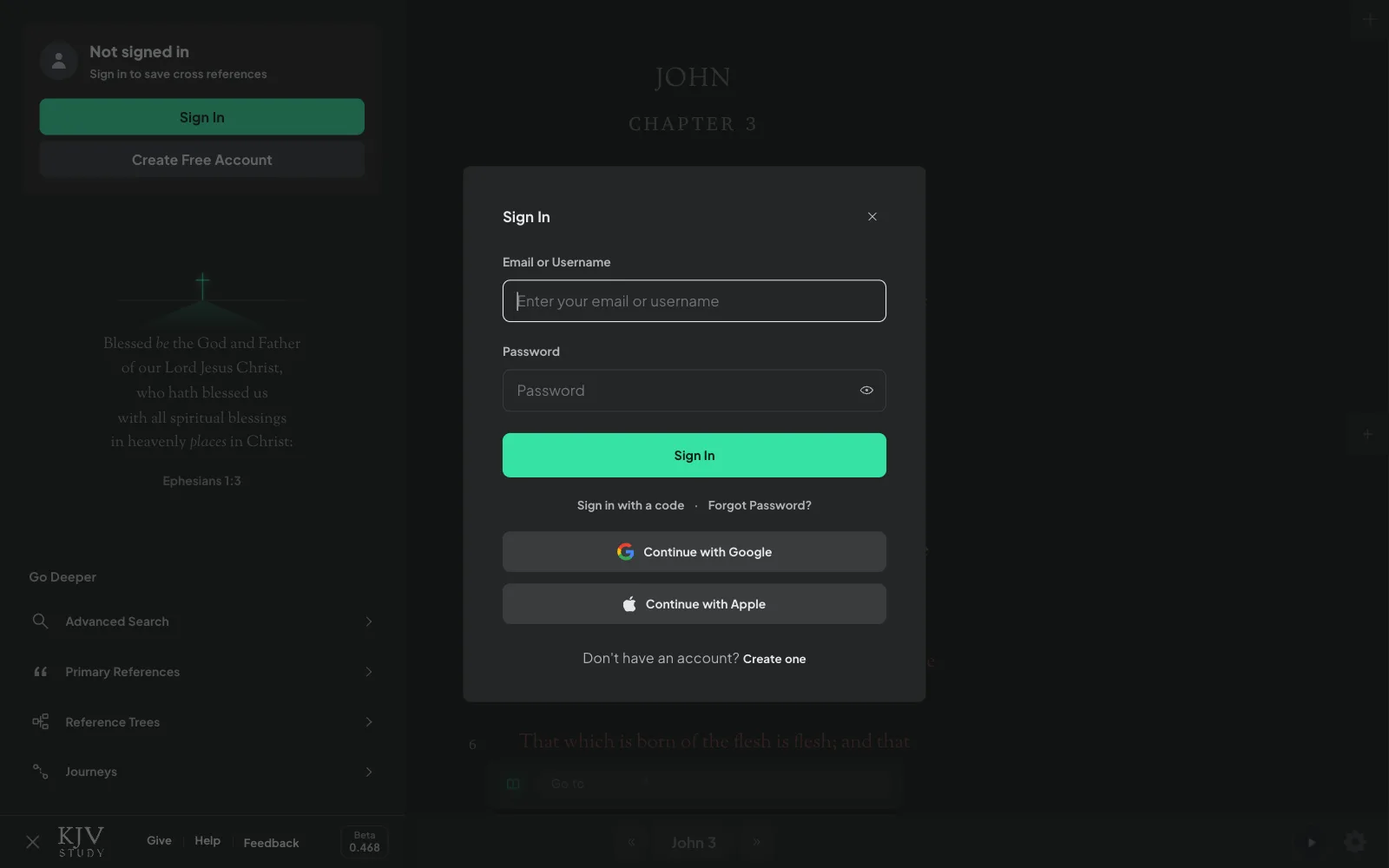
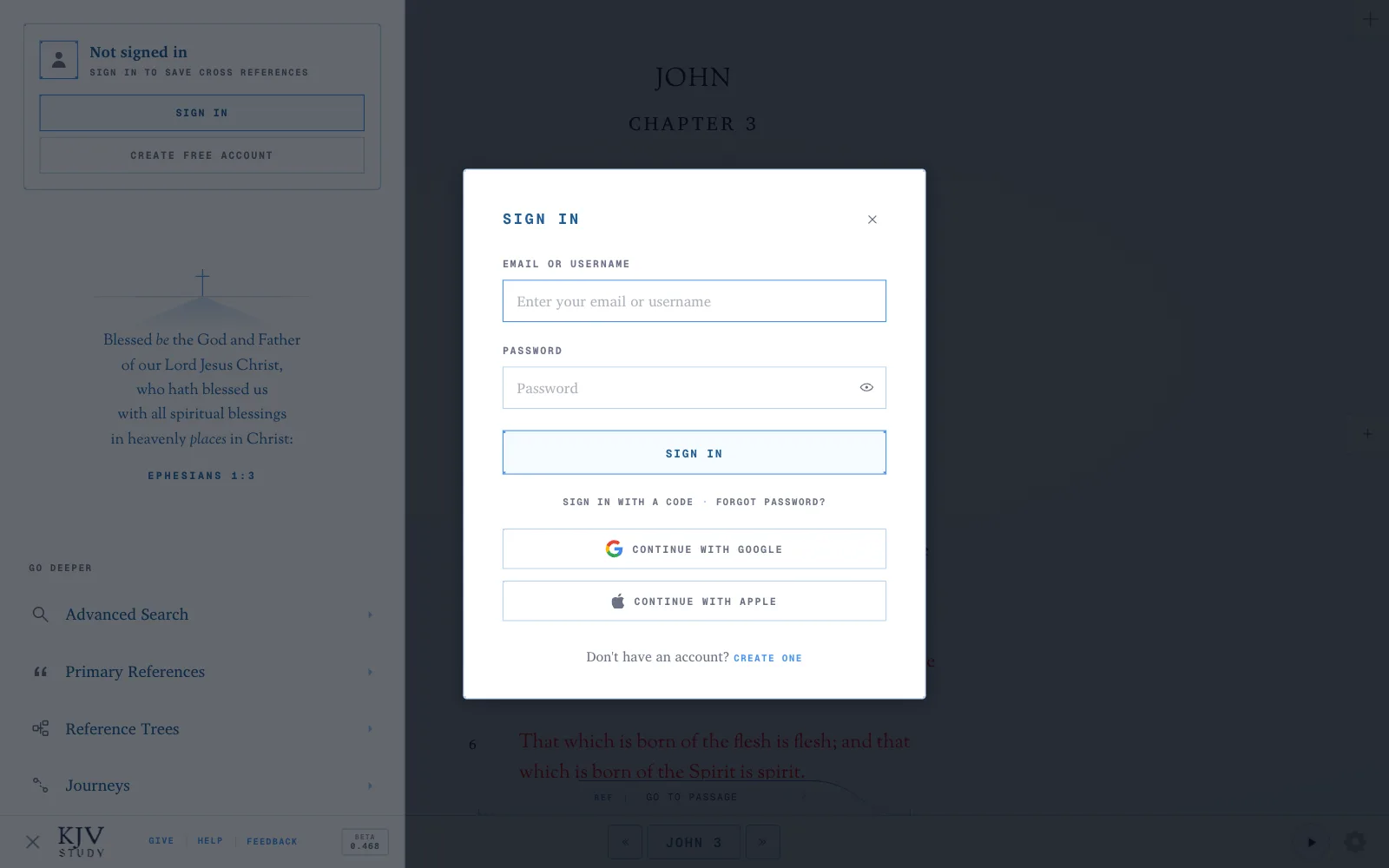
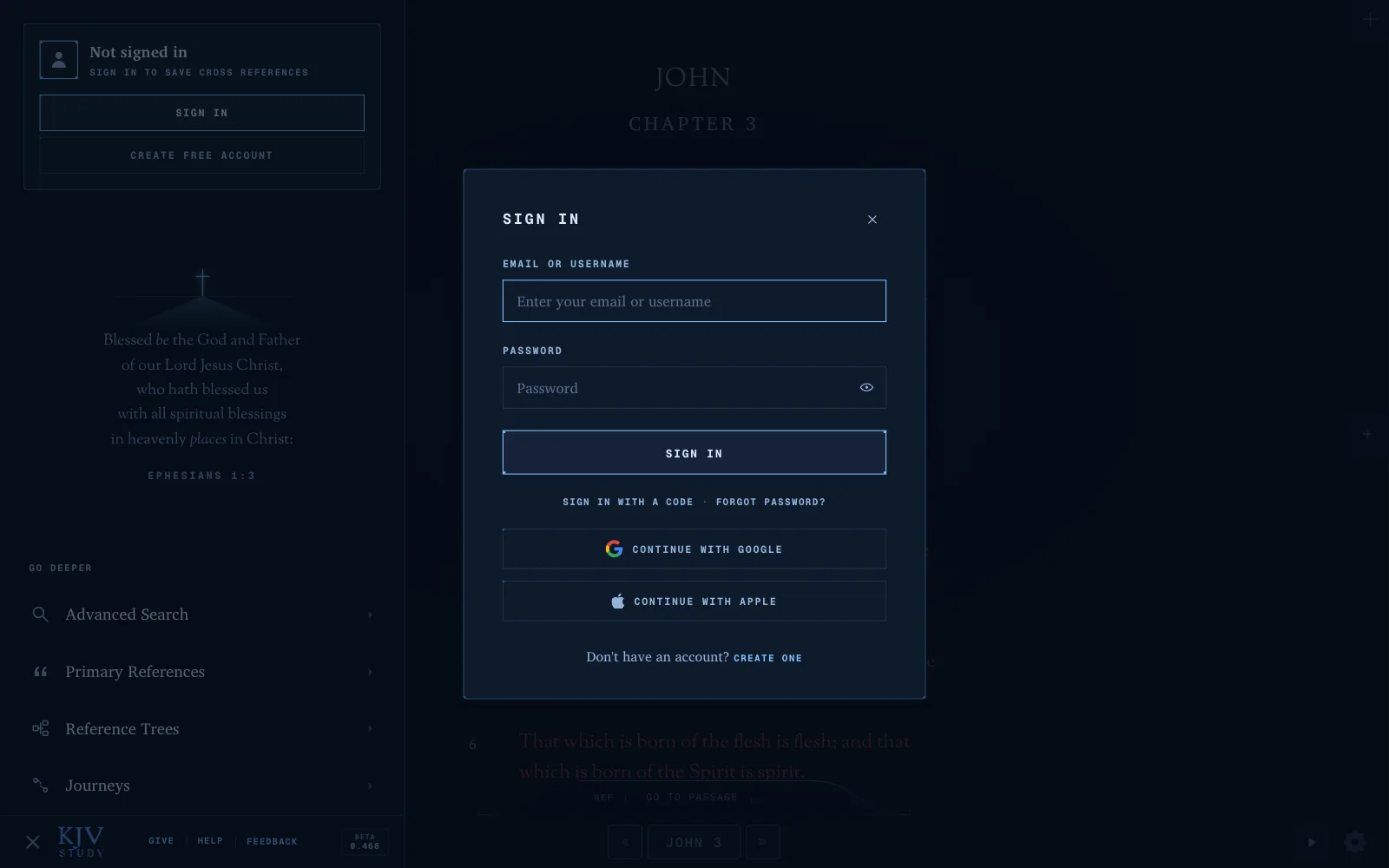
Open the menu and press Sign In. Enter your email or username and password, or choose Continue with Google or Continue with Apple.
To sign in without a password, choose Sign in with a code. Enter your email, press Email Me a Code, and enter the 6-digit code we send.
Use Forgot Password? to receive a link for setting a new password. If a link has expired, the page offers to send another.
What an account keeps Your account keeps your highlights, Verse Chests, Notes, Bible Paths, cross references, reading history and settings across the devices you sign in on.
Your account keeps your highlights, Verse Chests, Notes, Bible Paths, cross references, reading history and settings across the devices you sign in on. It also lets you join the Community, use Messages if you're 18 or older, apply to the Volunteer Board, and upload up to 1 GB of pictures and files.
Changing your details Open the menu and press Edit Profile to change your name, picture, banner and profile page.
Open the menu and press Edit Profile to change your name, picture, banner and profile page.
For other account settings, open More account options:
- Update email address: confirm it's you, then open the confirmation link sent to your new address.
- Change Password.
- Birthday: choose whether your profile shows no birthday, the month and day, or the full date. To correct the date itself, write to us.
- Storage: see how much of your 1 GB you've used and open Manage My Files.
My Files My Files in the menu lists your uploaded pictures and files, along with where they're used, such as your profile, a note or a post.
My Files in the menu lists your uploaded pictures and files, along with where they're used, such as your profile, a note or a post. Sort by newest or largest, select files, and press Delete to free up space. Deleting a file removes it everywhere it's used.
Signing out Press Sign Out in the menu.
Press Sign Out in the menu. Your account's saved data is cleared from this browser, while your display preferences stay.
Deleting your account Open Edit Profile, then More account options, then Delete Account.
Open Edit Profile, then More account options, then Delete Account. Press Delete My Account and confirm it's you. This permanently deletes your profile, settings, reading history, cross references, Verse Chests and notes. Messages, posts and comments you've shared in conversations with others remain under the name "deleted member".