Advanced Search
Search the Bible for words, phrases and patterns, choose where to look, and see the results by verse, chapter and book.
Opening Advanced Search Press the magnifier in the bottom-left corner of the reading, or choose Advanced Search under Go Deeper in the menu.
Press the magnifier in the bottom-left corner of the reading, or choose Advanced Search under Go Deeper in the menu. On a phone, use the magnifier at the top left.
Searching for words Type in the search box.
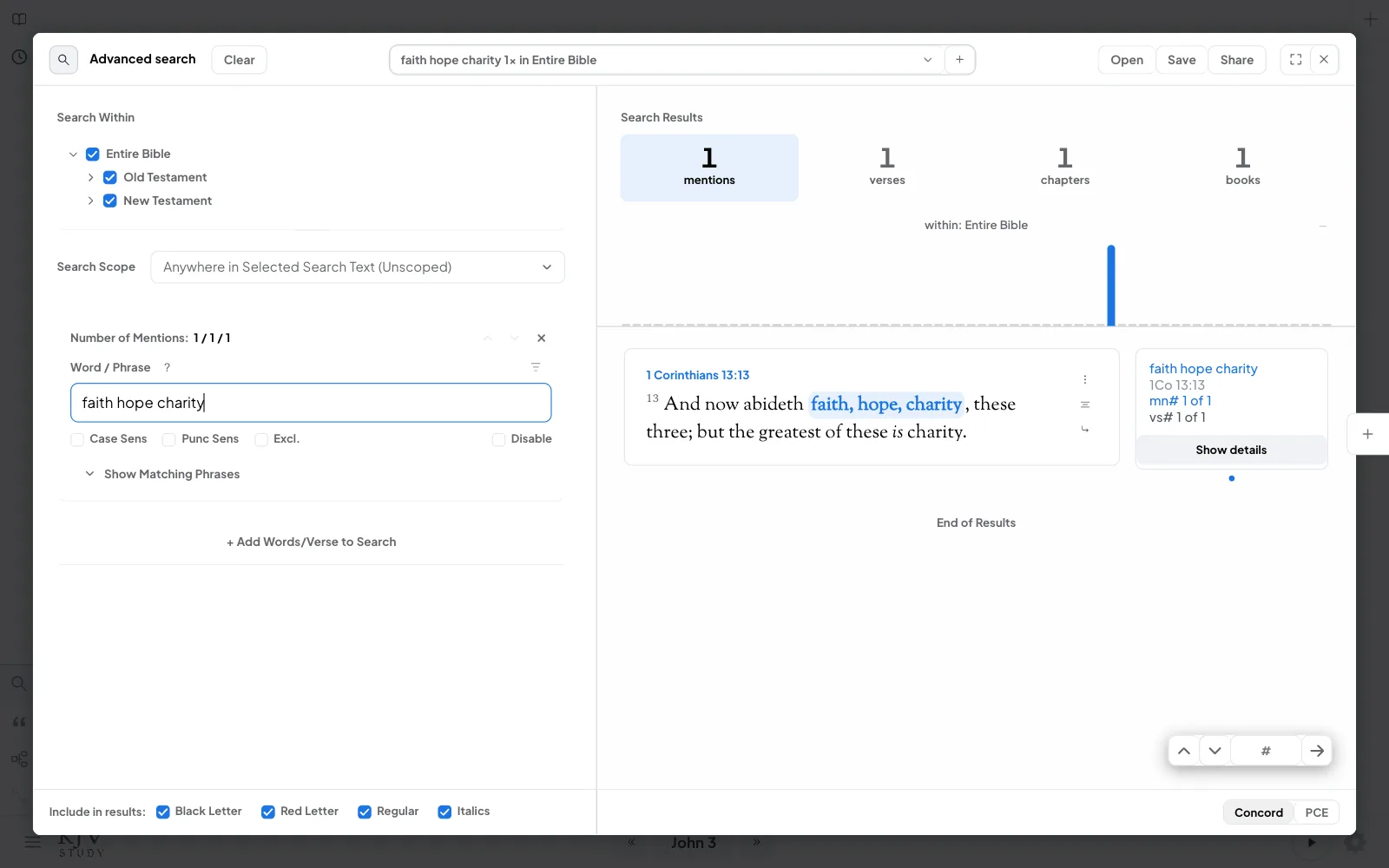
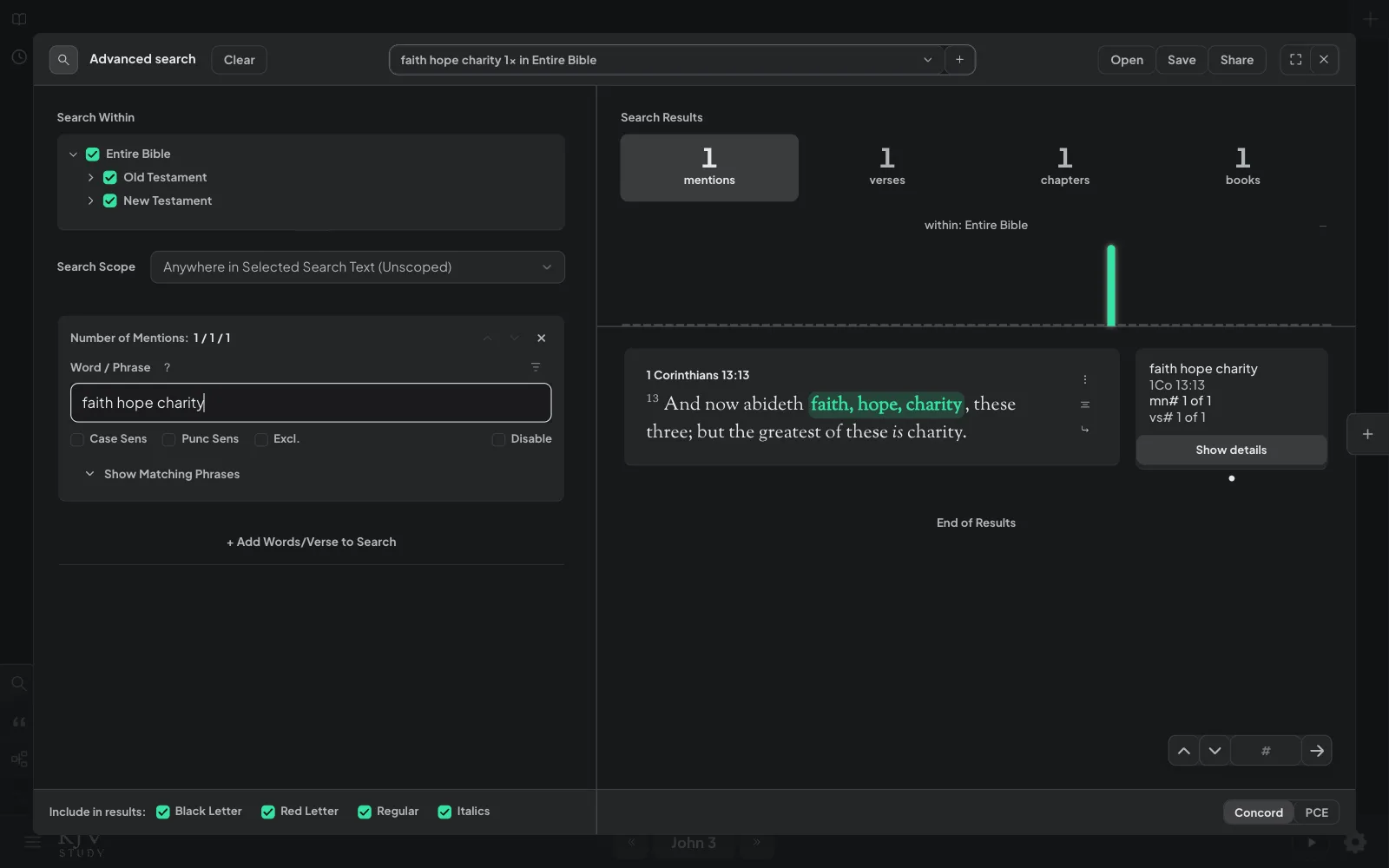
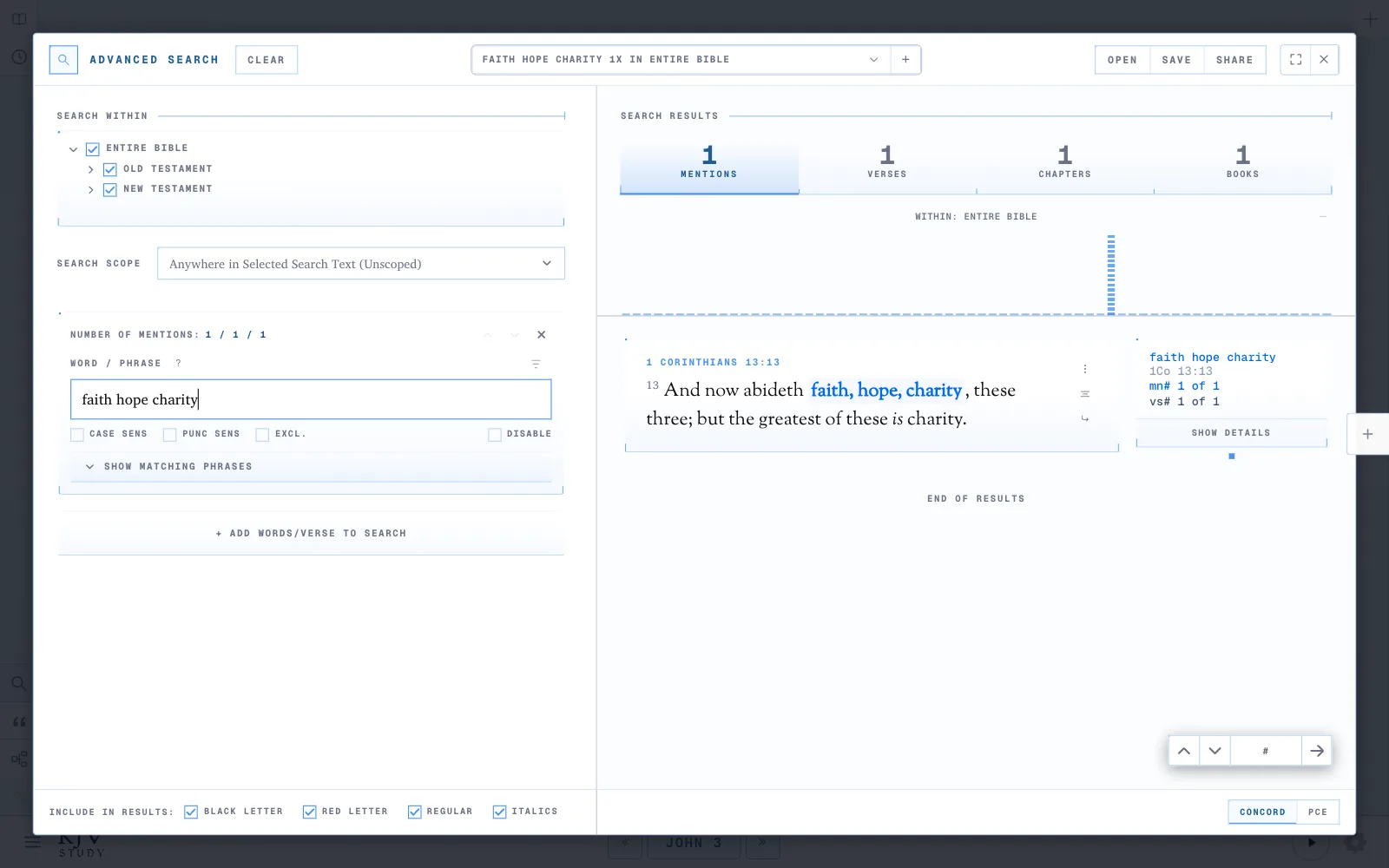
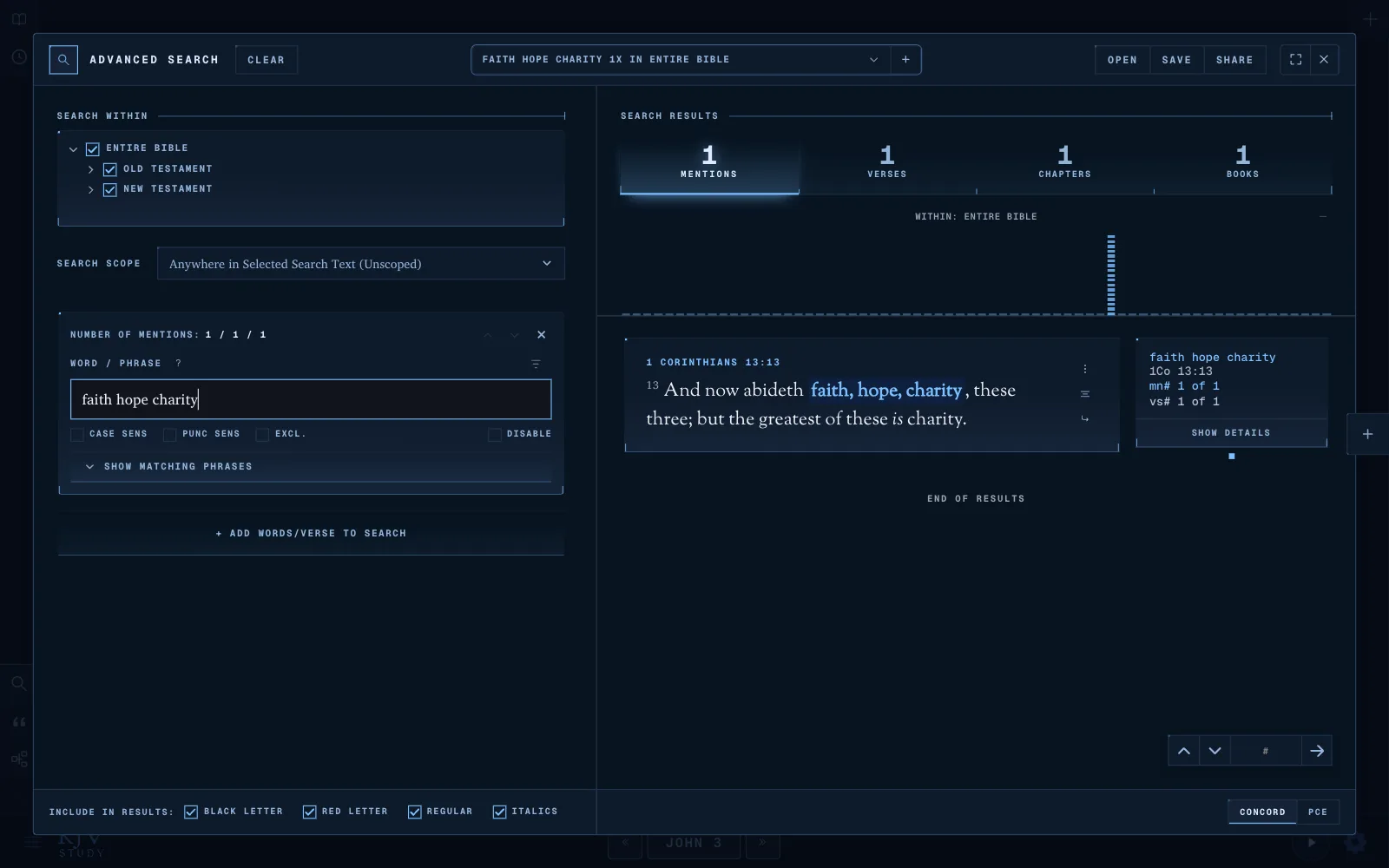
Type in the search box. Words entered together are searched as a phrase, in that order. You can also use these patterns:
- A bar means either word: "James | John".
- A star stands for any letters: "baptiz*" finds baptize, baptized and baptizing. A star on its own stands for any one word: "fruit of * doings".
- A question mark stands for one letter inside a word.
- Letters in square brackets match any one of those letters: "[dk]" matches d or k.
Each word or phrase has its own entry, mention count, and options: Case Sensitive, Punctuation Sensitive, Exclude (find verses without it) and Disable (leave it out of the search without deleting it).
Searching for several things at once Press + Add Words/Verse to Search to add another word, phrase, verse or range.
Press + Add Words/Verse to Search to add another word, phrase, verse or range. Then choose the Search Scope:
- Anywhere: find each entry separately.
- Together in Same Verse, Same Chapter or Same Book: find only places where the entries occur together.
Narrowing where it looks Search Within: choose Testaments, groups of books, or individual books.
- Search Within: choose Testaments, groups of books, or individual books. You can also include or leave out Psalm titles and closing notes.
- Include in results: choose black letters, red letters (the words of Christ), regular text or italics.
- Concord | PCE at the bottom right chooses whether to search the spelling of the standard text or the Pure Cambridge Edition.
- Some names refer to more than one person. Where available, Raw | Pure lets you distinguish between them.
Reading the results The results show how many mentions, verses, chapters and books were found.
The results show how many mentions, verses, chapters and books were found. Bars show how the results are spread across the books. Each verse card has Show Context, Go to Verse and a menu. Choose View Excluded Results to see what your exclusions left out.
Keeping and sharing searches You can keep several searches open in tabs using New search.
You can keep several searches open in tabs using New search. When you're signed in, Save keeps a search, and Open shows your saved searches. From there, you can favourite, rename, download or delete them. Use Share to share a search by email, message or link.