Splitscreen
Open another view beside your reading, such as cross references, a second passage, the map, your chests or your notes.
Opening a second view On a computer, press the + in the top-right corner.
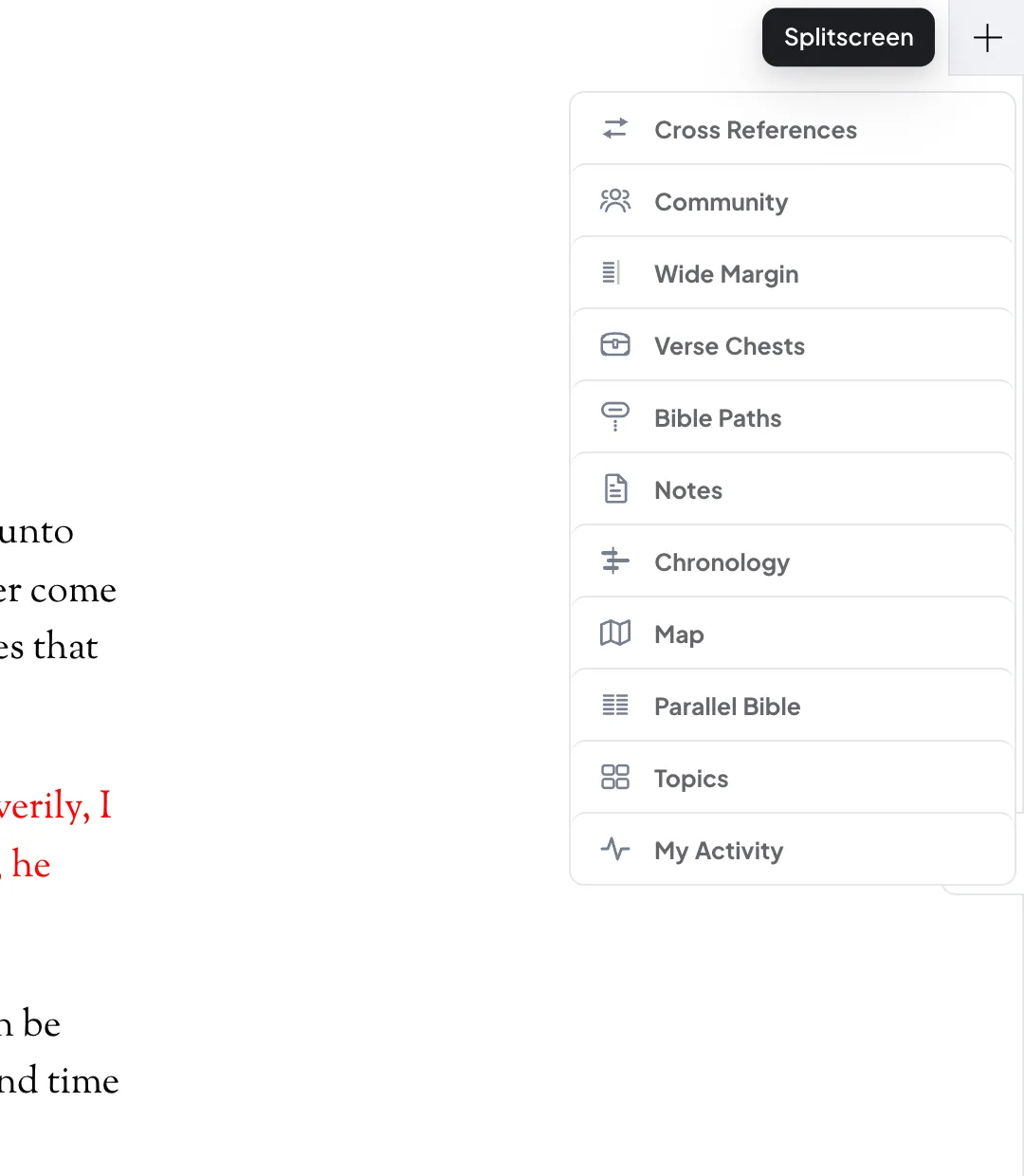
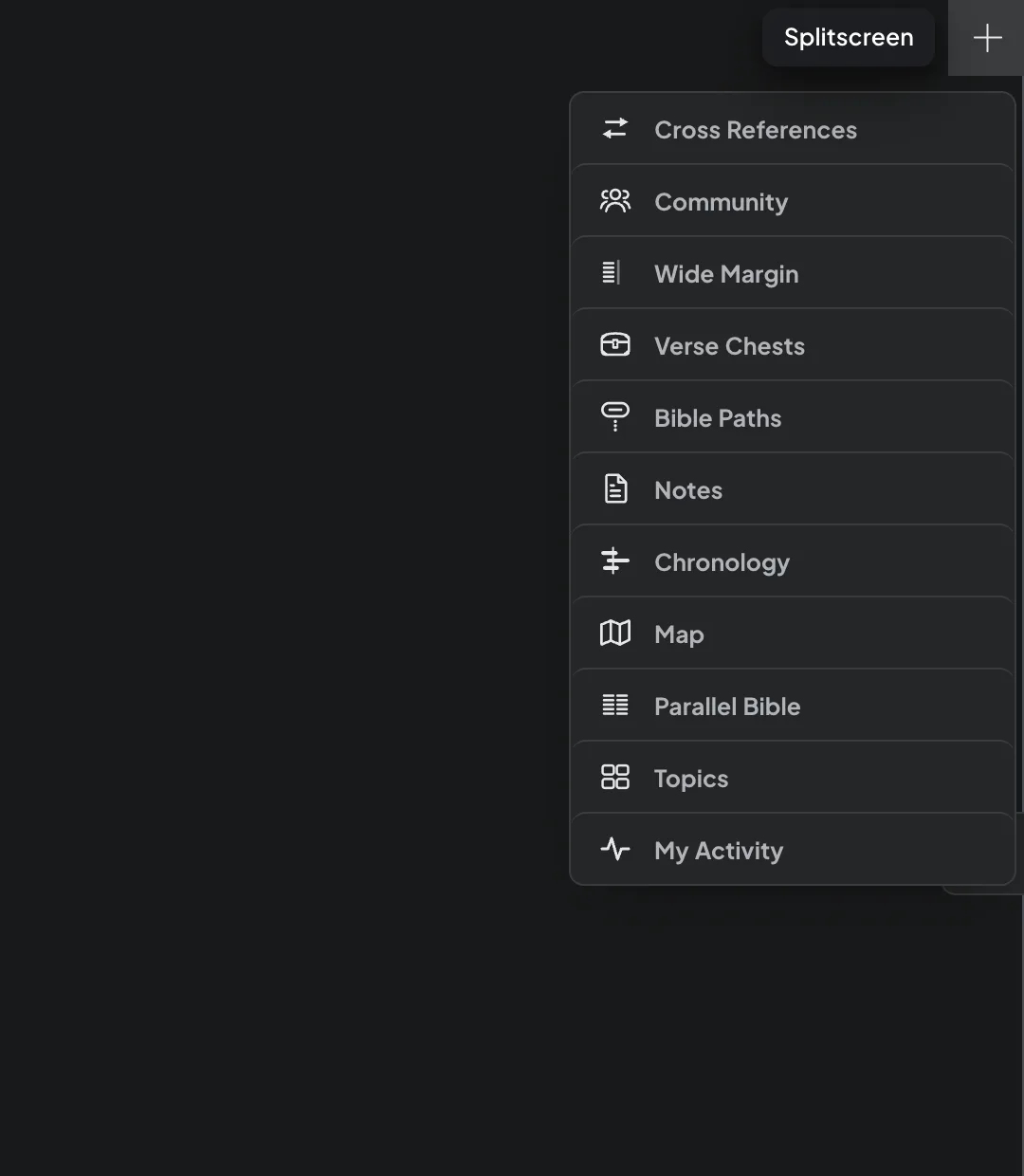
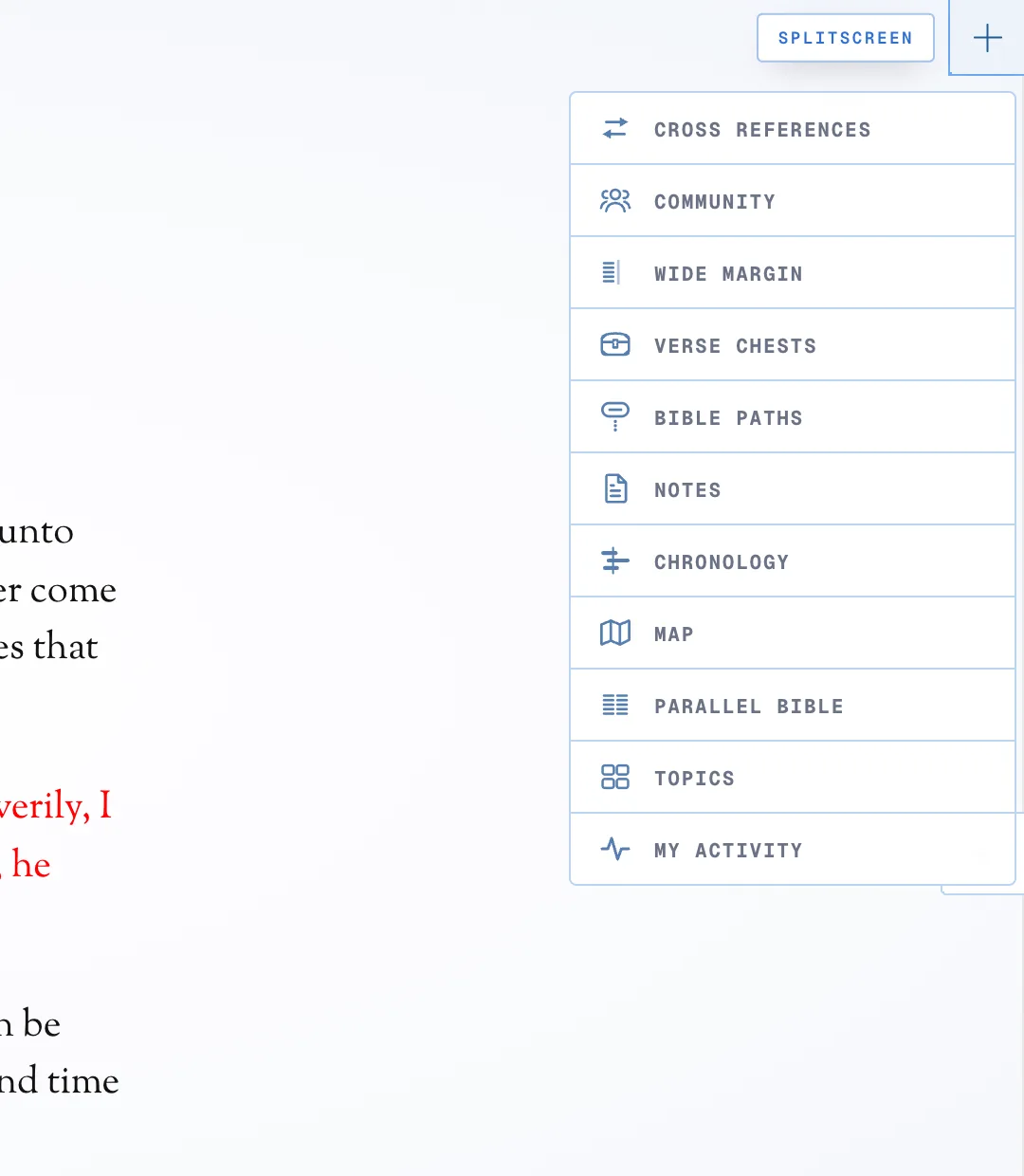
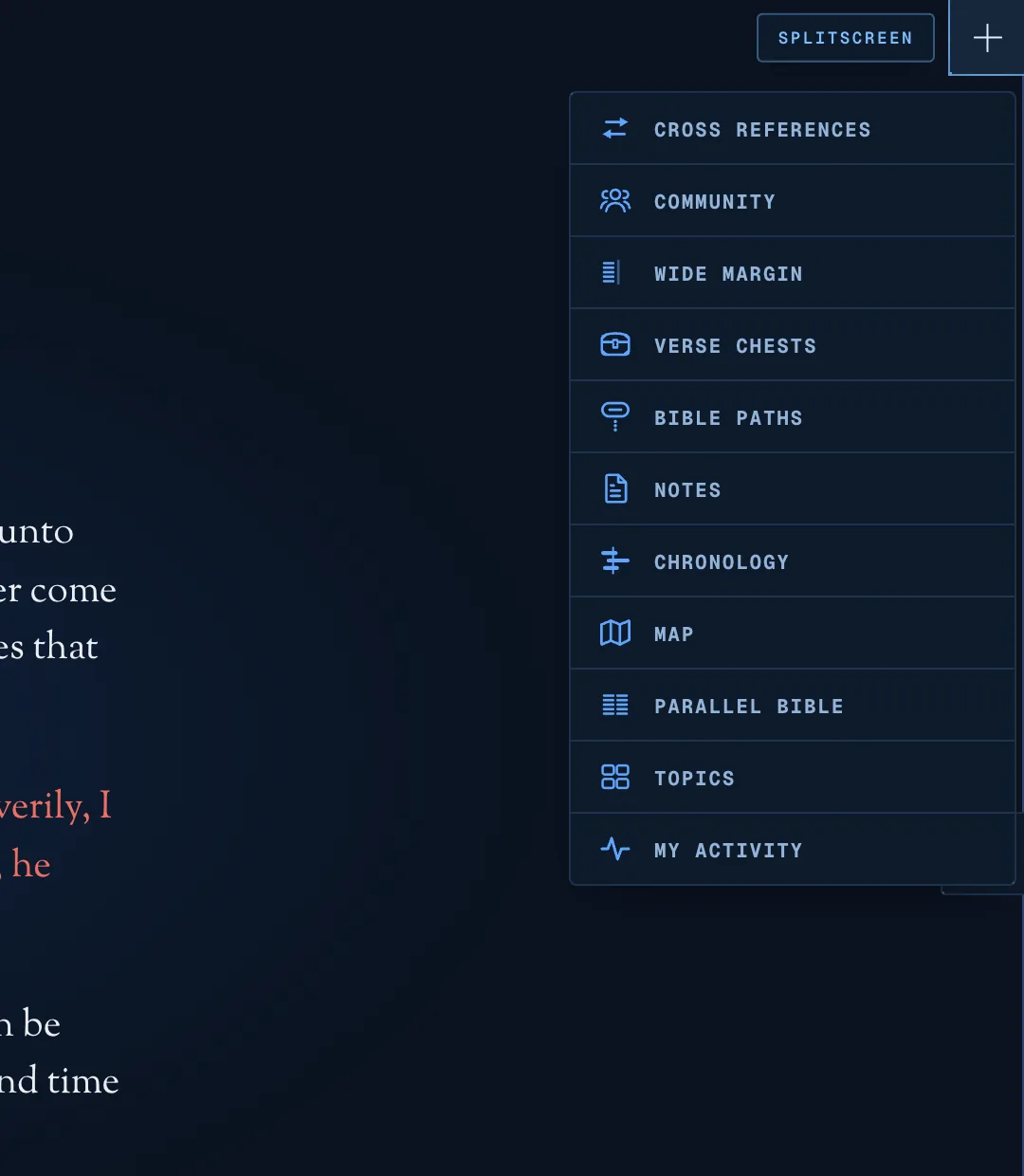
On a computer, press the + in the top-right corner. The first time, you'll see a menu of views. After that, it opens the view you used last. To choose another, right-click the +, or use the button beneath it while a view is open.
The available views are Cross References, Community, Wide Margin, Verse Chests, Bible Paths, Notes, Chronology, Map, Parallel Bible, Topics and My Activity.
Resizing and closing Drag the dividing line to make either side wider.
- Drag the dividing line to make either side wider. Double-click it to return to equal widths. The site remembers your adjustment.
- Close the view with ✕ (the + turned on its side), or choose Close Splitscreen in the menu.
- Each view has its own address, such as /map/ or /parallel/, so you can bookmark or share your reading with that view open.
Parallel Bible Parallel Bible opens a second reading column on the right, with its own chapter button and arrows.
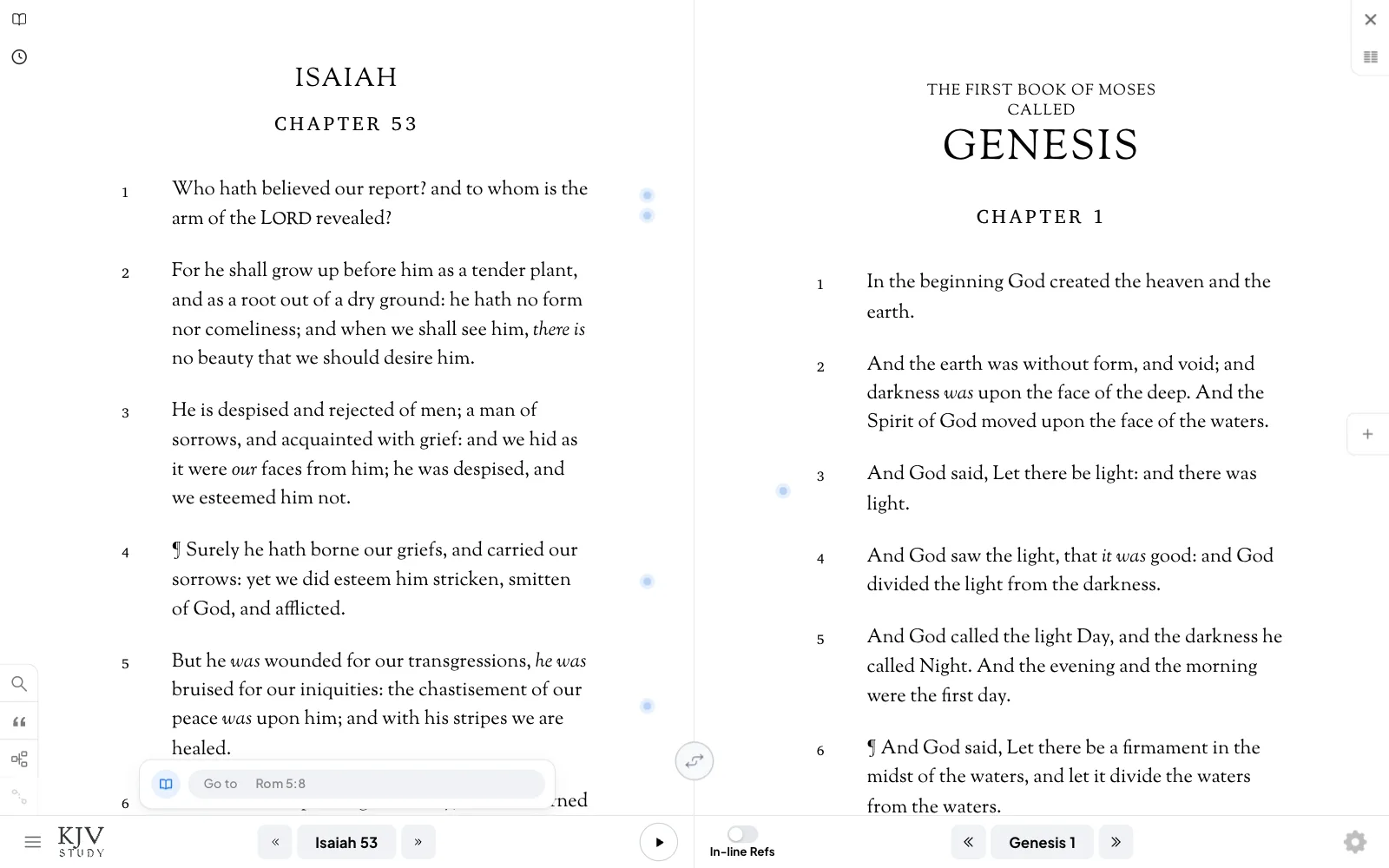
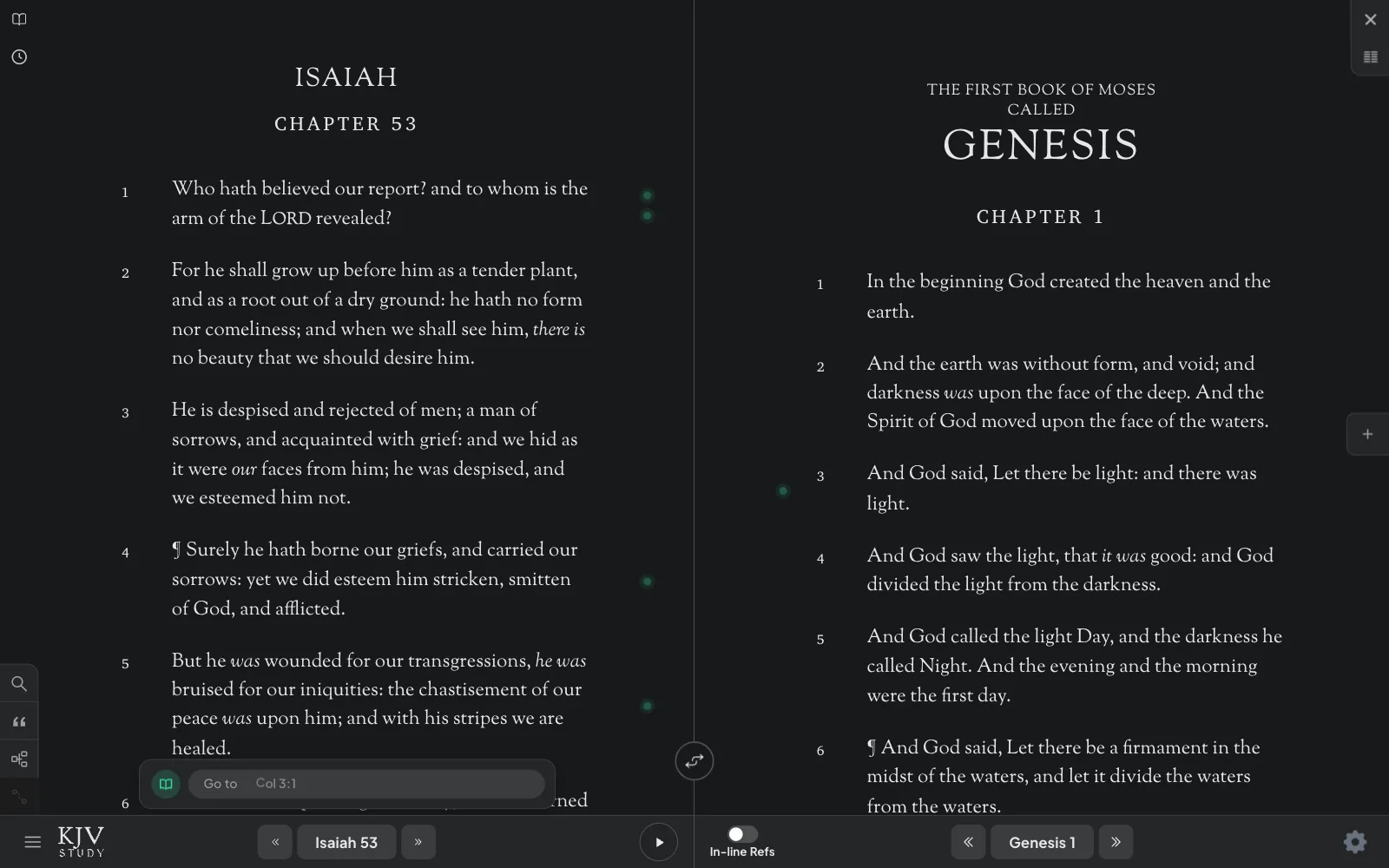
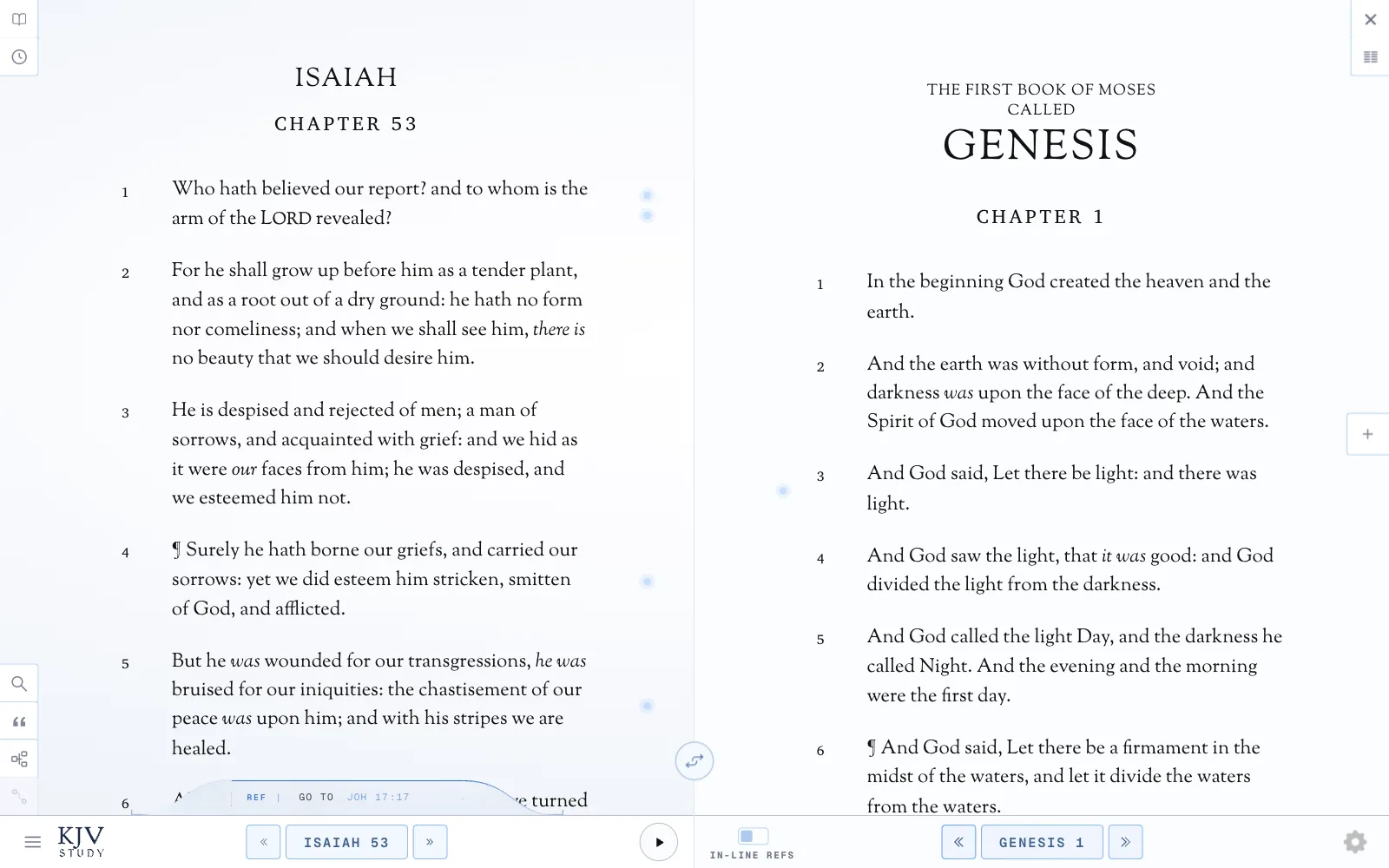
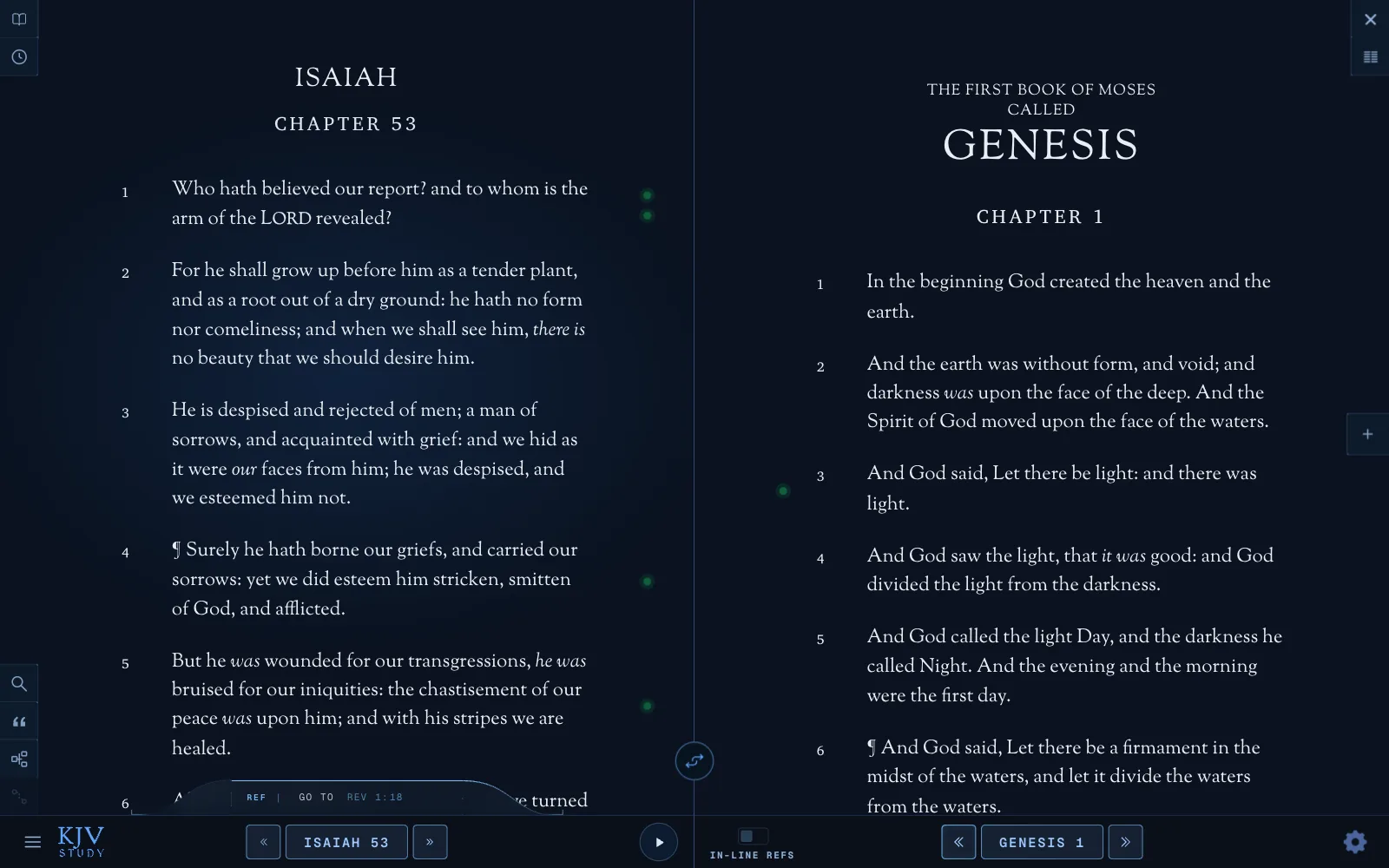
Parallel Bible opens a second reading column on the right, with its own chapter button and arrows. Use it to read two passages together, such as a prophecy and its fulfilment or two Gospel accounts.
- Dots and lines connect verses in the two columns that cite each other.
- Click in the right column to use the arrow keys for that column's chapters.
- Swap sides, on the dividing line, exchanges the passages. Drag the button along the line to move it, or into the bottom bar to hide it.
- Choose Open in parallel in a cross reference's menu to open that passage here.
Wide Margin Wide Margin places a narrower column of text beside a blank right-hand margin, like a journaling Bible.
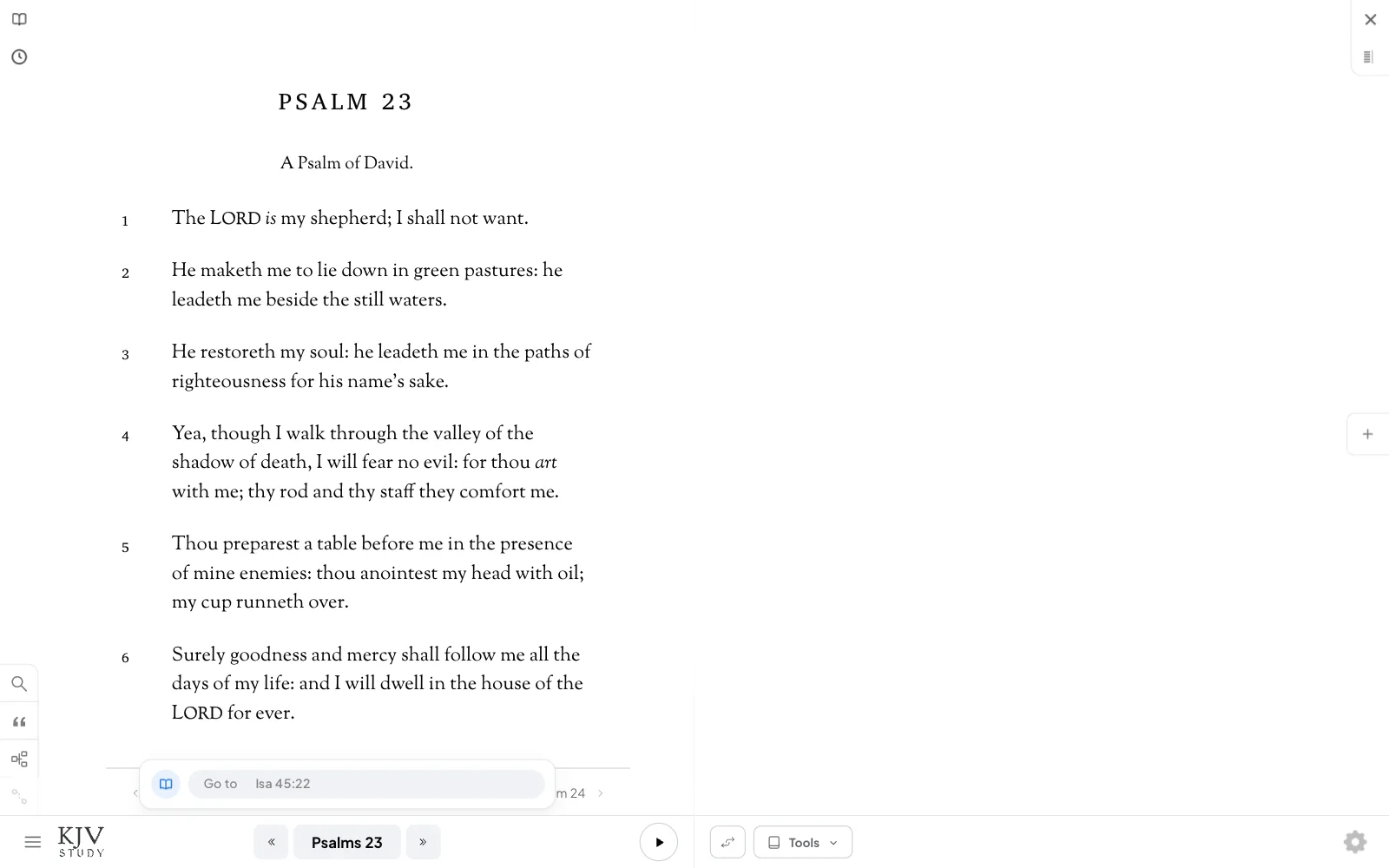
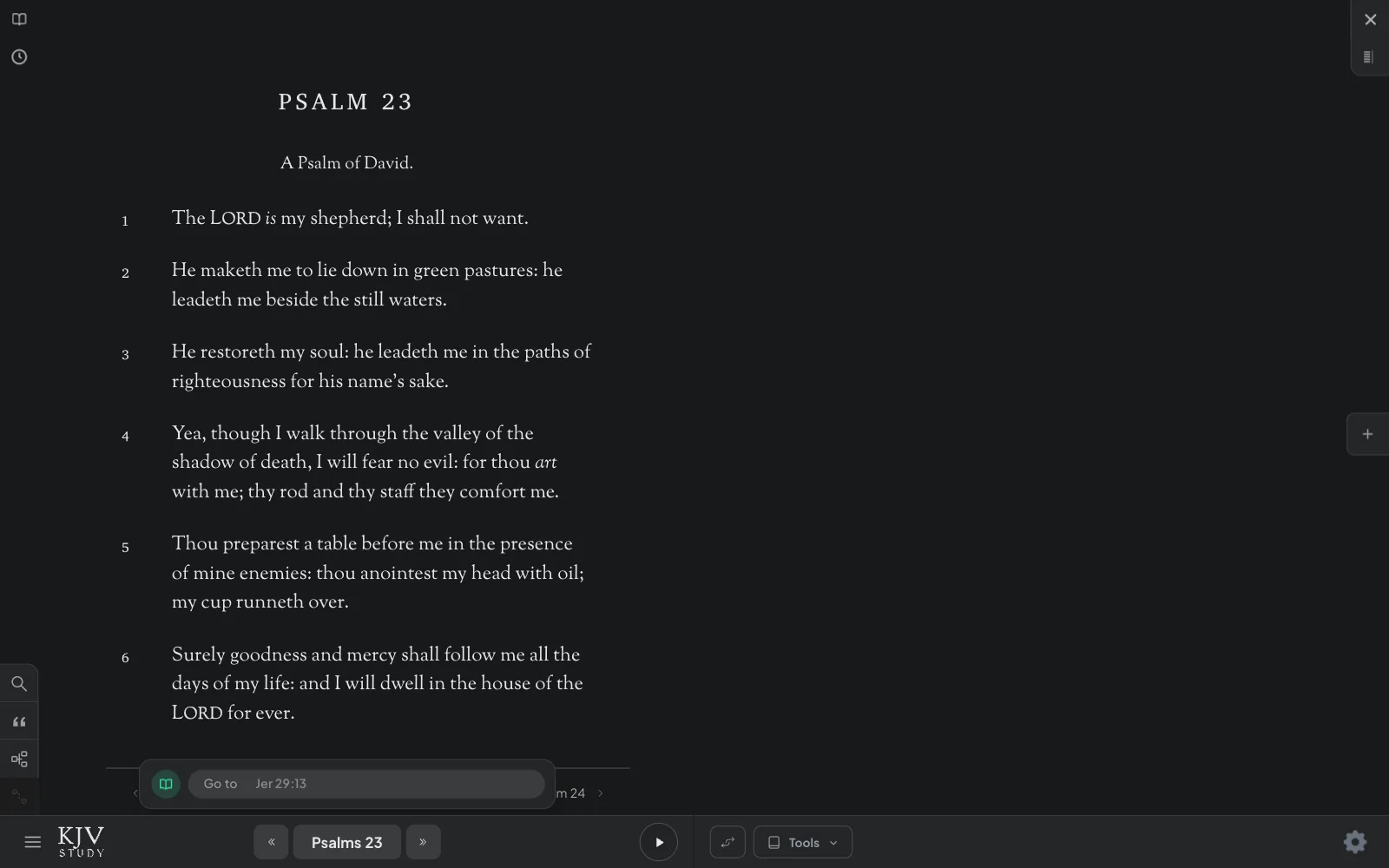
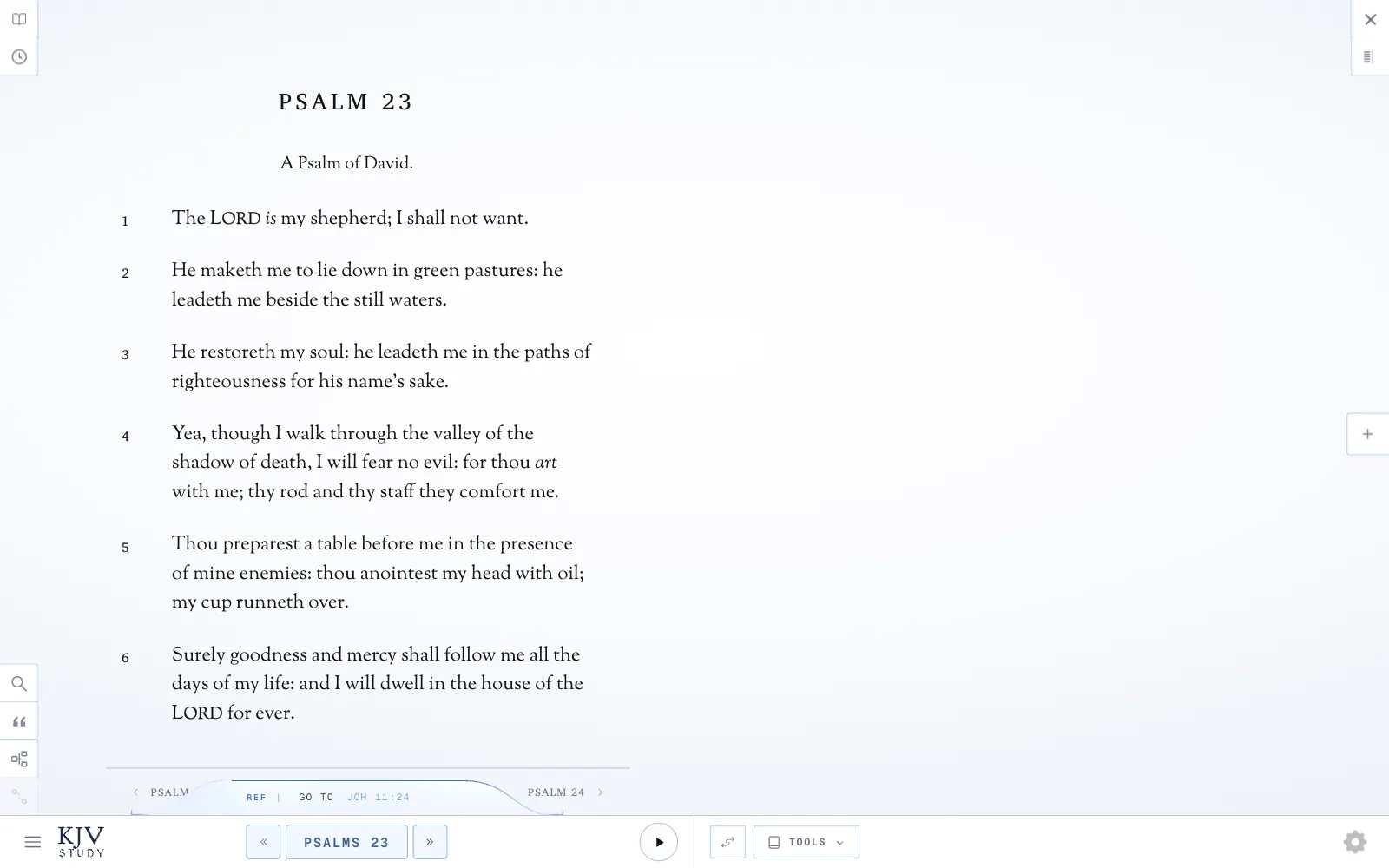
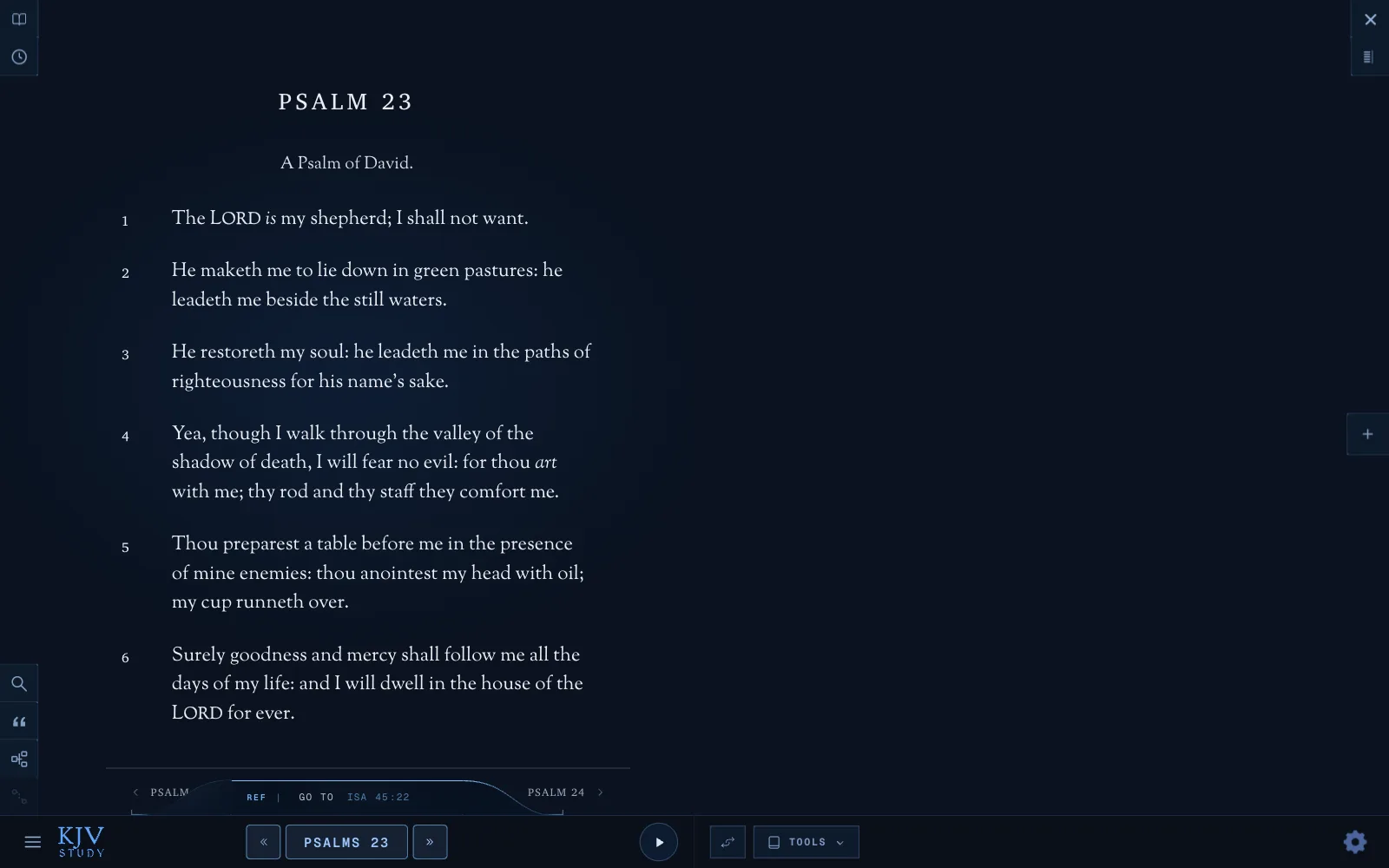
Wide Margin places a narrower column of text beside a blank right-hand margin, like a journaling Bible. Use Tools in its bottom bar to open Search, Webster's 1828, Strong's, Notes, the Video Player, Person and Place Profiles, or Measures & Time in the margin. Swap sides moves the reading to the right.
Topics Topics gathers your chests, paths and notes by subject.
Topics gathers your chests, paths and notes by subject. About thirty subjects, including salvation, prayer and baptism, list what you've filed under them. Anything else appears under Unfiled. Open an entry to view it, or start something new within a subject. Topics are private to you.
My Activity My Activity shows what you've done on the site, day by day: references added, notes written, chests and highlights changed, and searches saved.
My Activity shows what you've done on the site, day by day: references added, notes written, chests and highlights changed, and searches saved. Each entry links to the item it describes. You can filter the list to one kind of activity, such as Highlights.