Using KJV Study on a phone
A guide to the phone layout, choosing chapters, selecting verses, and adjusting your reading.
The phone layout On a phone or in a small window, KJV Study adjusts the layout to make it easier to use with one hand
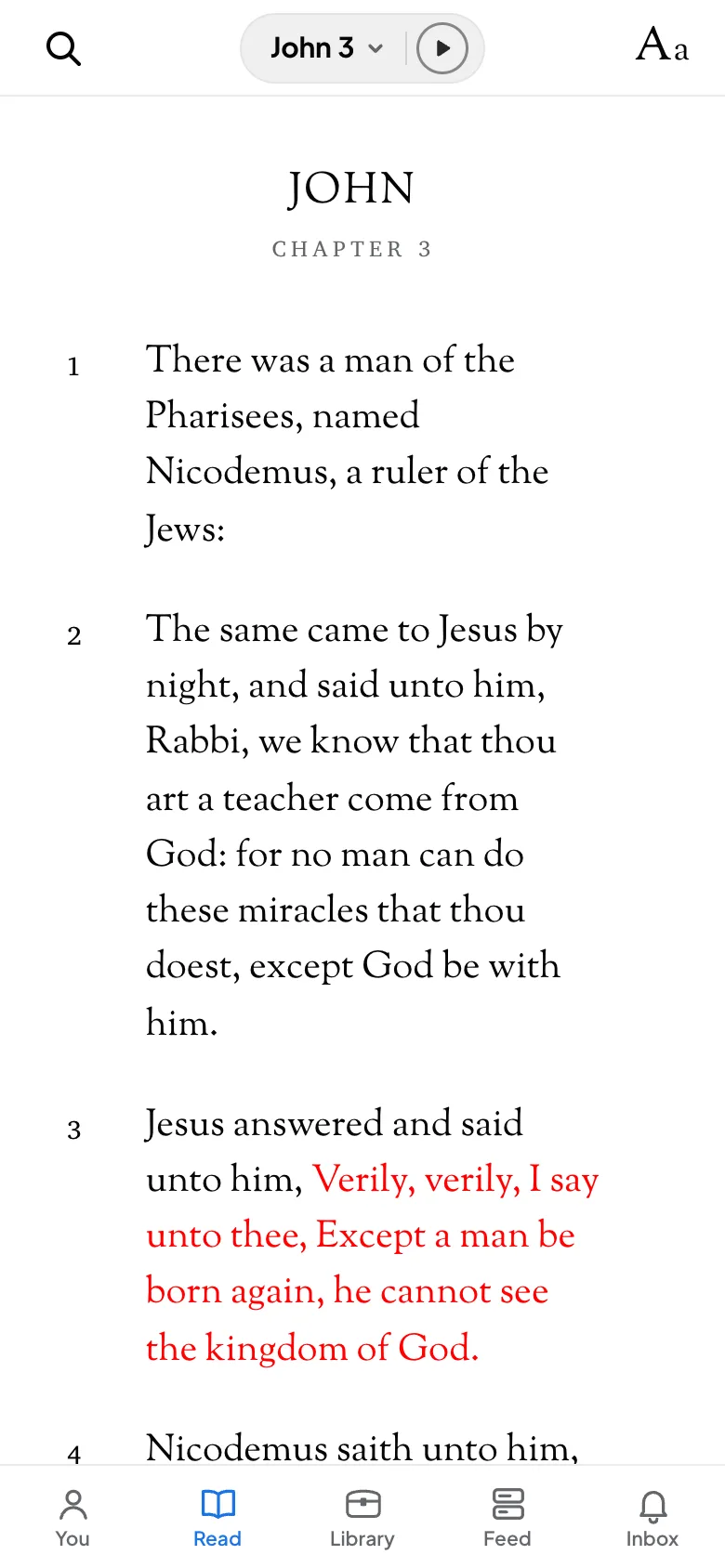
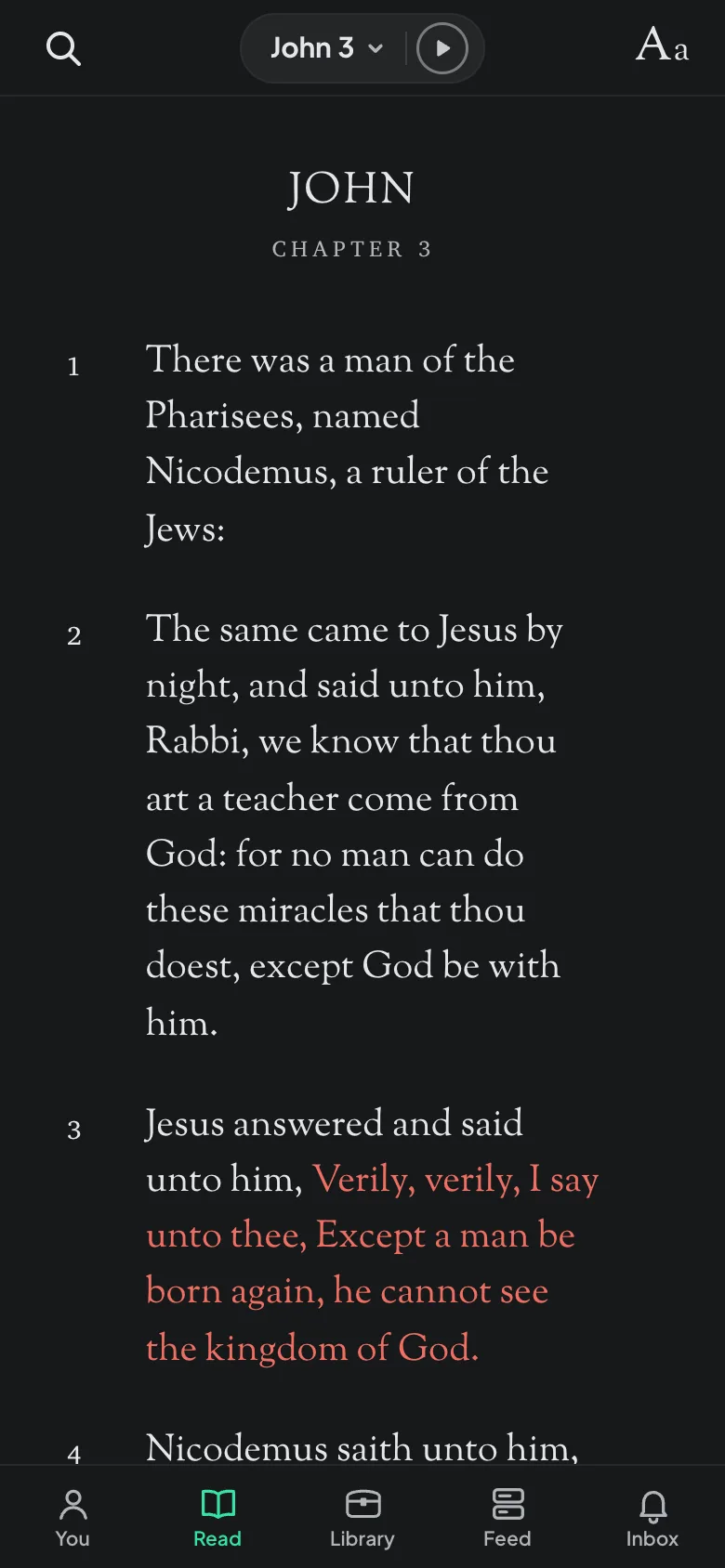
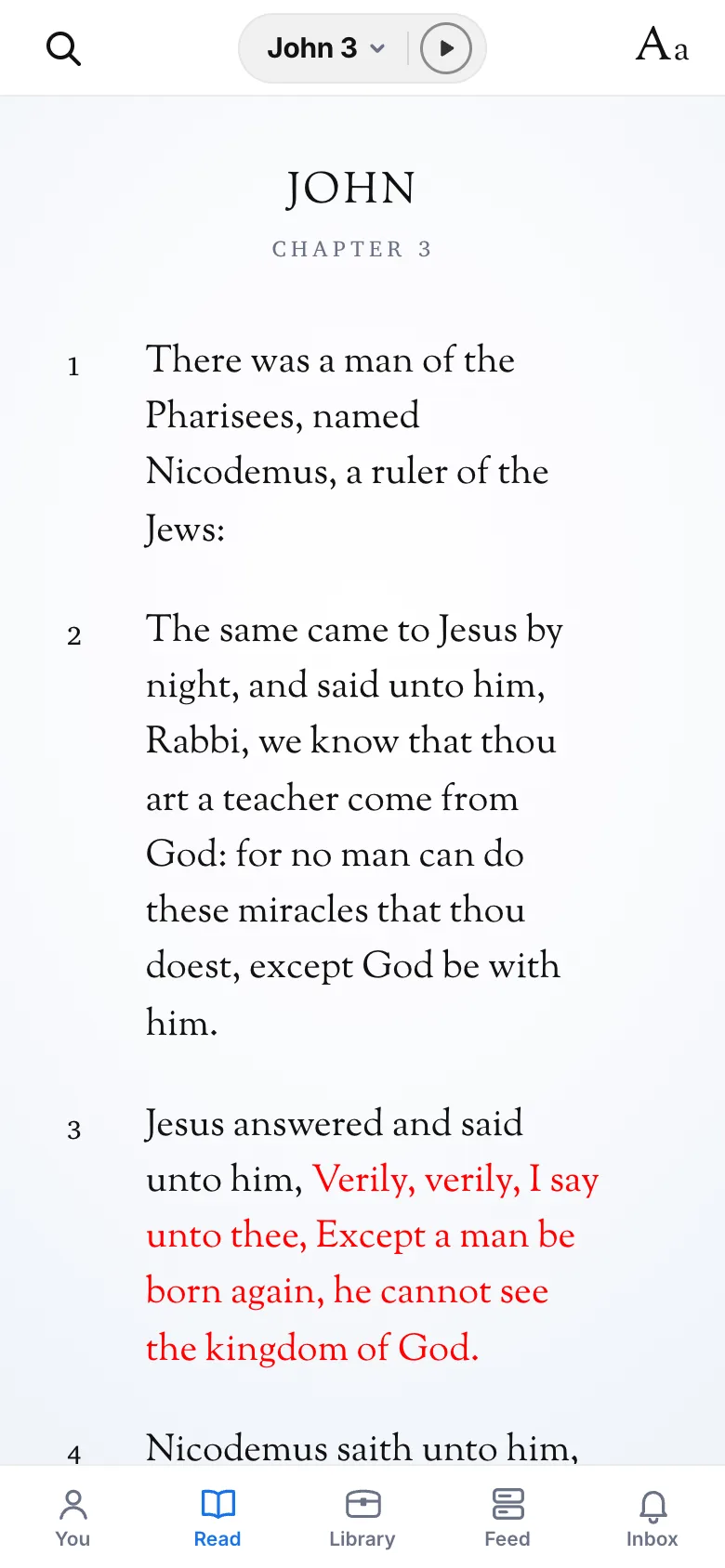
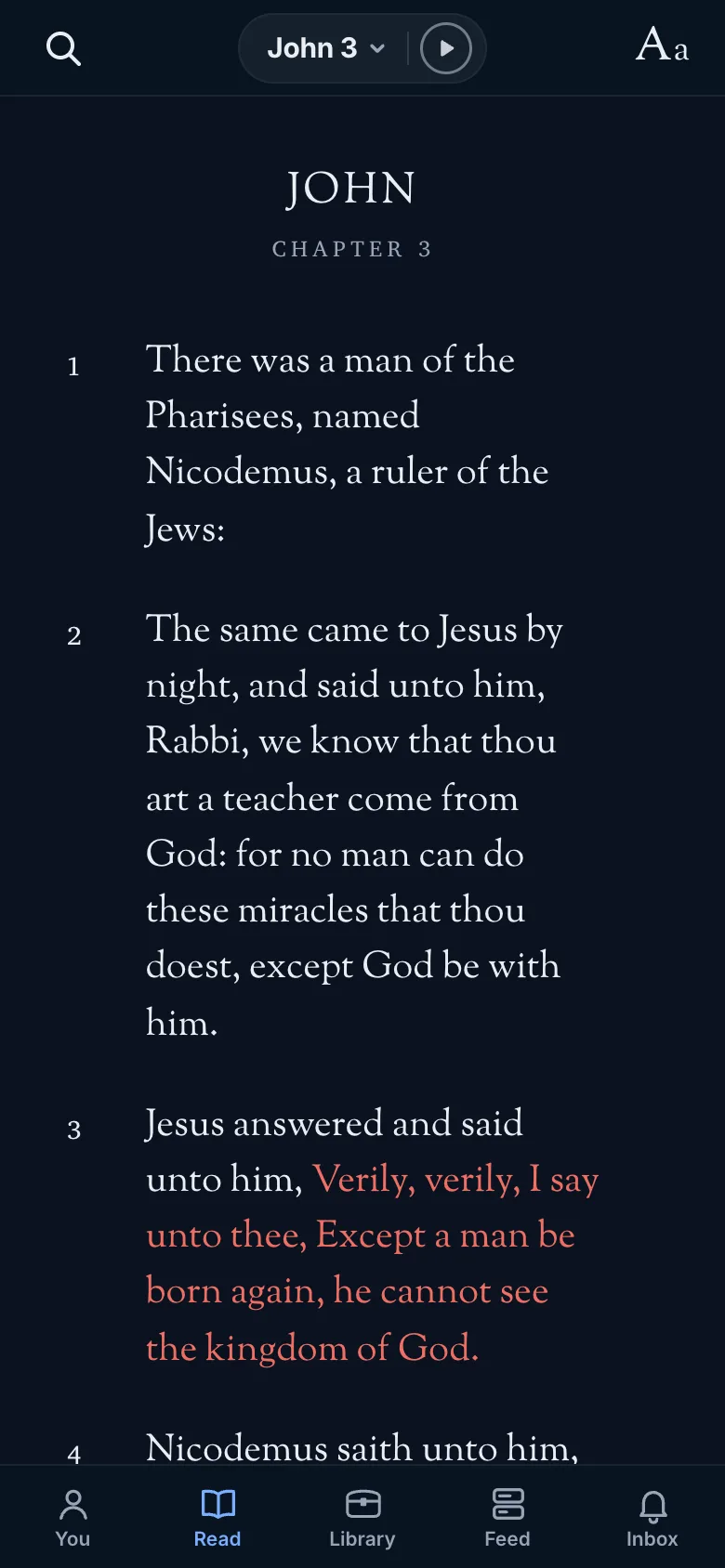
On a phone or in a small window, KJV Study adjusts the layout to make it easier to use with one hand:
- At the top: a search magnifier on the left, a rounded bar in the middle with the chapter's name and a play button, and Aa on the right for display settings. Tap the chapter's name to choose another chapter.
- At the bottom: five tabs: You (the menu), Read, Library, Feed (the Community) and Inbox (notifications).
- Both bars hide as you scroll down through a chapter and return when you scroll up.
Choosing a chapter Tap the chapter's name at the top.
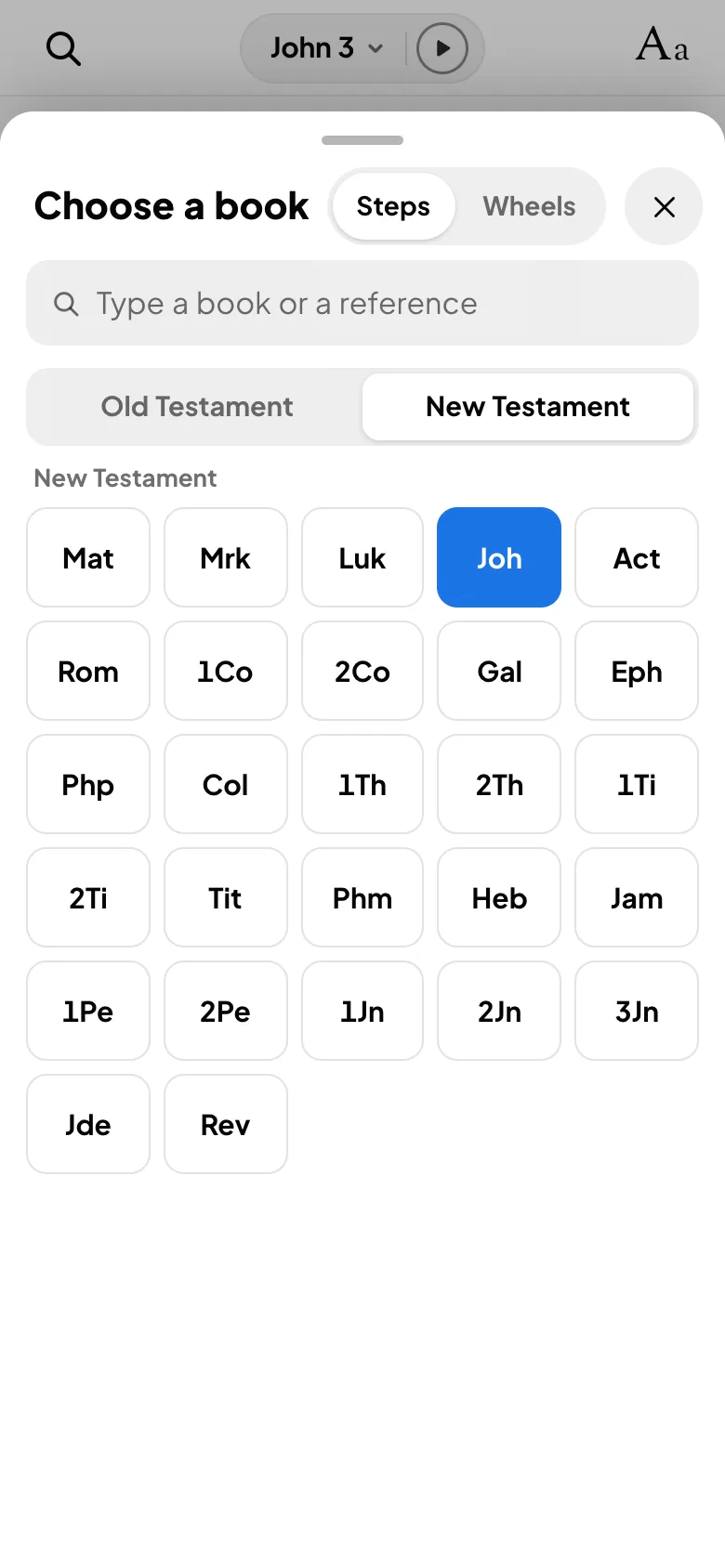
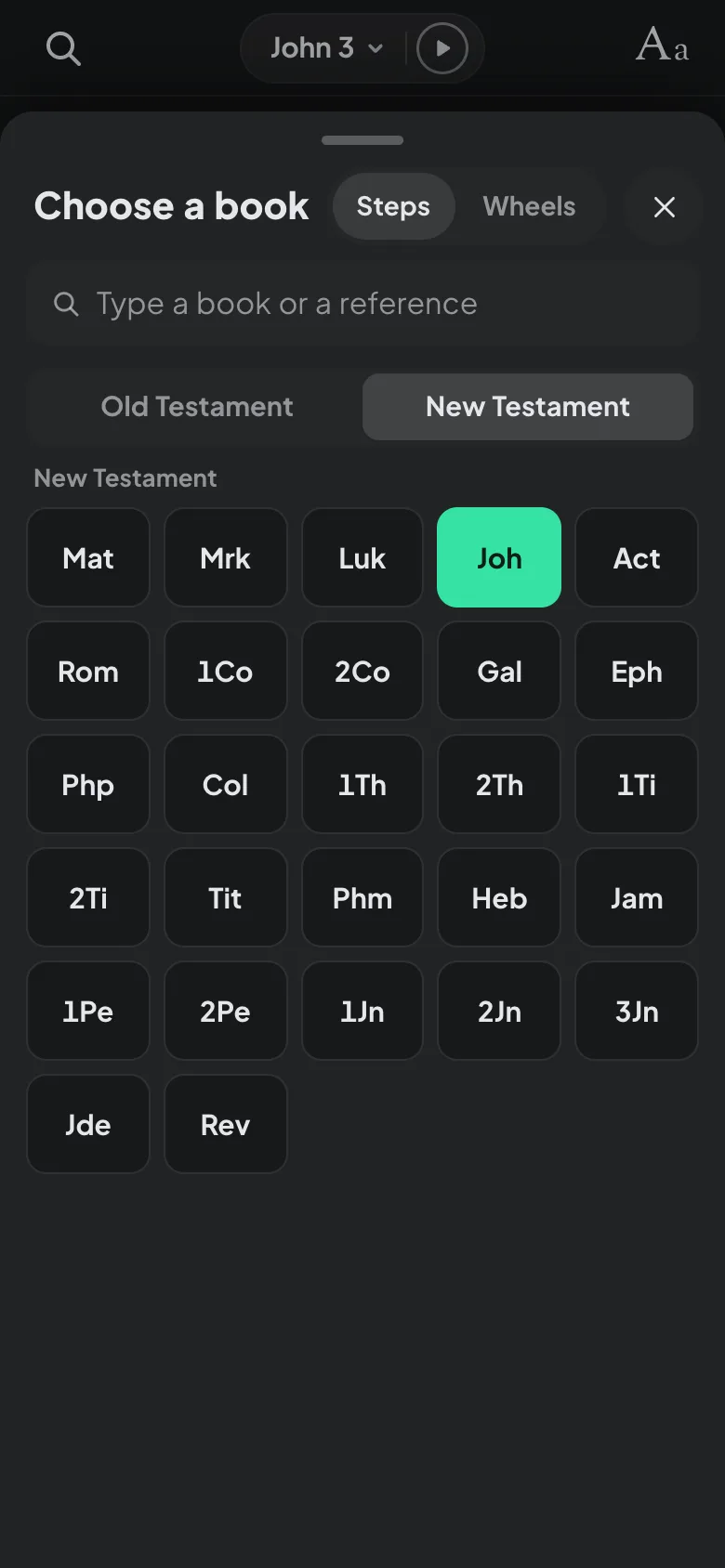
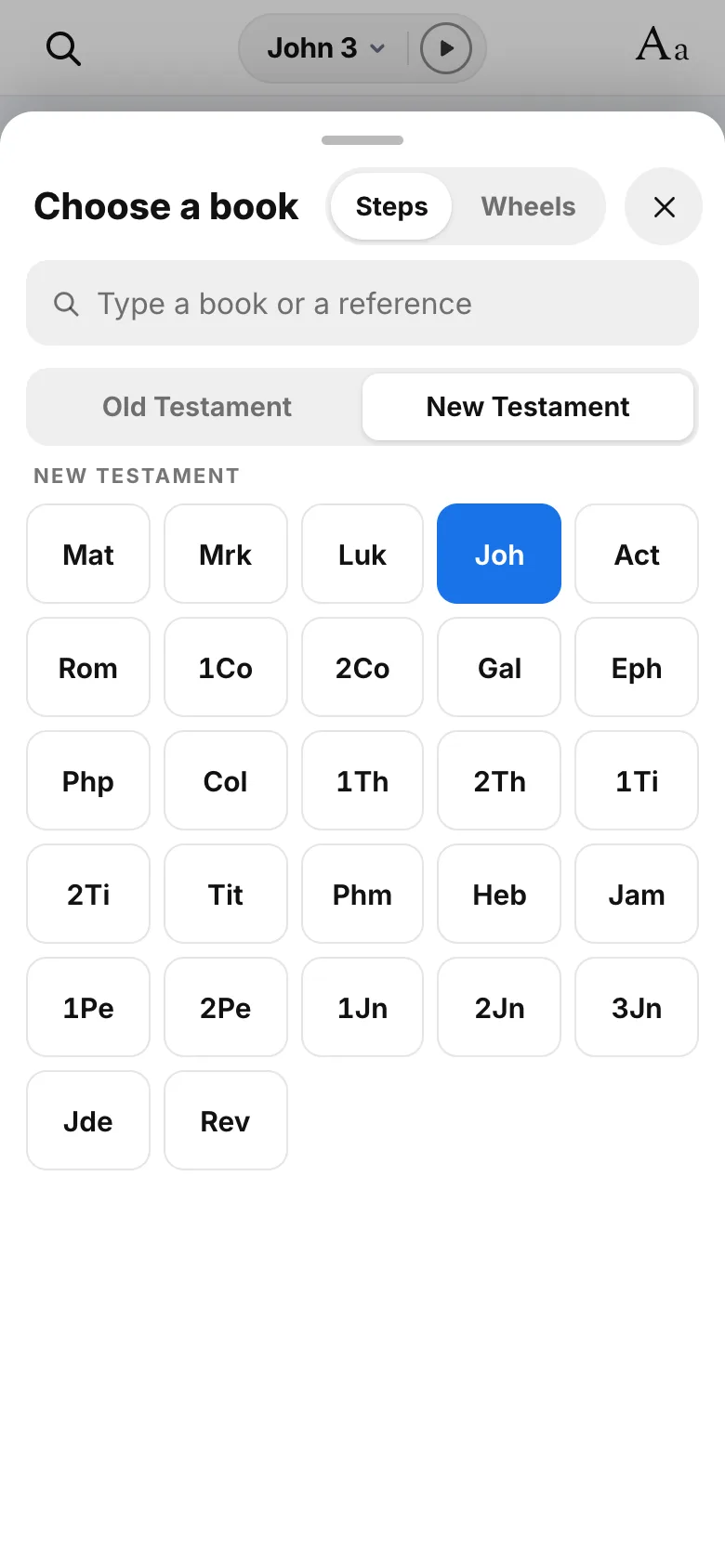
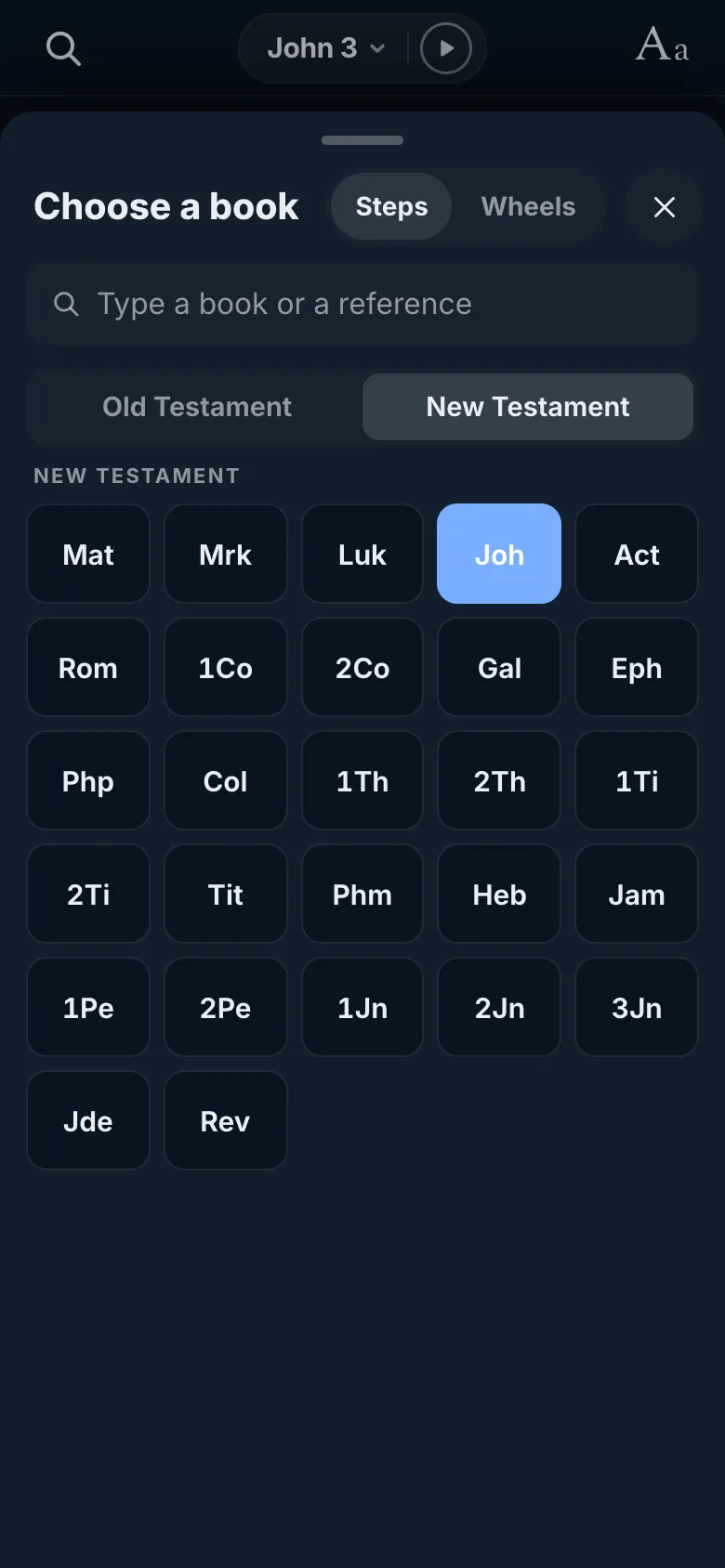
Tap the chapter's name at the top. The chapter picker has two styles, which you can switch between beside the close button:
- Steps: choose a book from the grid, then a chapter number, or use the Section outline of the book.
- Wheels: turn the Book, Chapter and Verse wheels, then press Go. Choose Type to enter a reference instead.
Swipe sideways across the reading to move between chapters. Use a deliberate swipe, starting a little away from the edge so your phone doesn't treat it as one of its own gestures.
Tapping and holding verses Tap a verse to select it.
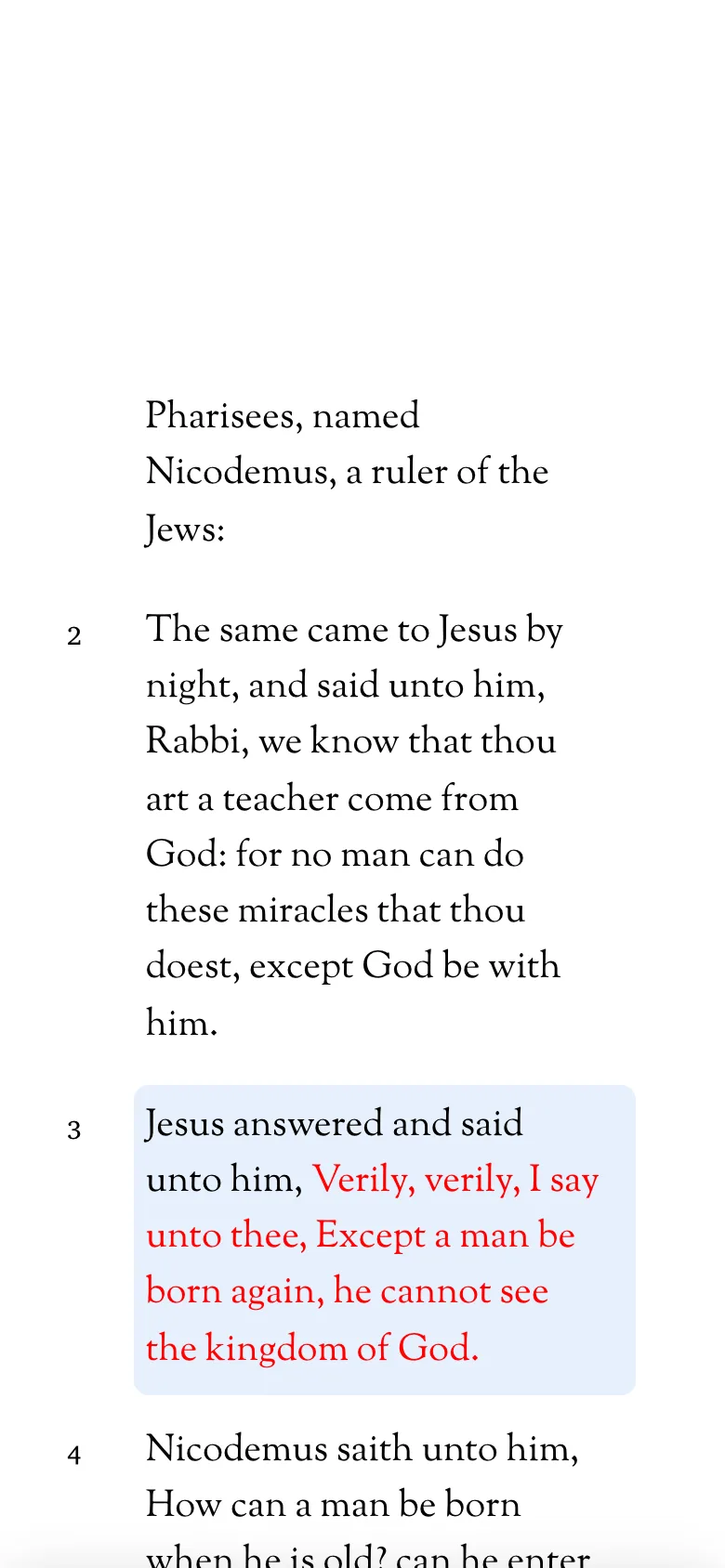
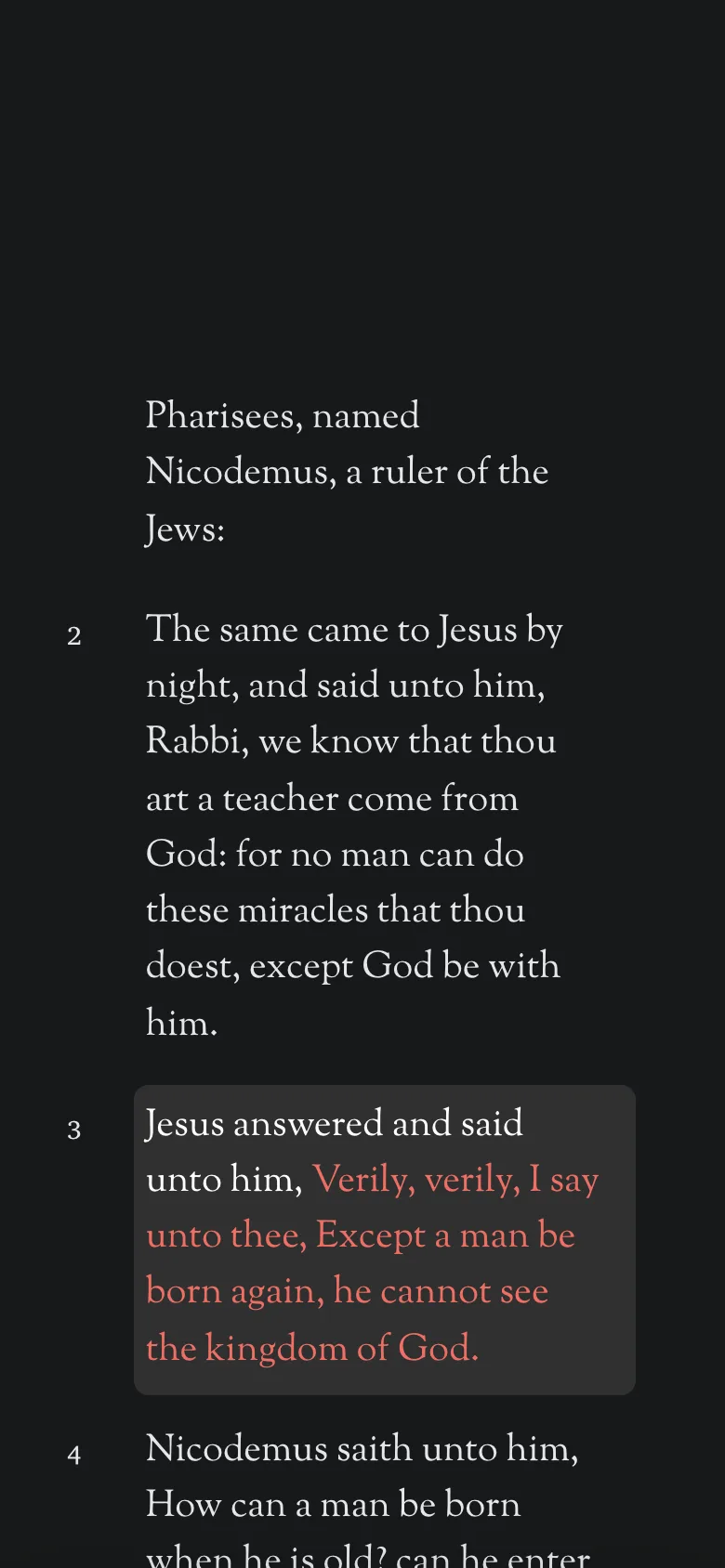
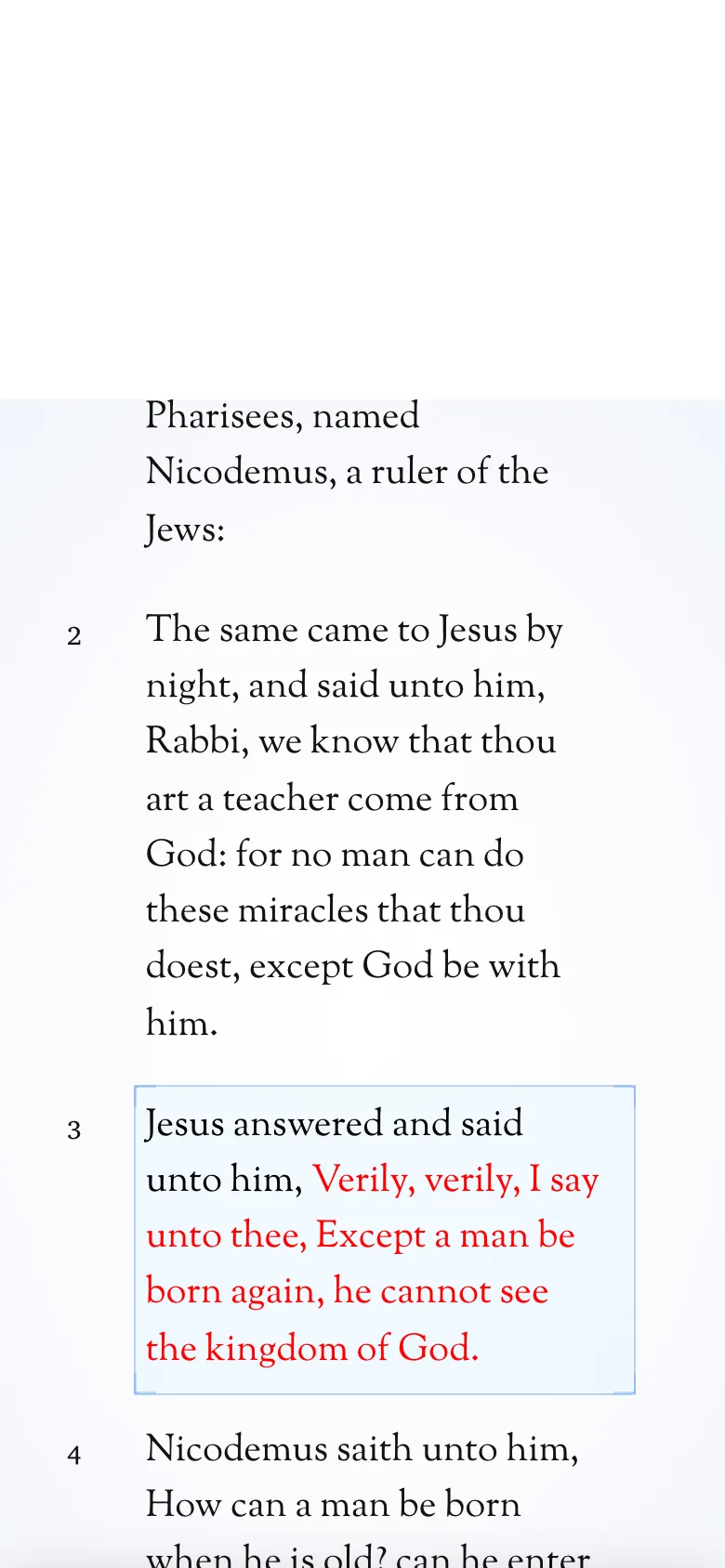
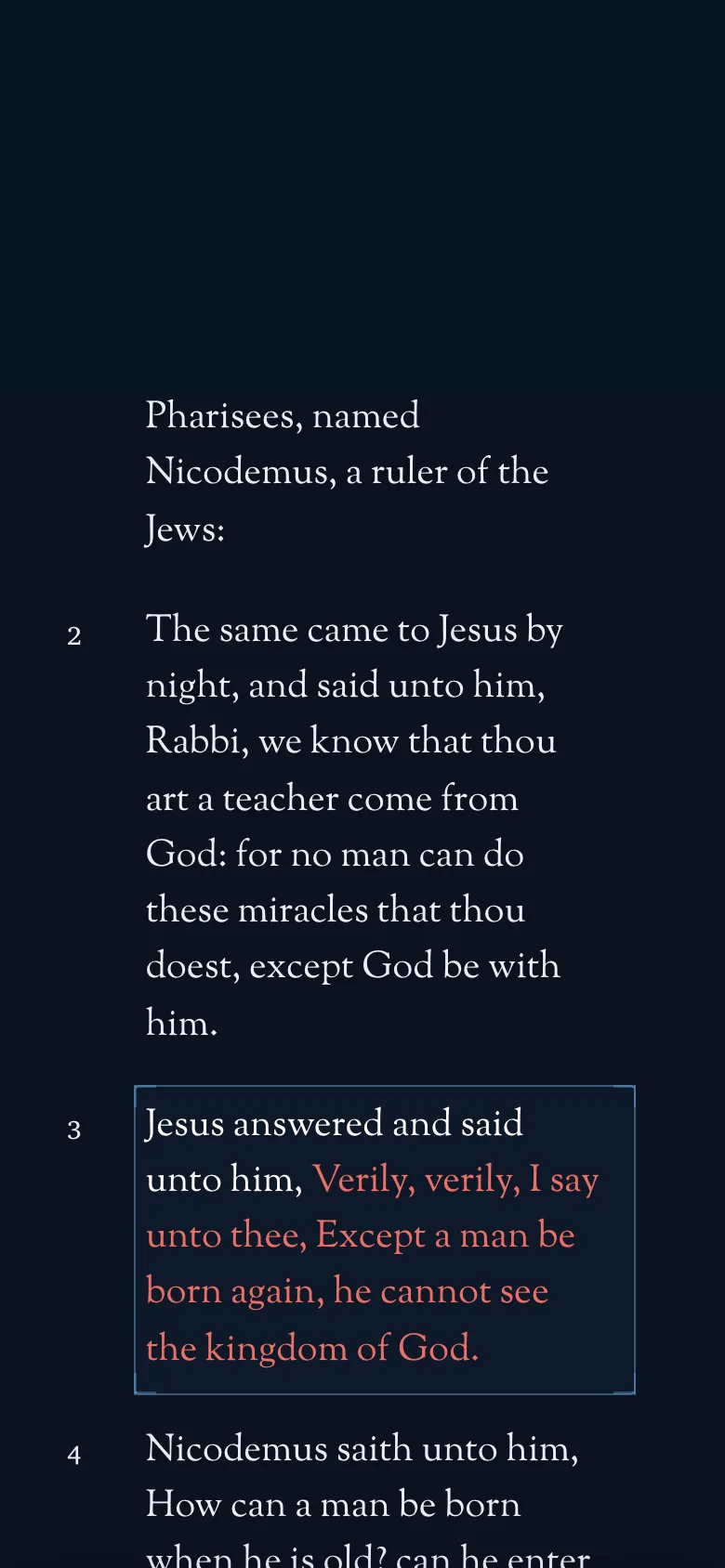
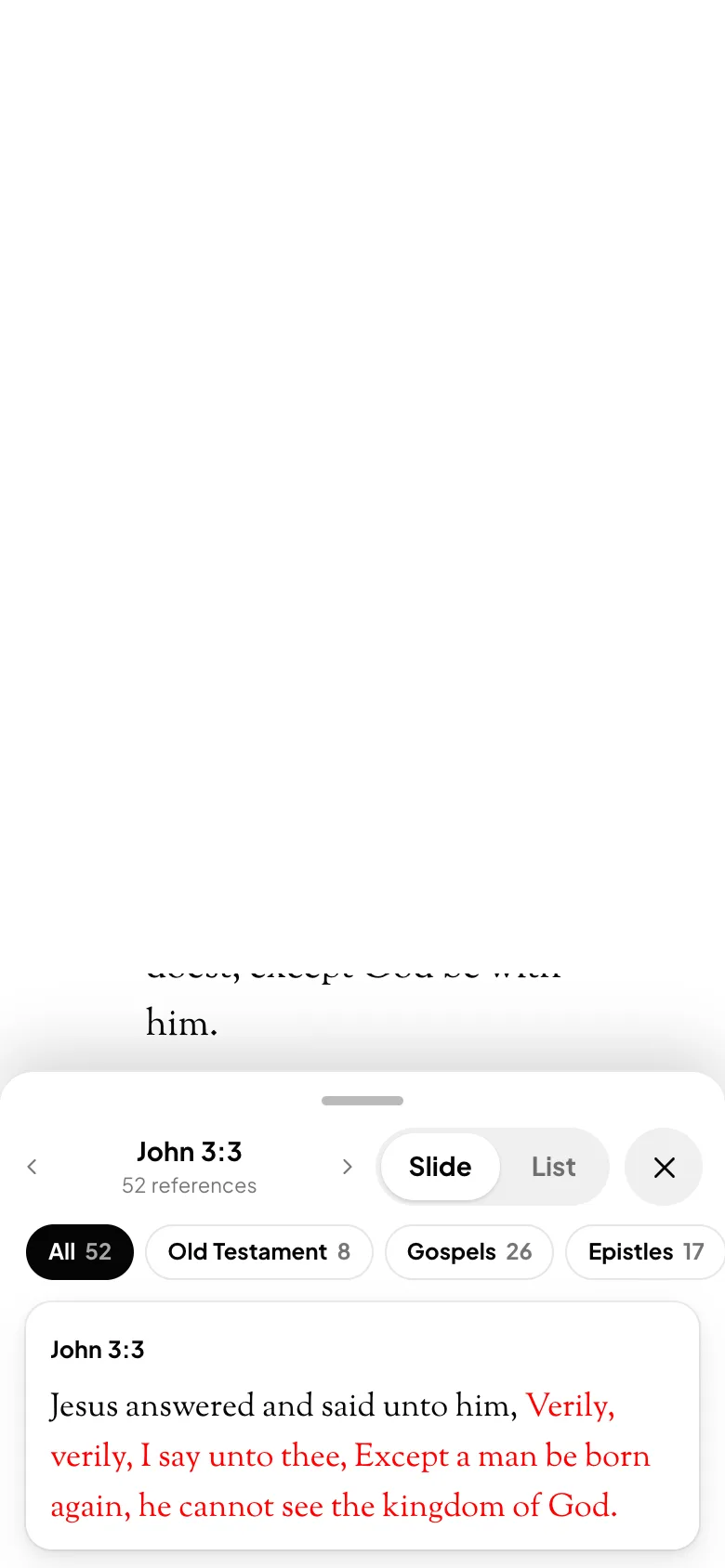
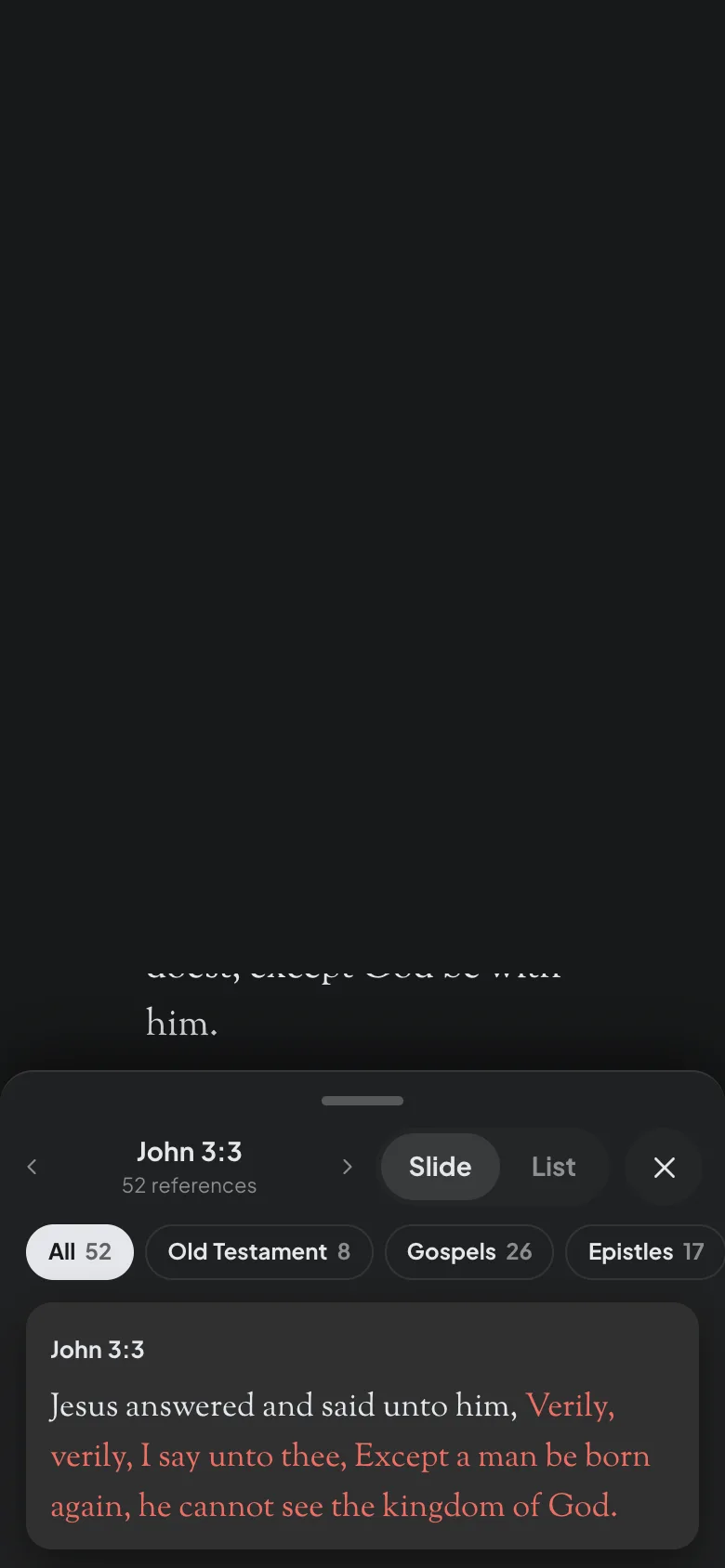
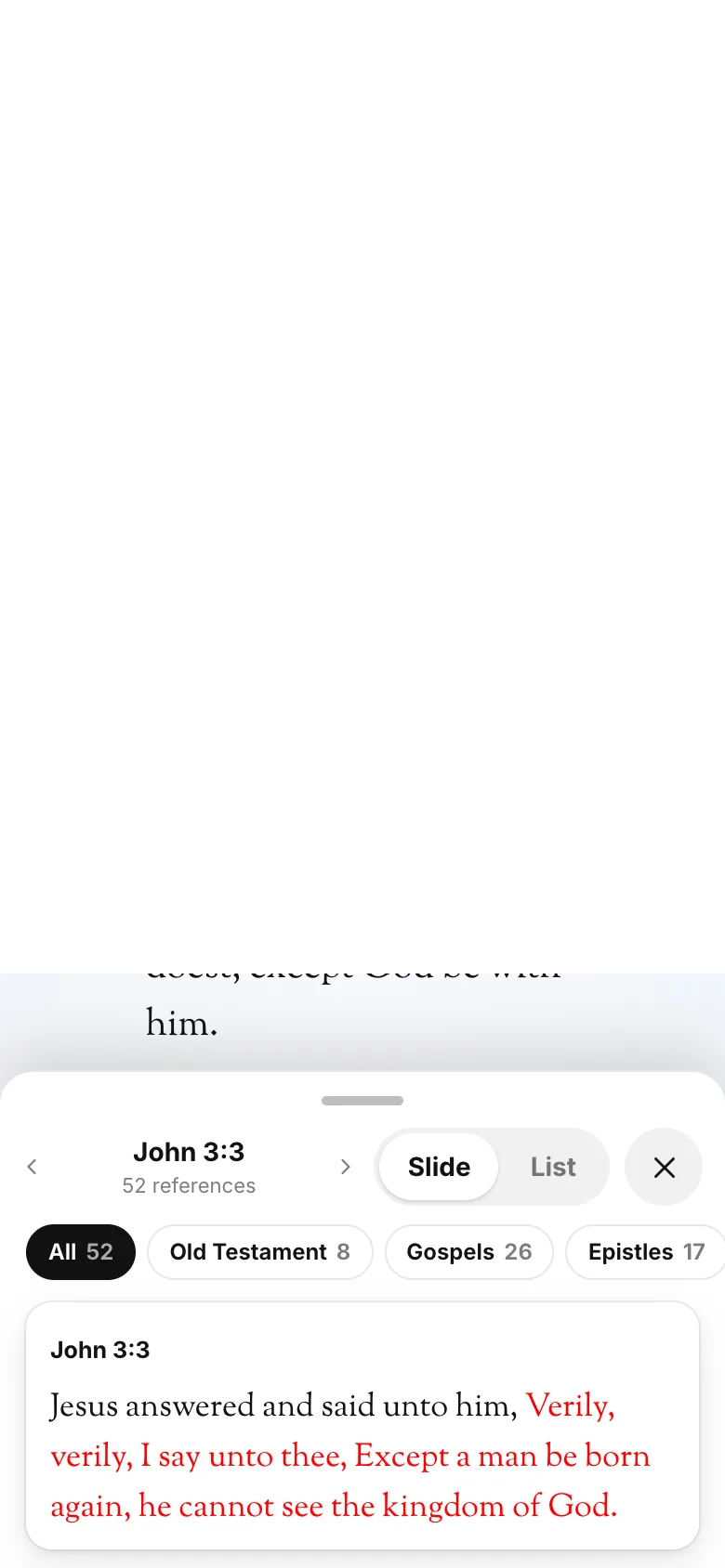
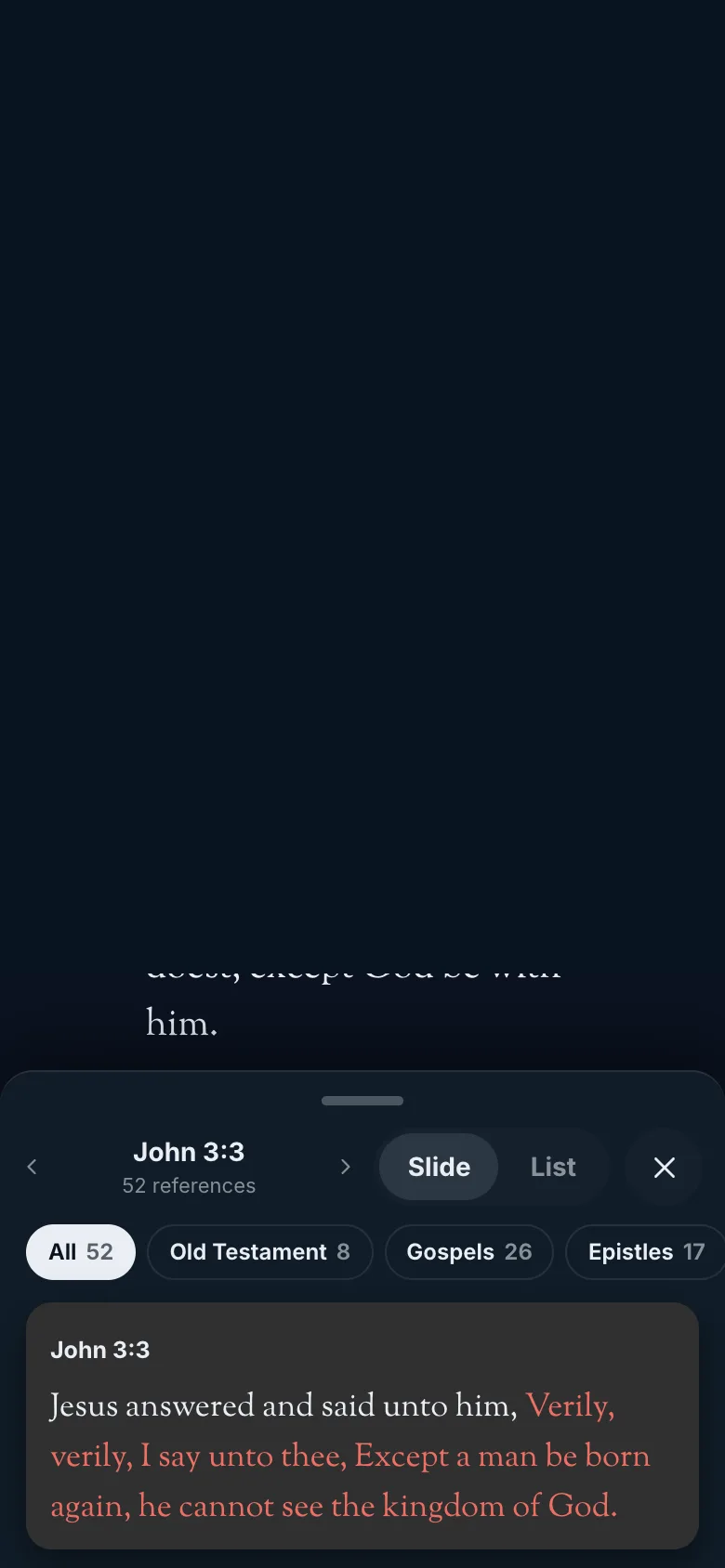
Tap a verse to select it. Tap more verses to add them, or tap a selected verse again to deselect it. While verses are selected, an action bar replaces the tabs, showing the reference, a close button, and these choices:
- Cross Refs, Highlight, Memorize, Copy, Share and More.
- When you're signed in, Add to Chest and Add Note also appear.
Press and hold a verse to open its full menu, shown as tiles. This is the same menu you get by right-clicking on a computer.
Cross references open over the bottom half of the screen. Tap the handle at the top to make them full screen, or pull the sheet down to close it.
The Library tab The Library brings together what you've saved and what other readers have shared
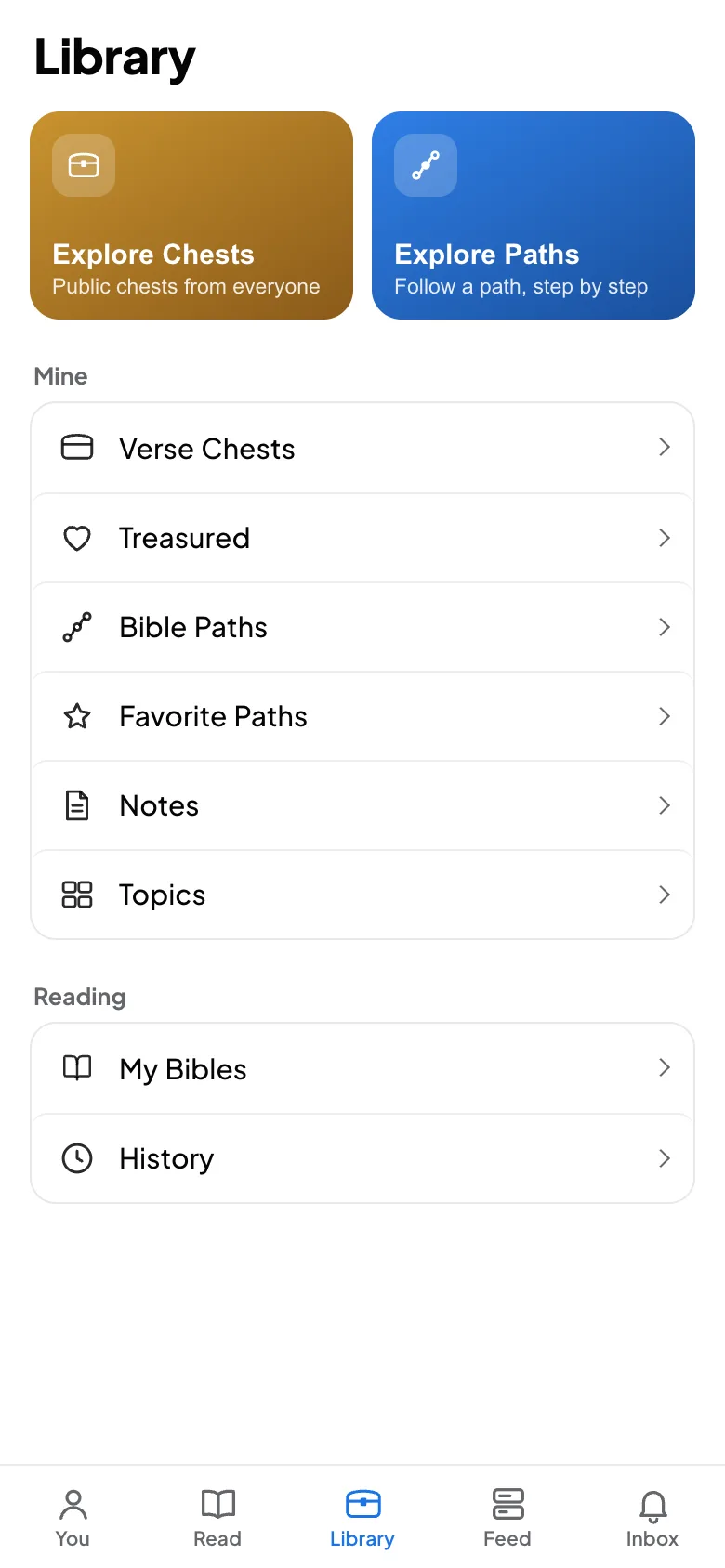
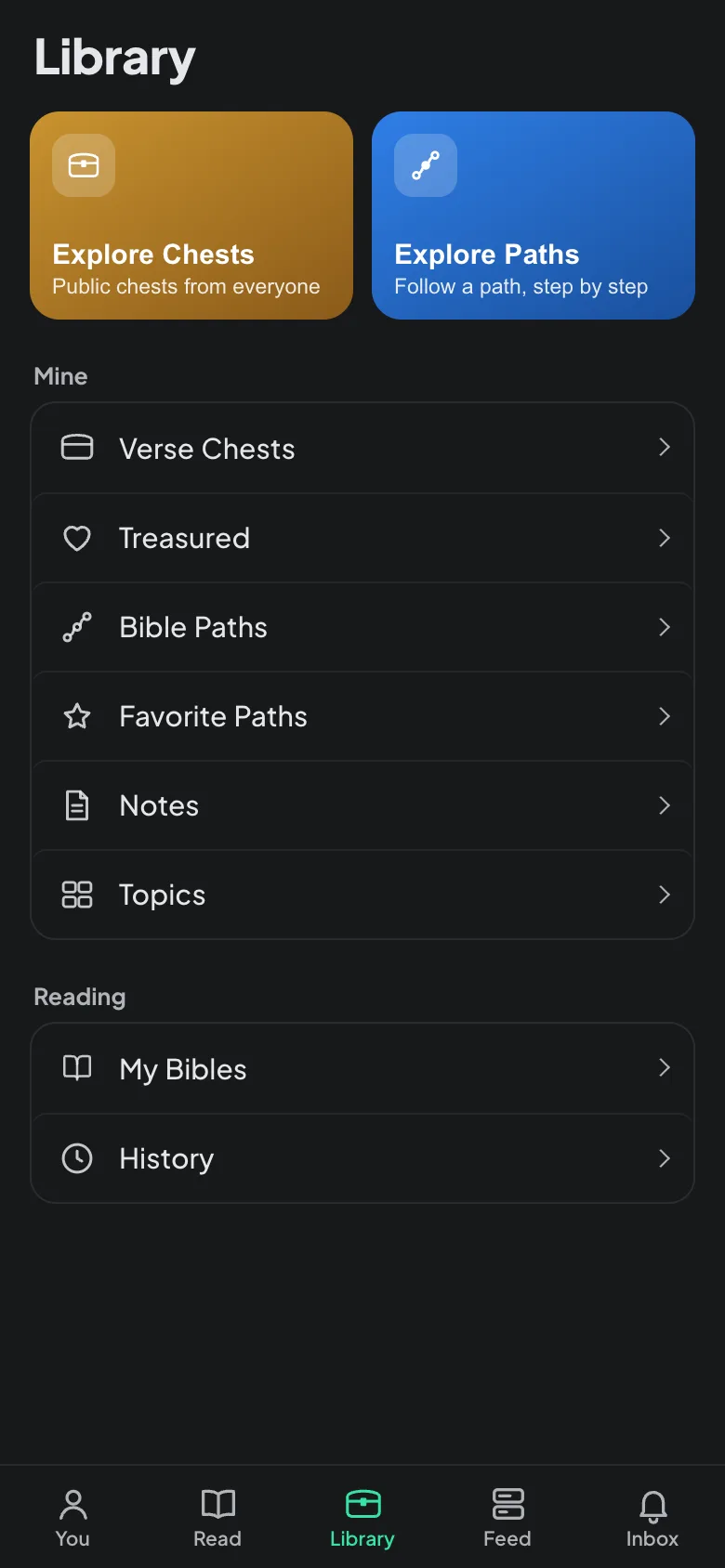
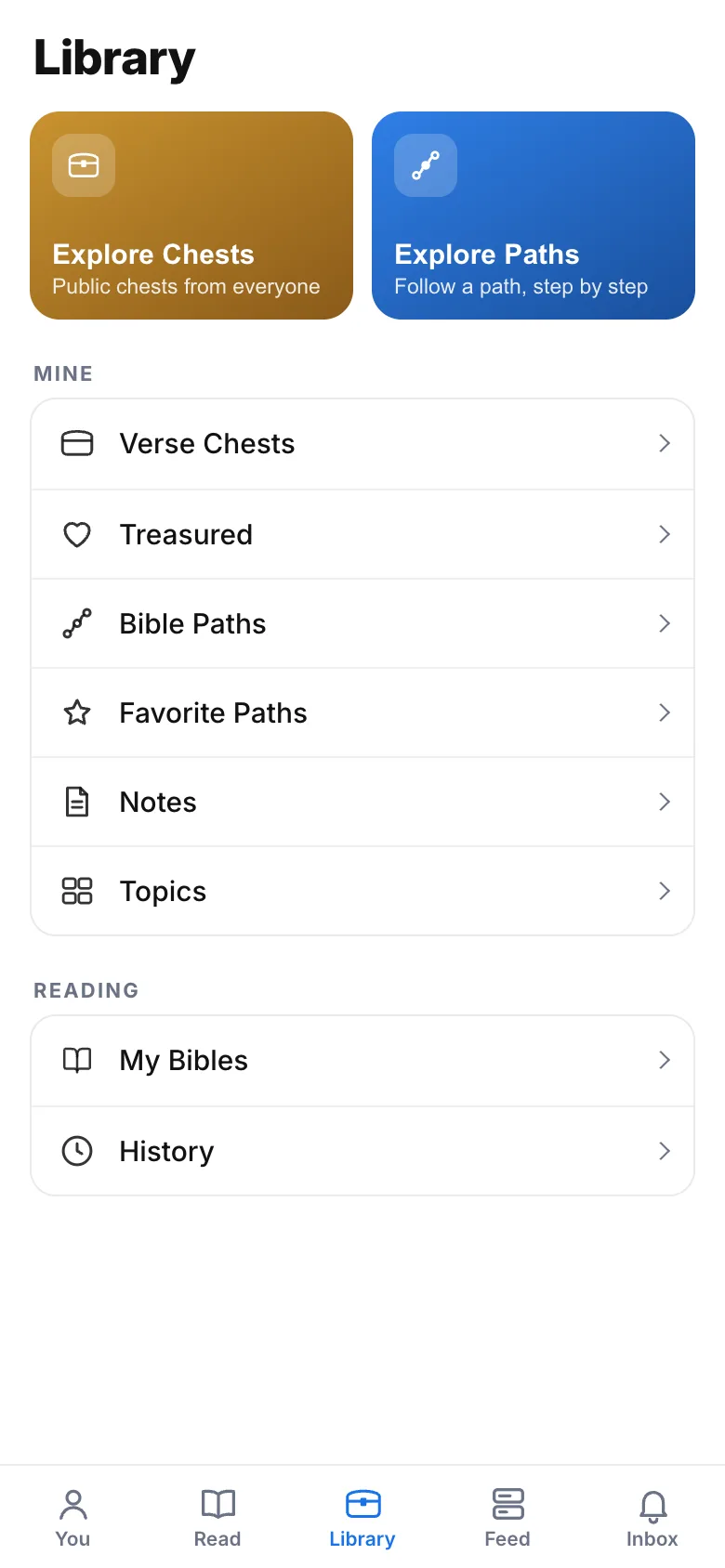
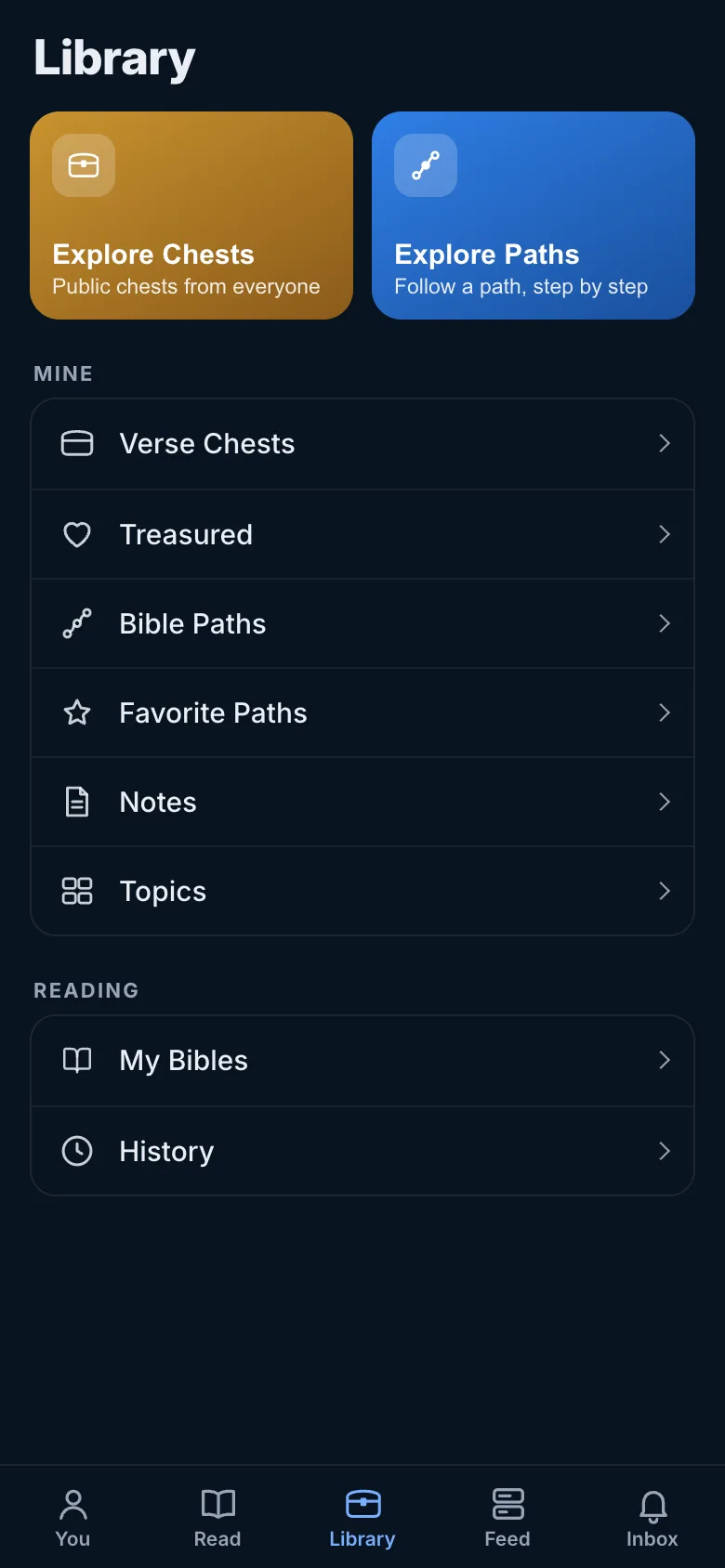
The Library brings together what you've saved and what other readers have shared:
- Explore Chests and Explore Paths: collections and paths other readers have published.
- Mine: Verse Chests, Treasured, Bible Paths, Favorite Paths, Notes and Topics.
- Reading: My Bibles and History.
Text size and display Pinch the reading to make the text larger or smaller.
Pinch the reading to make the text larger or smaller. Tap Aa to change the text size, theme, style, font, spacing, and what appears in the text, along with your cross reference and chest options.
Your phone keeps its own text size, so changing it won't affect the text size on your computer, or the other way around.
What's only on a computer Some features need a larger screen and aren't available on a phone: Splitscreen and its views (including Parallel Bible and Wide Margin), the four Go Deeper windows, the Go to box, ribbons, My Bookshelf, My Cross References and My Files.
Some features need a larger screen and aren't available on a phone: Splitscreen and its views (including Parallel Bible and Wide Margin), the four Go Deeper windows, the Go to box, ribbons, My Bookshelf, My Cross References and My Files.