Highlights
Highlight whole verses or individual words, remove highlights, and find the passages you've marked.
Highlighting a verse On a computer, right-click a verse and choose a colour from the menu.
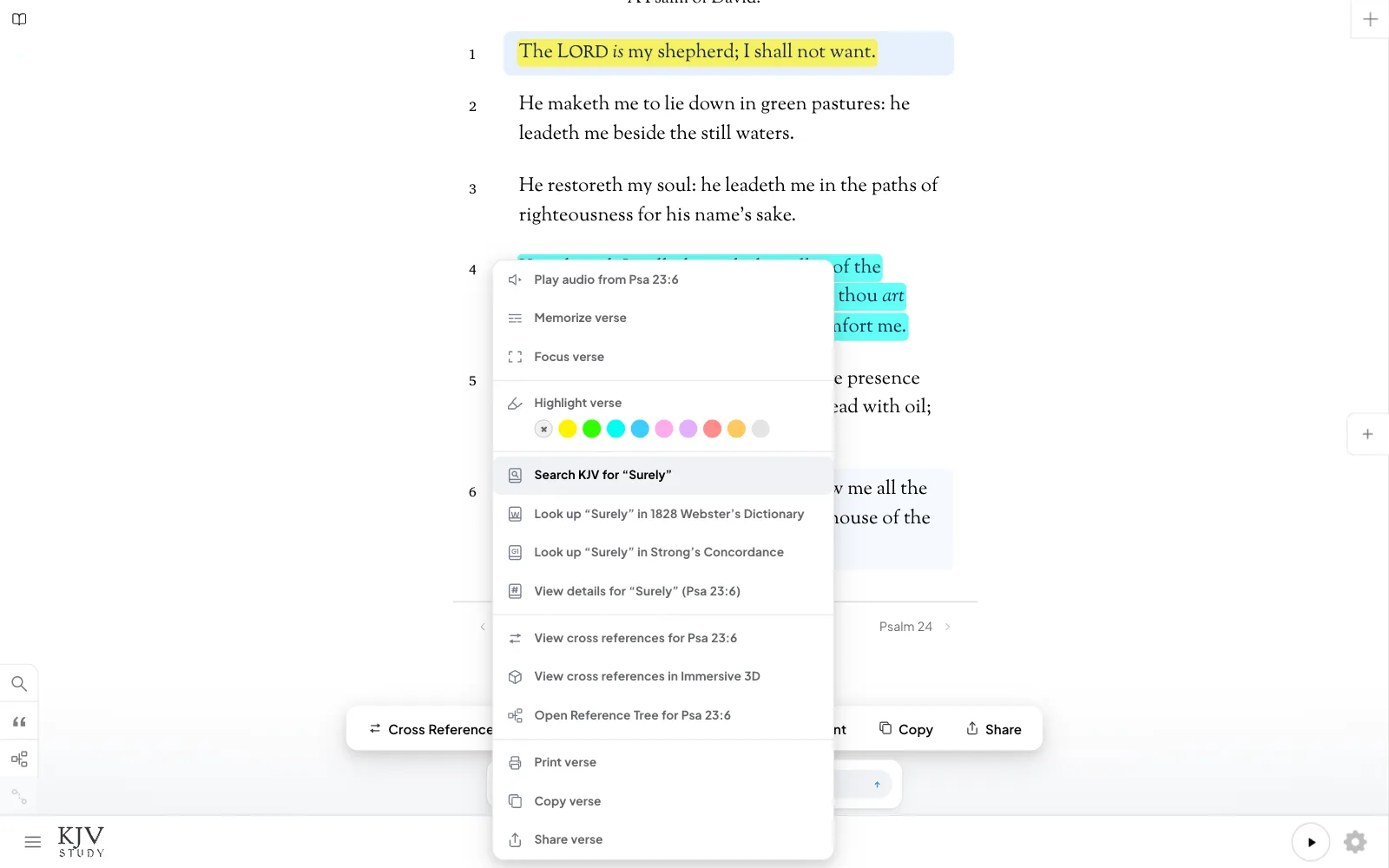
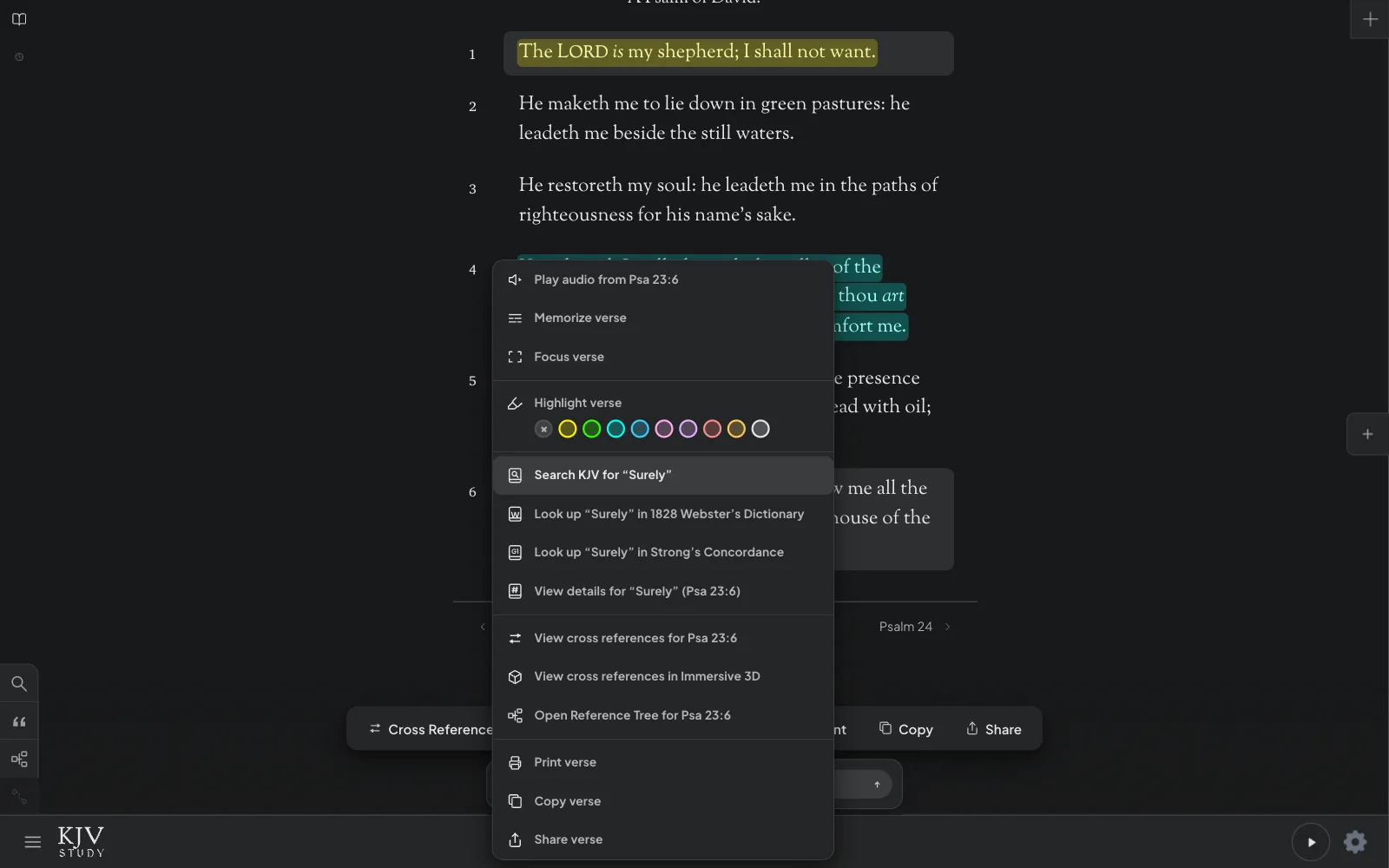
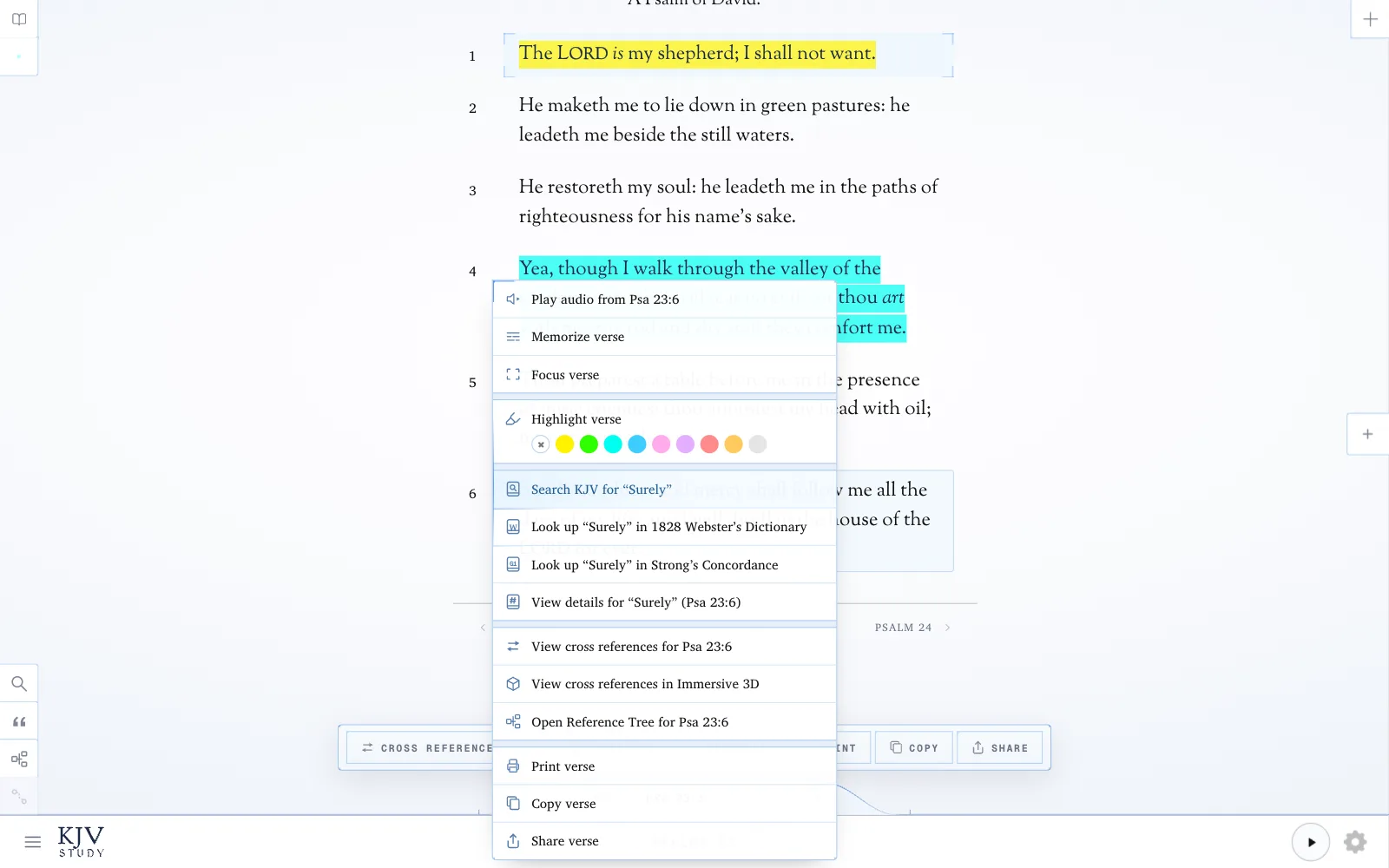
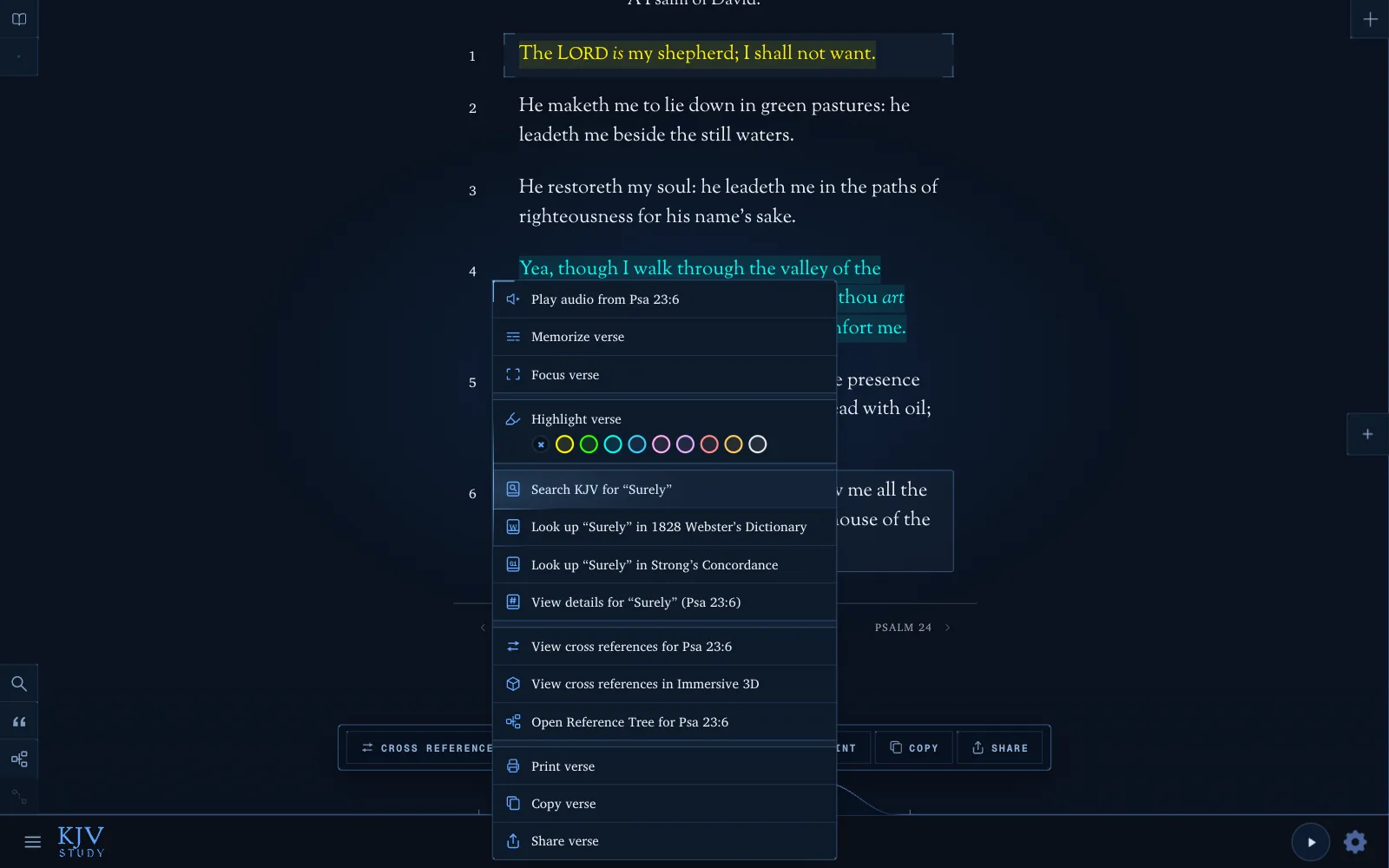
On a computer, right-click a verse and choose a colour from the menu. There are nine: Yellow, Green, Cyan, Blue, Pink, Violet, Red, Orange and Grey.
To highlight several verses together, select them first with Ctrl-click or Shift-click, then right-click one of the selected verses.
Highlighting just a few words Select the words with your mouse, right-click them, and choose a colour under Highlight selection.
Select the words with your mouse, right-click them, and choose a colour under Highlight selection.
On a phone, tap the verse, then Highlight, then Highlight words…. Move one finger over the words to mark them, using two fingers if you need to scroll. Press Done when you're finished. Highlights always cover whole words. Use Undo and Redo while you work, or the close button to discard the changes.
Taking a highlight off Open the colour choices on the highlighted verse.
Open the colour choices on the highlighted verse. A tick marks its current colour. Choose Clear highlight, the first colour square, to remove it, or choose another colour to replace it.
Finding your highlights The History clock in the top-left corner shows recent highlights alongside the chapters you've read.
The History clock in the top-left corner shows recent highlights alongside the chapters you've read. Open View full history and filter to Highlights to see just your highlights. Open an entry to see the verse and go to it. My Activity in Splitscreen also lists your highlights.
Highlights when you're signed out You can highlight without an account.
You can highlight without an account. These highlights stay in this browser, so they won't appear on other devices, and clearing the browser's data removes them. Sign in or create an account to move them into your account and keep them across devices.
Highlights belong to a Bible When you're signed in, each Bible keeps its own highlights, just as separate printed Bibles would.
When you're signed in, each Bible keeps its own highlights, just as separate printed Bibles would. Switch Bibles in My Bibles to see the highlights belonging to that Bible.