Settings
How to change the site's appearance, your Bible's layout, and the way cross references, chests and notes appear.
Opening Settings Press the gear at the bottom right.
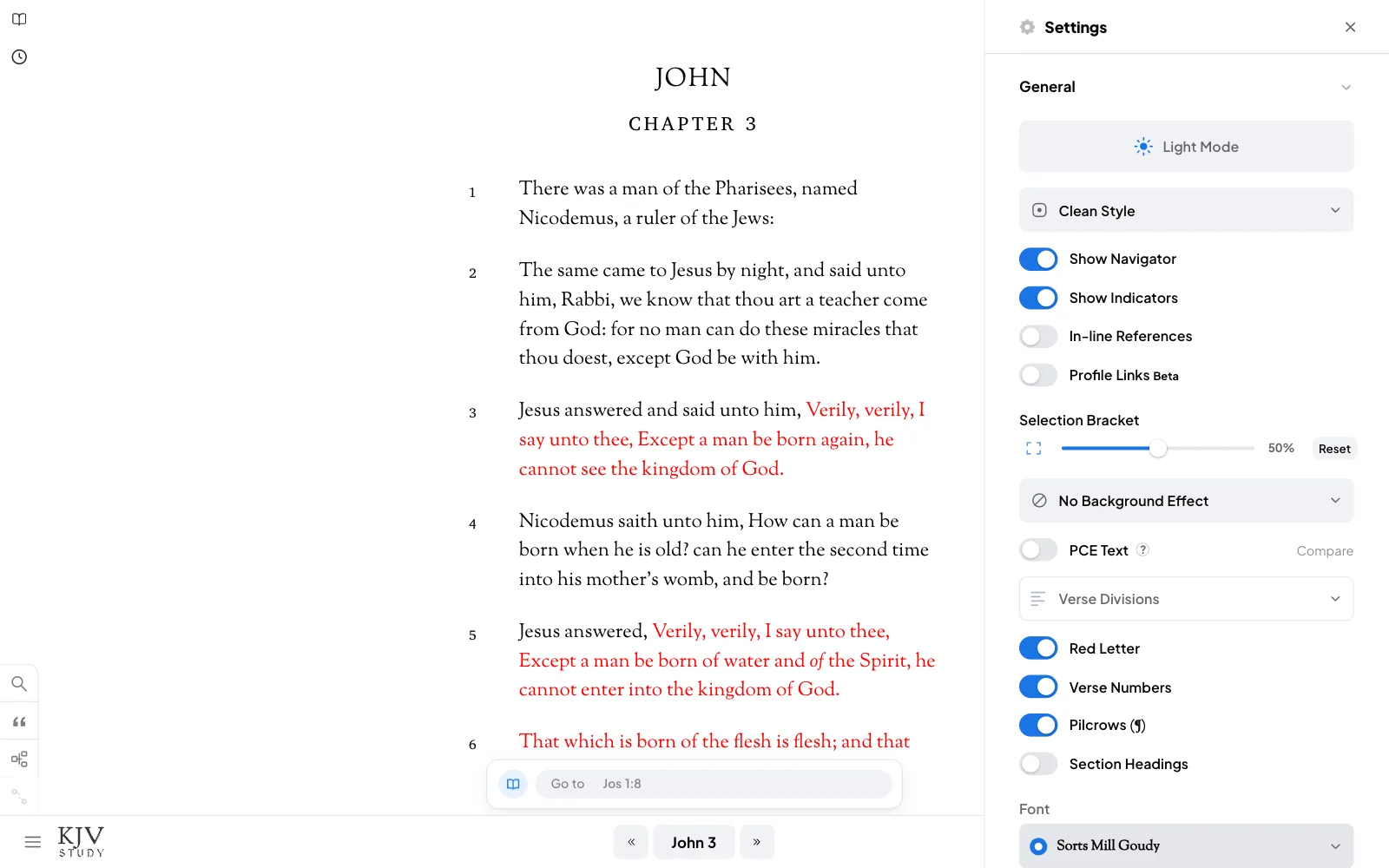
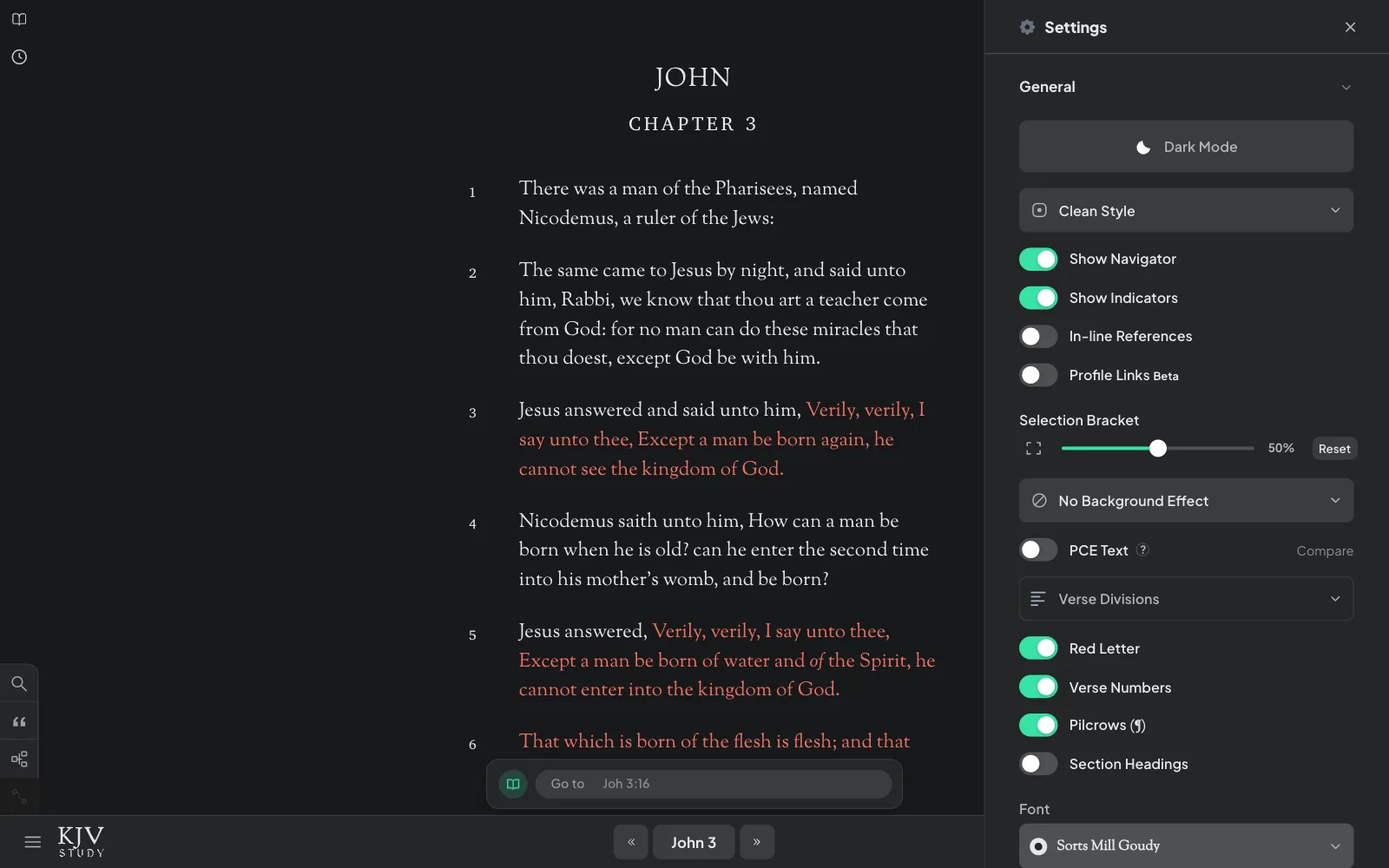
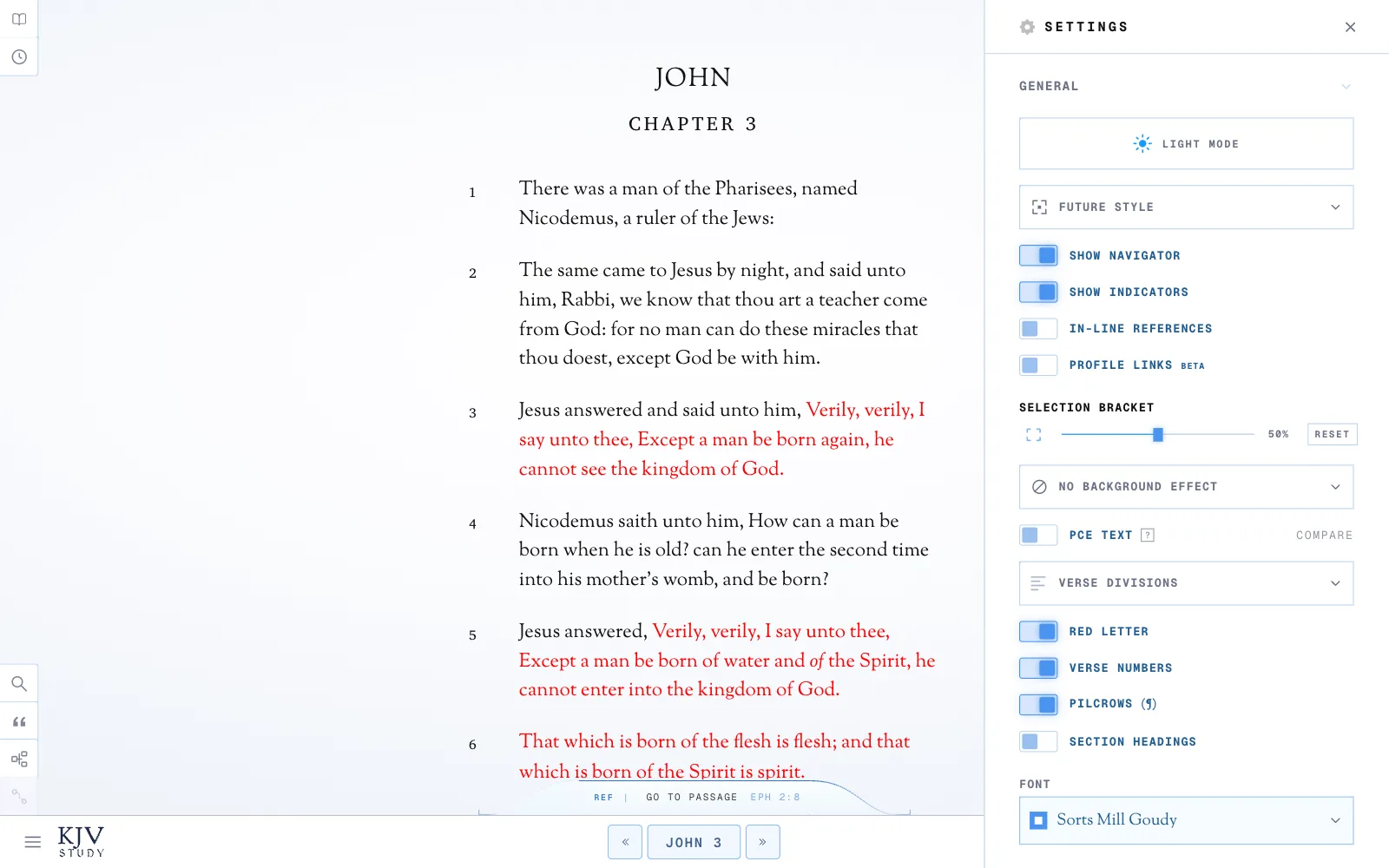
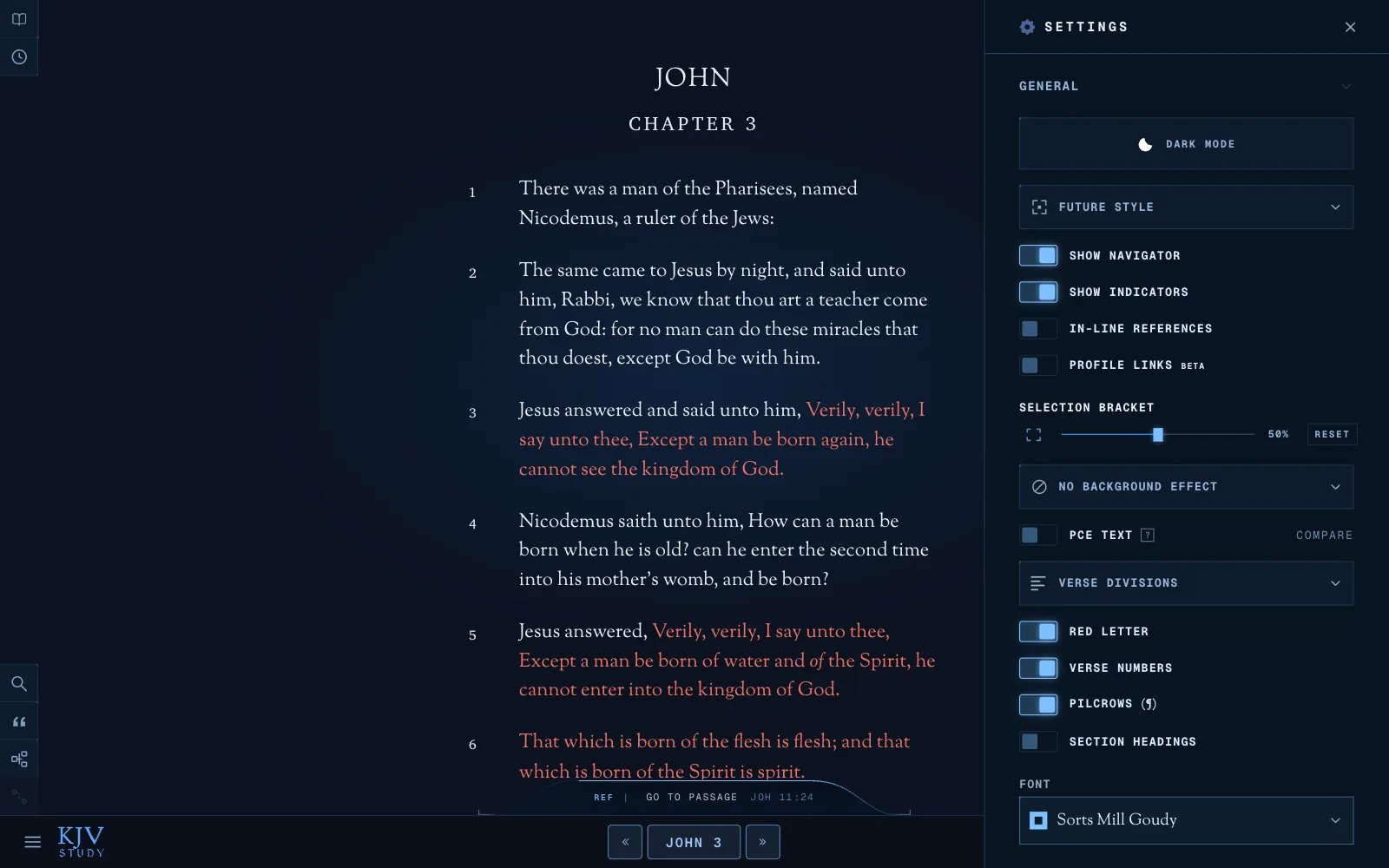
Press the gear at the bottom right. Settings opens beside the page, so you can see your changes as you make them. It has four sections: General, Cross References, Verse Chests and Notes. You can fold each section away, and it stays as you left it.
On a phone, tap Aa at the top right.
How the site looks Light Mode / Dark Mode.
- Light Mode / Dark Mode. Click to switch between them, or press L.
- Style. Clean uses rounded shapes and simple lettering. Future uses capital letters and fine lines for a more futuristic look.
- Background Effects. Choose None, Grid, Constellations, Starfield or Dust behind the reading.
- Selection Bracket. Adjust how strongly a selected verse is marked, from 0 to 100%.
Study aids Show Navigator displays the Go to box above the bottom bar.
- Show Navigator displays the Go to box above the bottom bar.
- Show Indicators displays the small margin marks for your chests and notes. The primary-reference dots have their own switch, Primary Reference Indicators, under Cross References.
- Profile Links underlines people, places and measures so you can click them to open a profile.
Your Bible's layout When you're signed in, these settings apply to the Bible you're reading (see My Bibles) and appear under Main Settings
When you're signed in, these settings apply to the Bible you're reading (see My Bibles) and appear under Main Settings:
- Verse display: choose Verse Divisions (one verse per line), Subdivisions (verses divided into phrases), or Paragraph.
- Red Letter, Verse Numbers, Pilcrows (¶) and Section Headings.
- Cadenced Psalms arranges the Psalms in phrases when using Verse Divisions or Paragraph.
- Font: Sorts Mill Goudy, EB Garamond, Charis SIL, Crimson Text, Rasa or Vollkorn.
- Font size, with A− and A+, and Line Spacing, from Very Tight to Very Spacious. You can also pinch on a trackpad over the reading to change the text size.
- Ribbons: choose none or up to four, each with its own colour.
Standard text or Pure Cambridge Edition Turn on PCE Text to use the Pure Cambridge Edition in your Bible.
Turn on PCE Text to use the Pure Cambridge Edition in your Bible. The standard text follows the Cambridge Concord edition. The two differ in a small number of places in spelling, capitals and punctuation. Compare shows all the differing verses side by side.
Cross reference settings Primary Reference Indicators shows a dot beside every verse that has a primary reference.
- Primary Reference Indicators shows a dot beside every verse that has a primary reference.
- In-line References shows each verse's cross references beneath it. Press R to turn them on or off. This isn't available in Paragraph layout.
- Community References shows references suggested by other readers. Turn it off and you won't see them, vote on them, or be offered to submit your own.
- Order cross references by Relevance (most closely related first) or Canonical Order (Bible order).
- Set their Font Size and Spacing, or choose Sync with Bible to match your reading.
- Show highlights displays your highlights in cross reference cards too.
- Manage Cross References opens My Cross References.
Verse Chest and Notes settings Show icons in reader adds a small margin icon beside verses linked to your chests or notes.
- Show icons in reader adds a small margin icon beside verses linked to your chests or notes.
- Hide my name displays "Anonymous" instead of your name on chests you share by link.
- New verses go chooses whether verses are added to the top or bottom of a chest.
- Chests also have their own Font Size setting.