Cross references
How to read related passages, filter the list, add your own references, and review suggestions from other readers.
Opening a verse's cross references Click a verse, then press Cross References in the action bar.
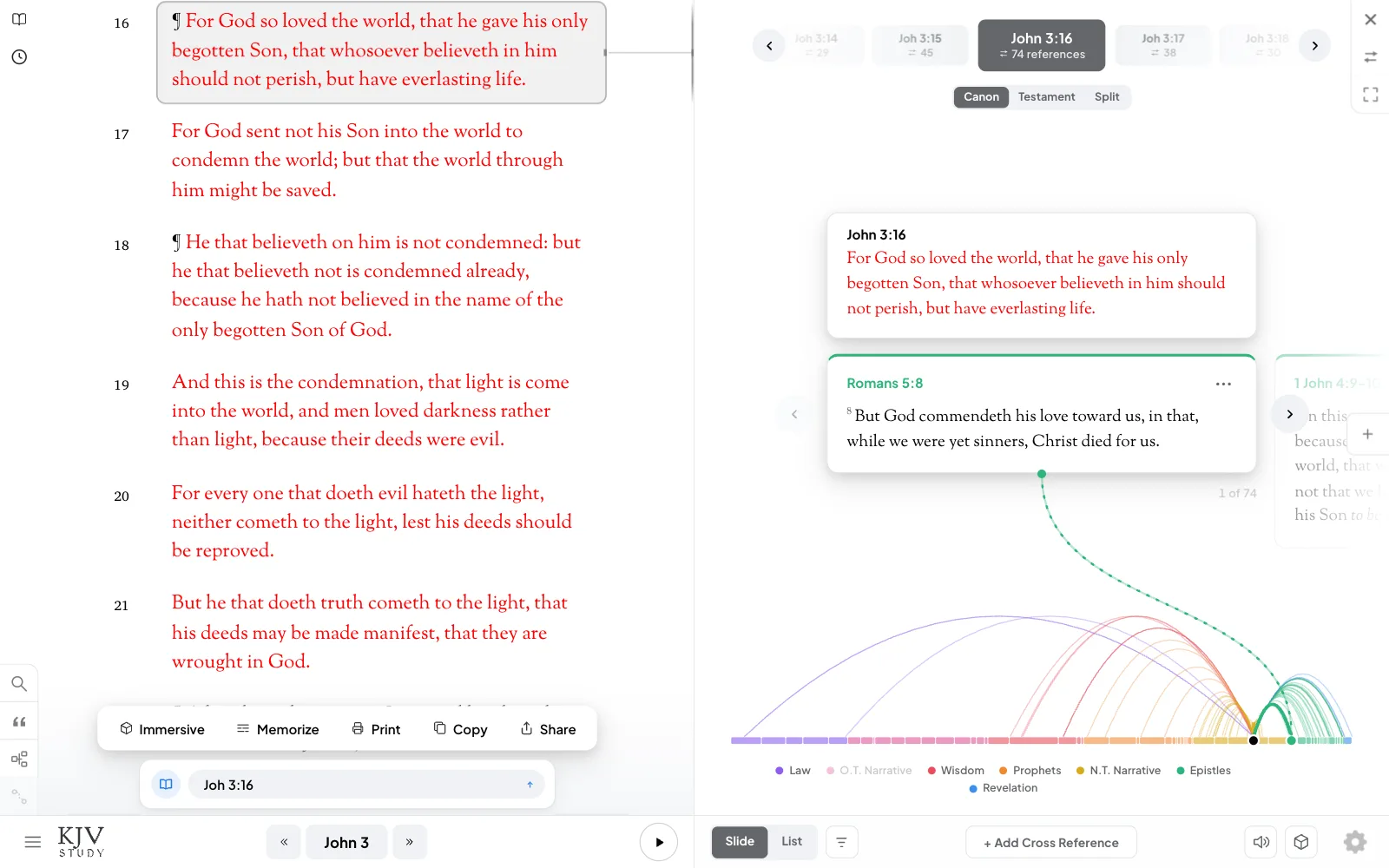
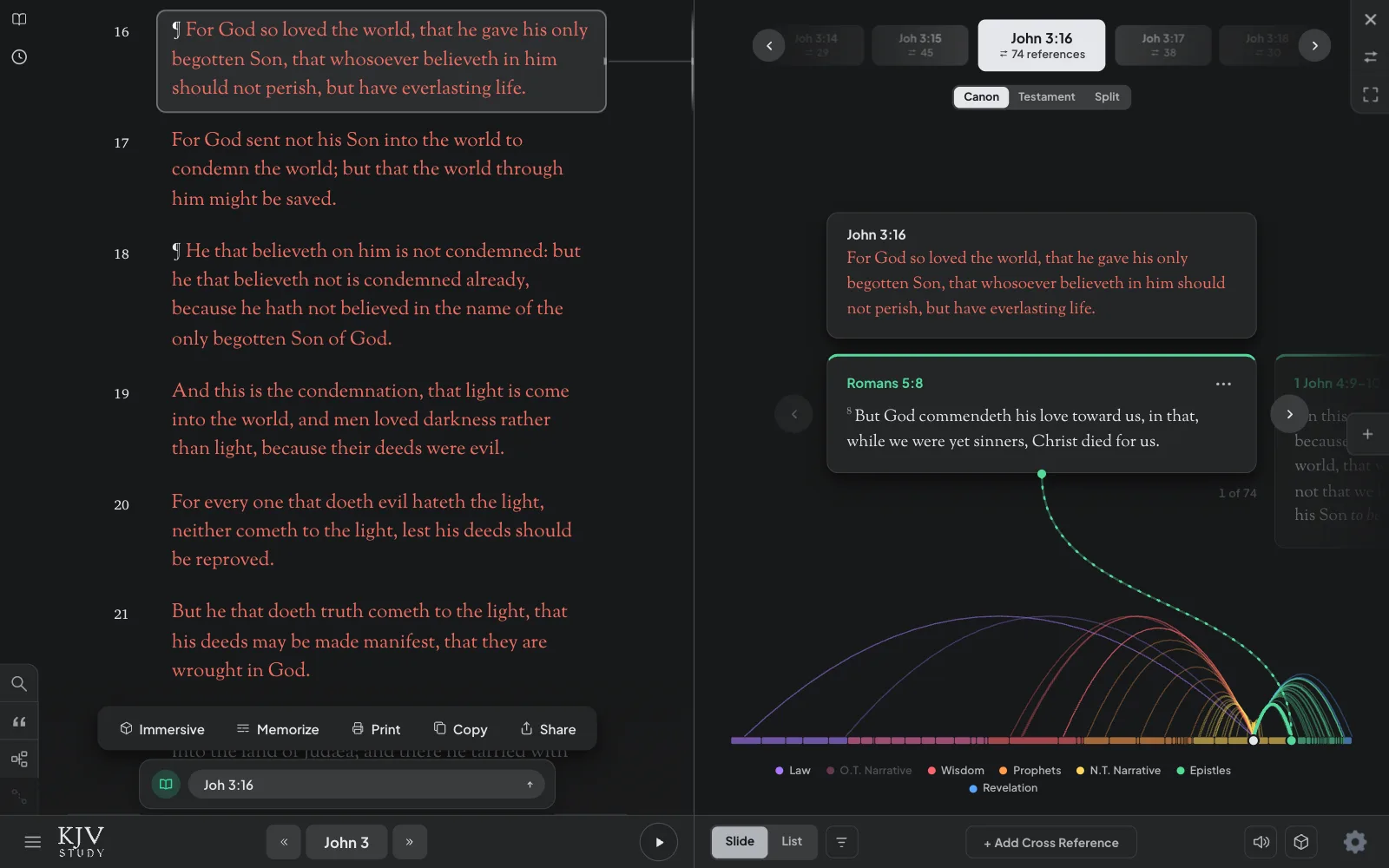
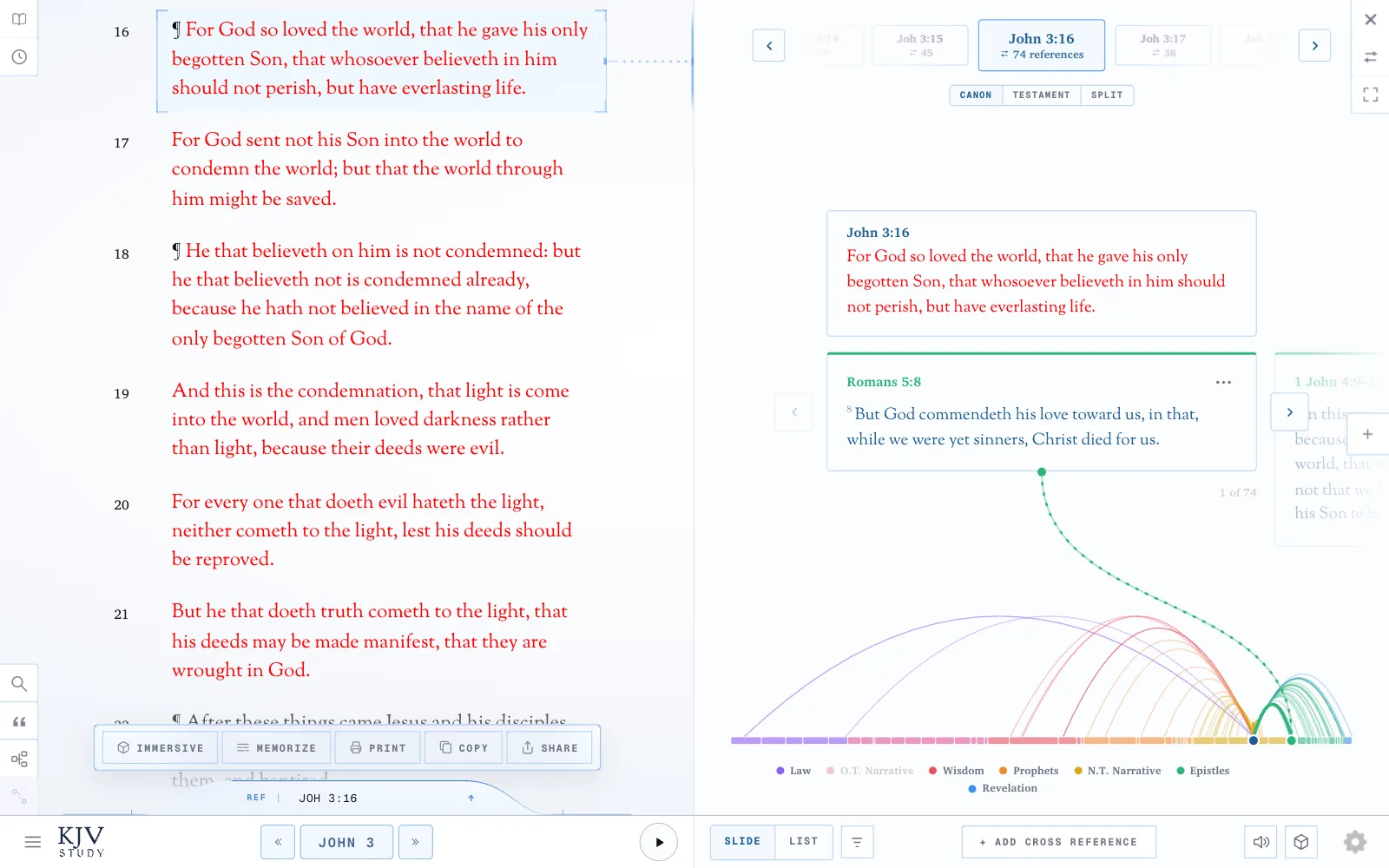
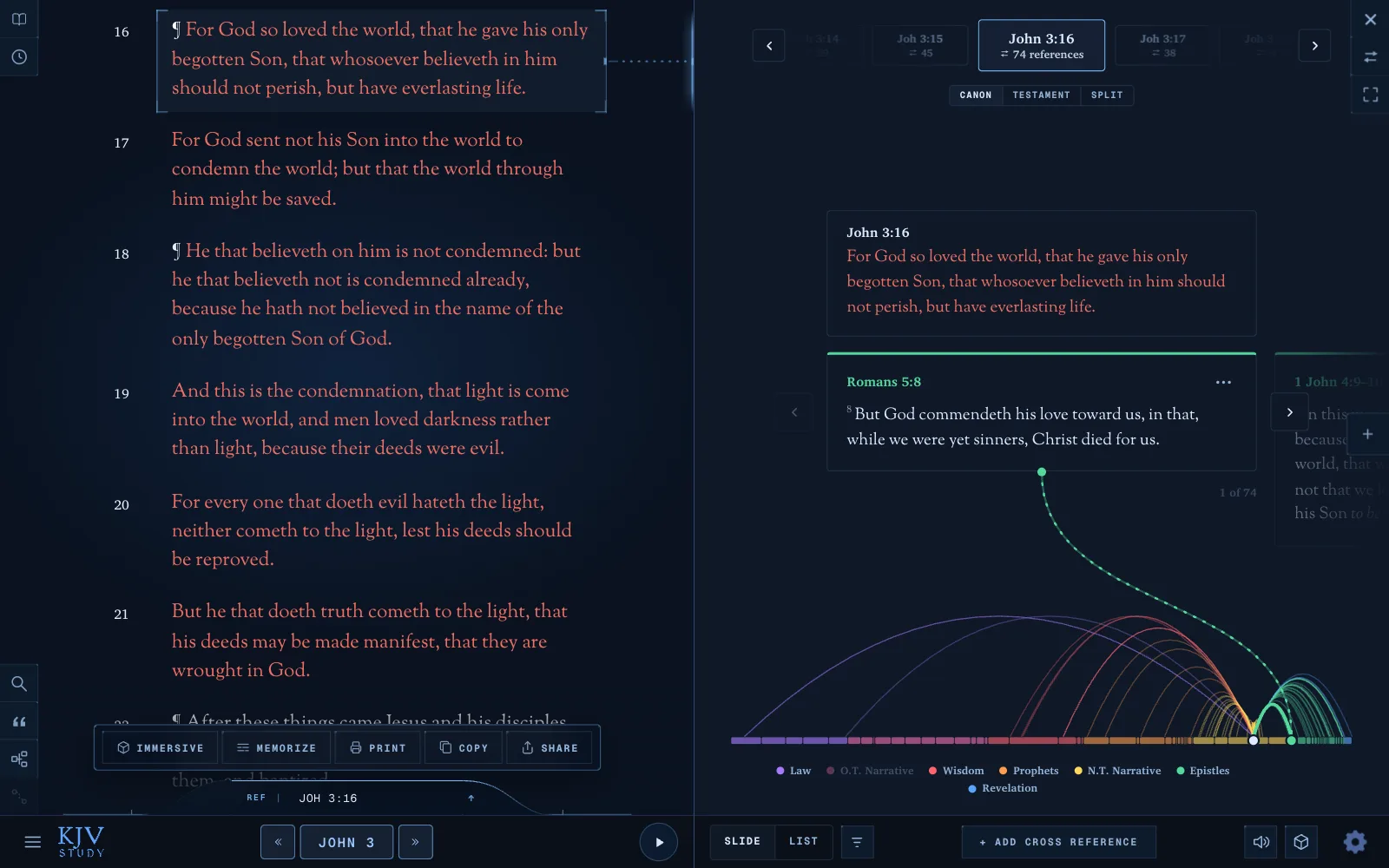
Click a verse, then press Cross References in the action bar. The number beside it shows how many references are available. You can also double-click a verse to open them straight away.
The references open beside your reading, in the Slide view (see below). Use the arrows at the top to move to the previous or next verse, continuing into the next chapter when needed. Click the verse at the top to bring it back into view in the reading.
On a phone, tap a verse, then Cross Refs. The references open over the bottom half of the screen.
The Slide view On a computer, cross references open in Slide, which shows where they lead.
On a computer, cross references open in Slide, which shows where they lead. Your verse appears in the middle, with reference cards beside it. Use the arrows or the left and right arrow keys to bring each card to the front.
The whole Bible runs along the bottom, from Genesis to Revelation, with an arc connecting your verse to each reference. Colour the arcs by Canon (the Law, history, wisdom, prophets and other groups), by Testament, or Split to distinguish references before and after your verse. Press a colour in the legend to show only those arcs; Show all brings the others back.
A strip across the top shows the neighbouring verses and how many references each has.
The List view Prefer to read every reference one under another?
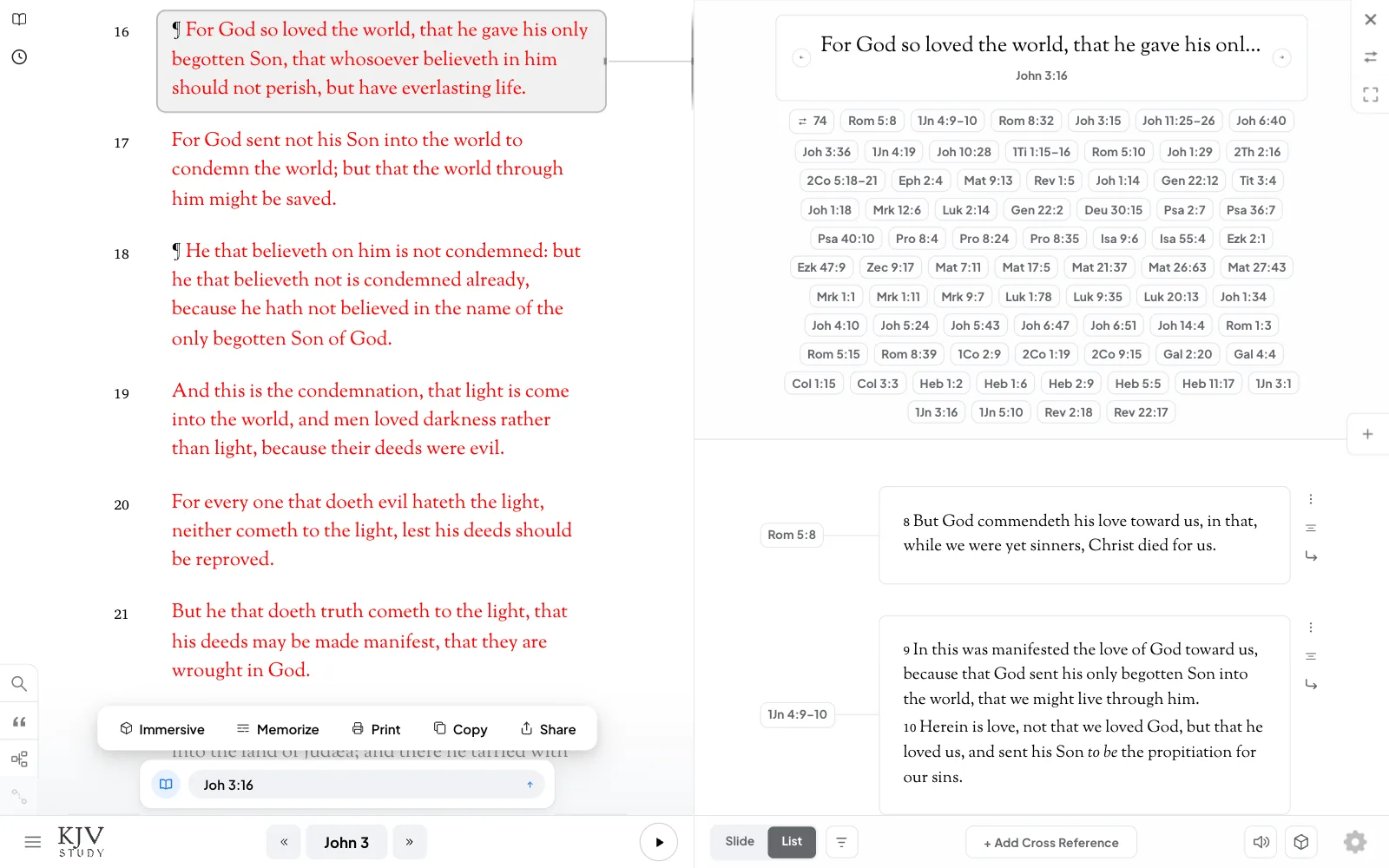
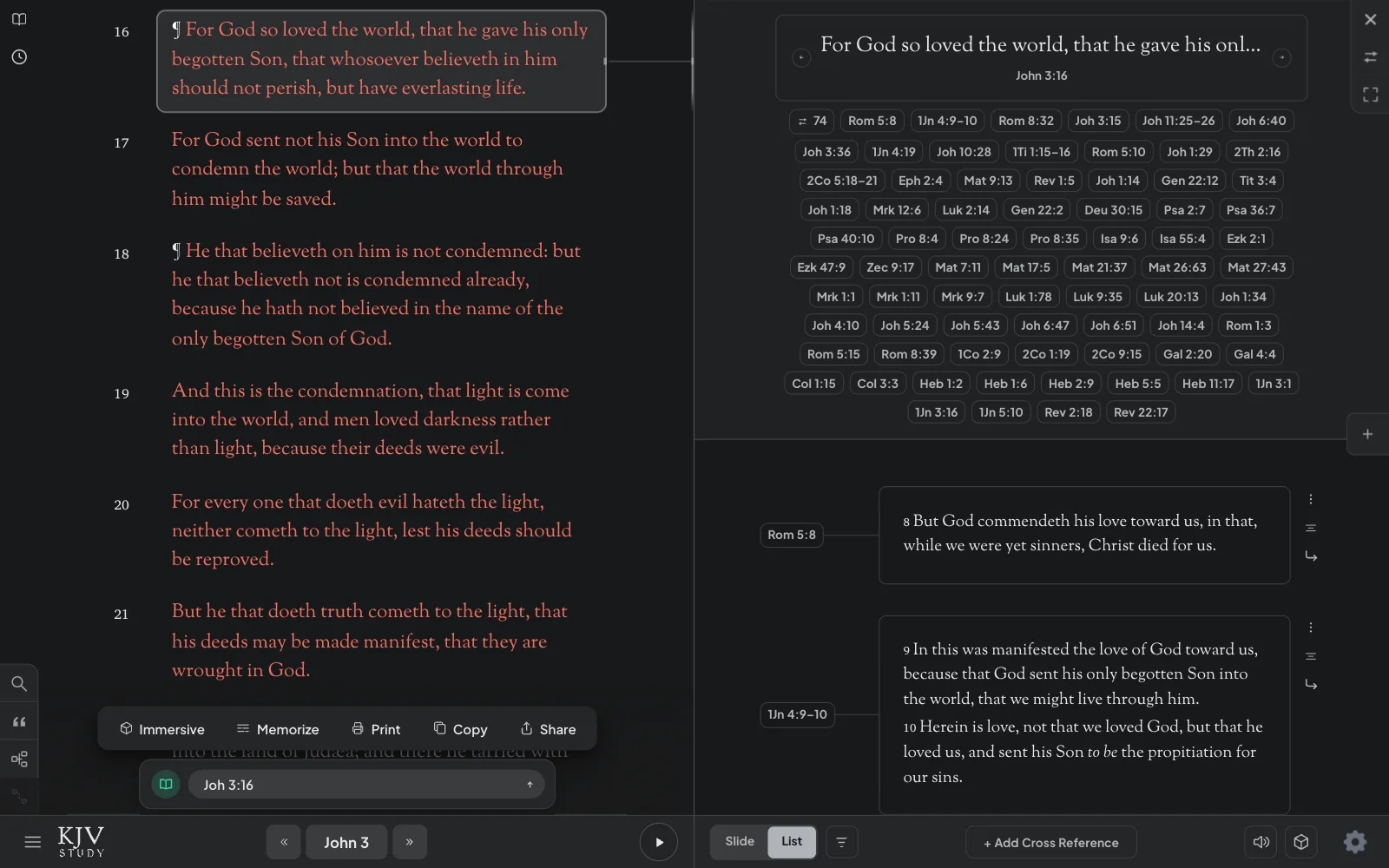
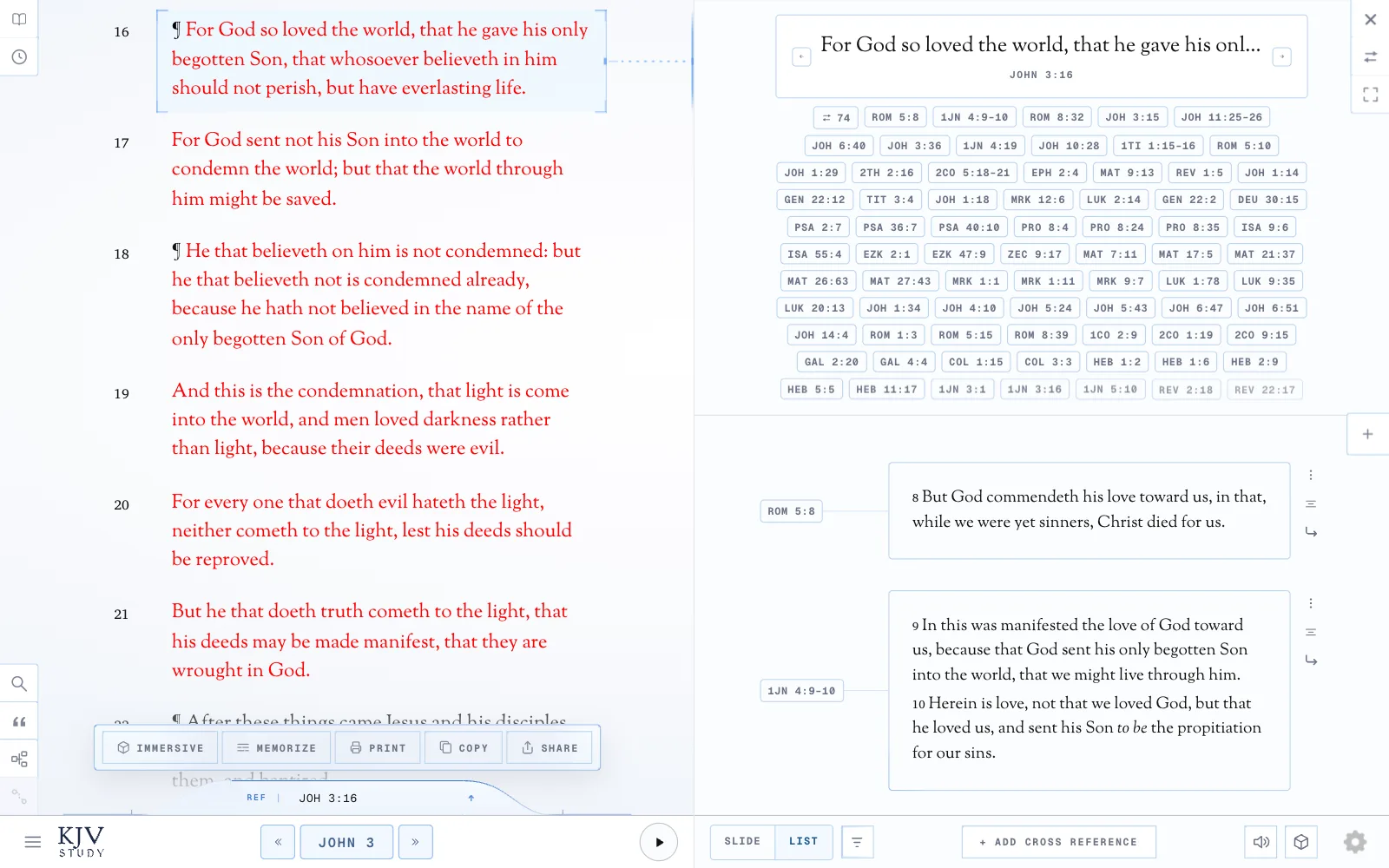
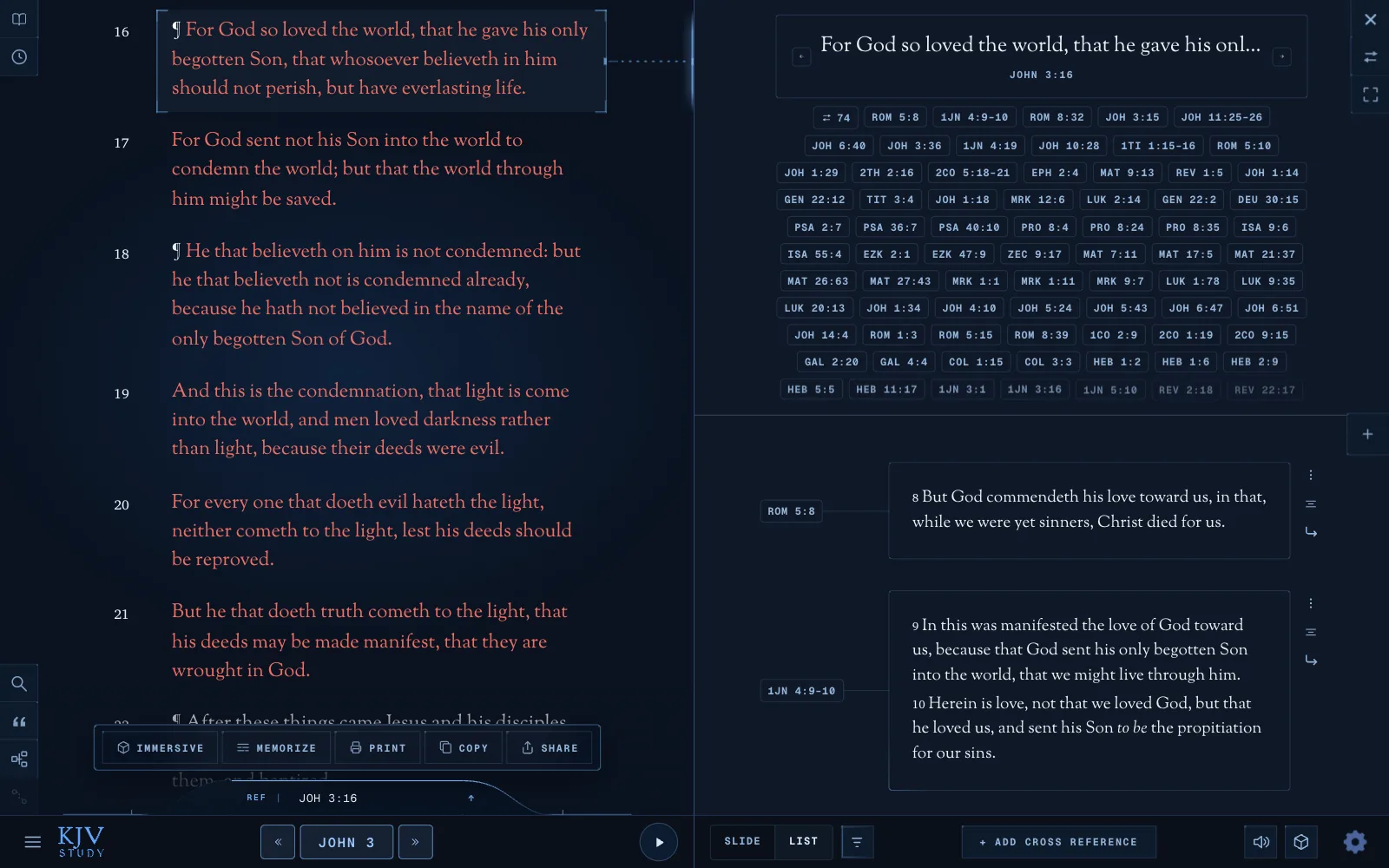
Prefer to read every reference one under another? Switch from Slide to List in the pane's bottom bar, and the site remembers your choice. Each reference appears on a card with its full text and the words of Christ in red. Rounded reference buttons along the top let you jump to any card.
- Show Context displays two verses before and after the passage.
- Go to Verse opens the passage in your reading.
- Longer passages are shortened; press Show All to read the rest.
- The three-dot menu has more options: open the passage, Open in parallel, see that verse's own cross references, Open as Reference Tree, Add to Verse Chest, Add a note, play it aloud, Memorize, print or copy it.
How they're ordered Primary References appear first: passages where the New Testament quotes or alludes to the Old Testament (see Primary References).
Primary References appear first: passages where the New Testament quotes or alludes to the Old Testament (see Primary References). Other references follow by Relevance, with the most closely related first, or in Canonical (Bible) order. Choose the order in Settings or the Filters menu.
Primary cards have two tags showing who is speaking and the book. On a computer, click a tag to see all the quotations by that person or in that book.
Filtering by book Press Filters in the pane's bottom bar to open Show references in.
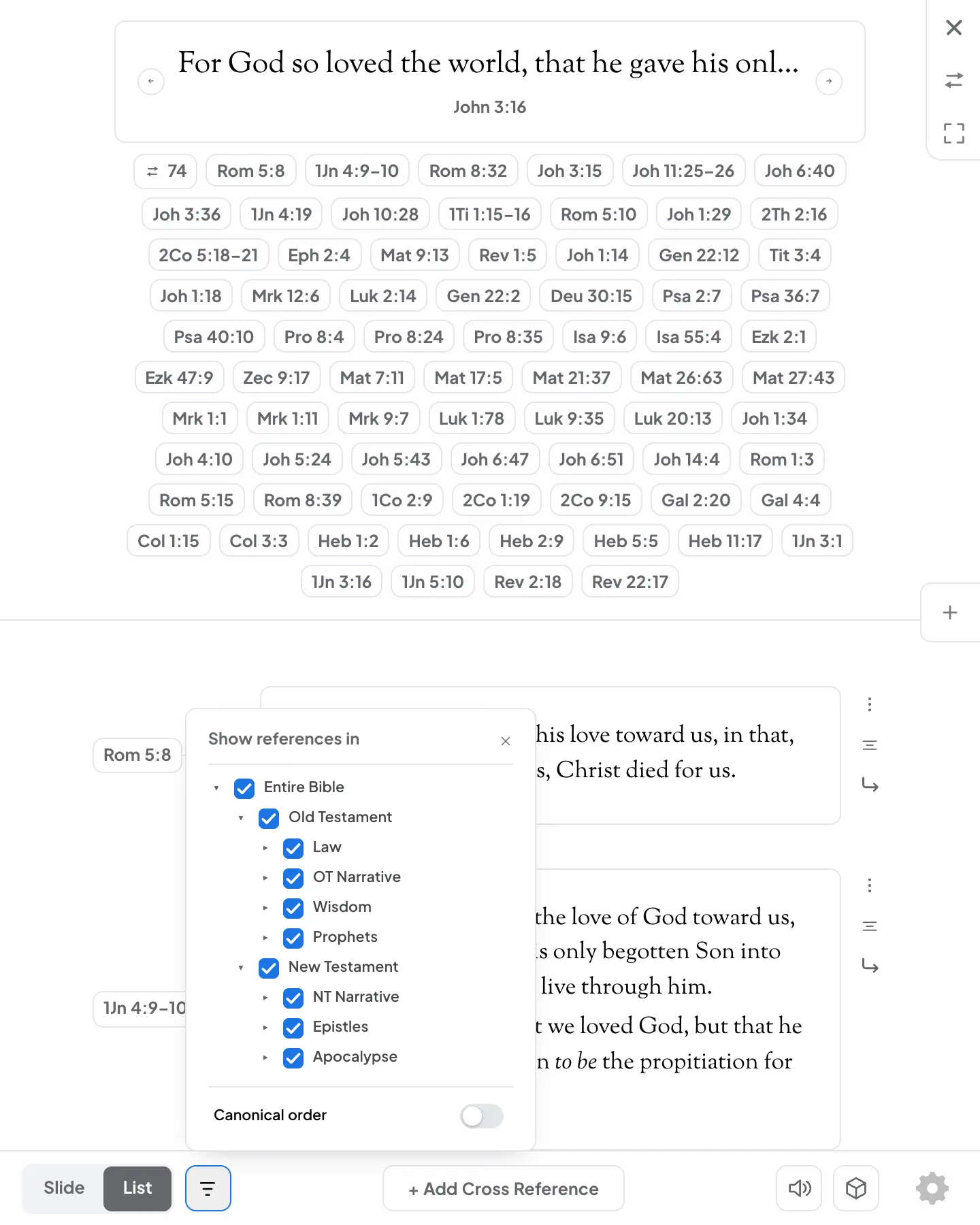
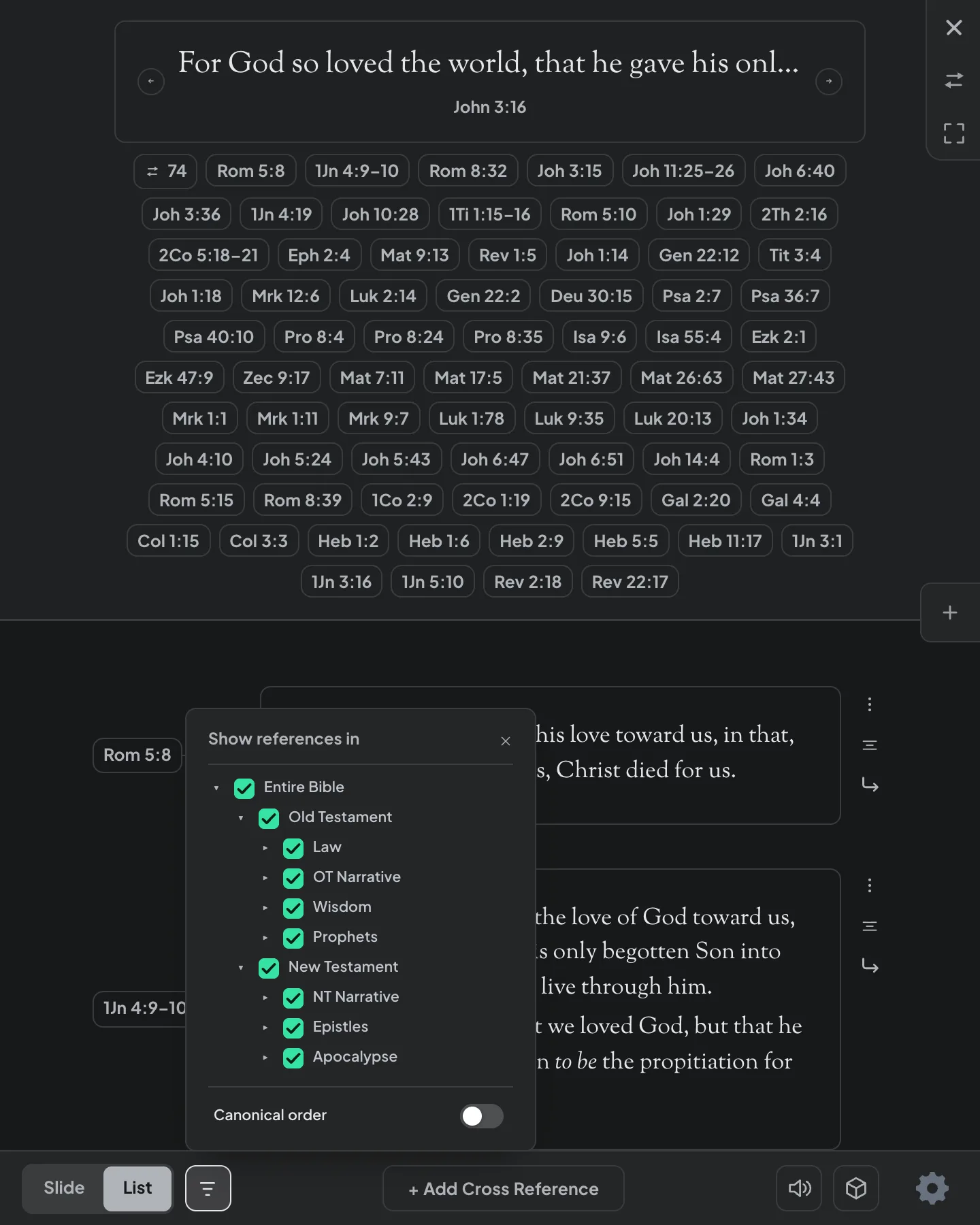
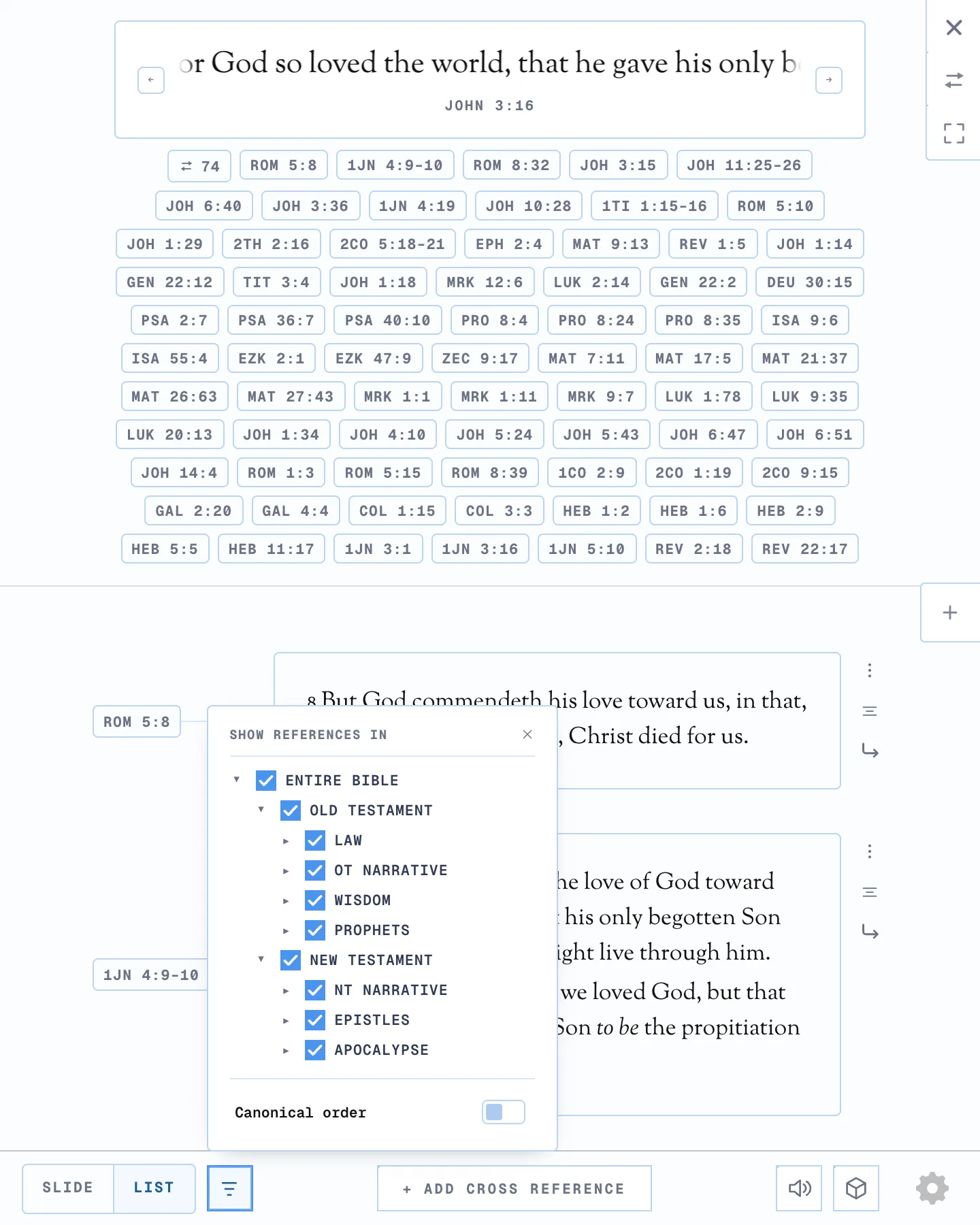
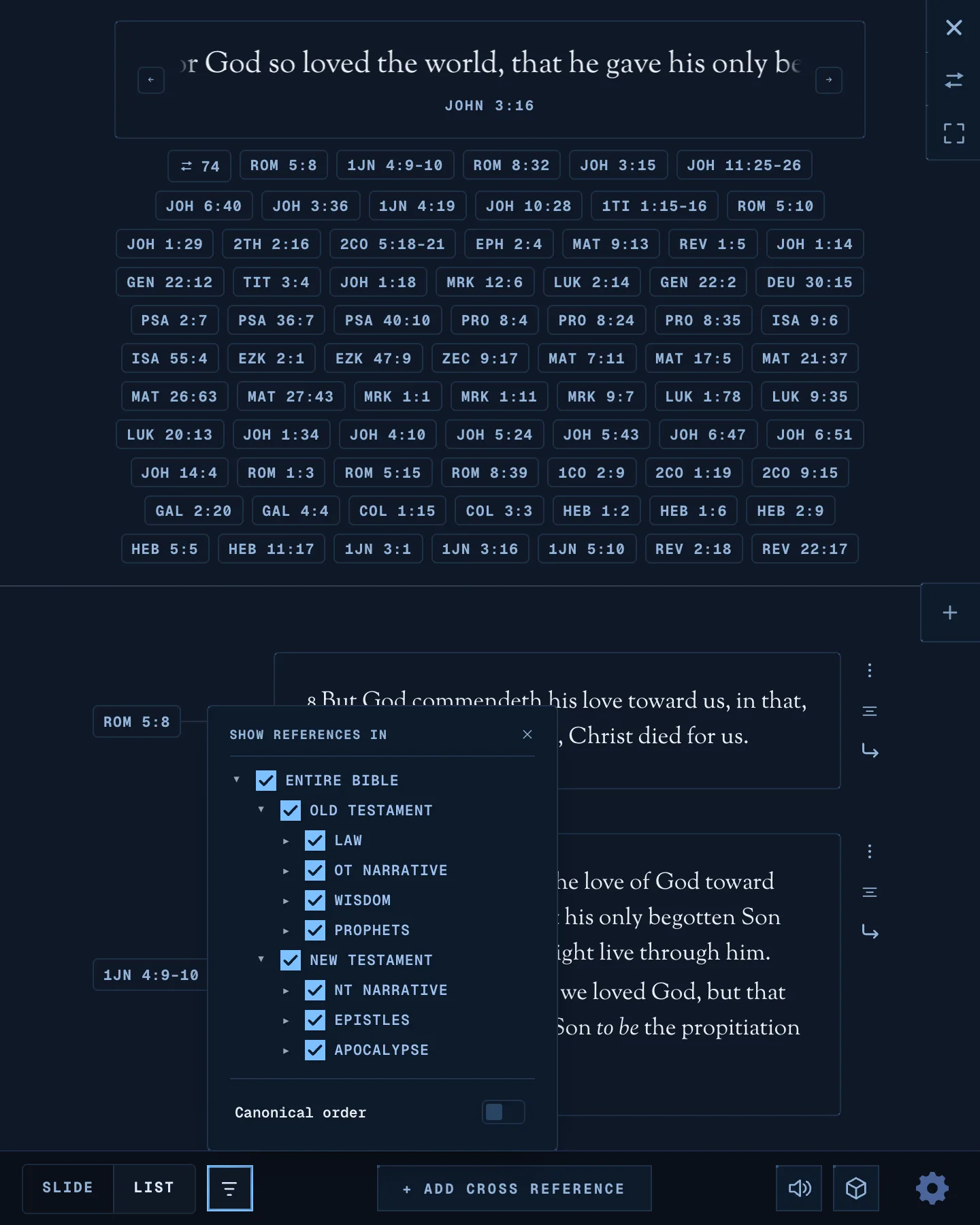
Press Filters in the pane's bottom bar to open Show references in. Choose the whole Bible, one Testament, groups such as the Law, Prophets, Gospels or Epistles, or individual books. The last row turns Canonical order on or off. Your choice of books stays until you close the site.
To hide a whole kind of reference, such as primary, standard or community suggestions, use Settings.
Cross references full screen On a computer, press Full screen in the top-right corner of the open cross references pane.
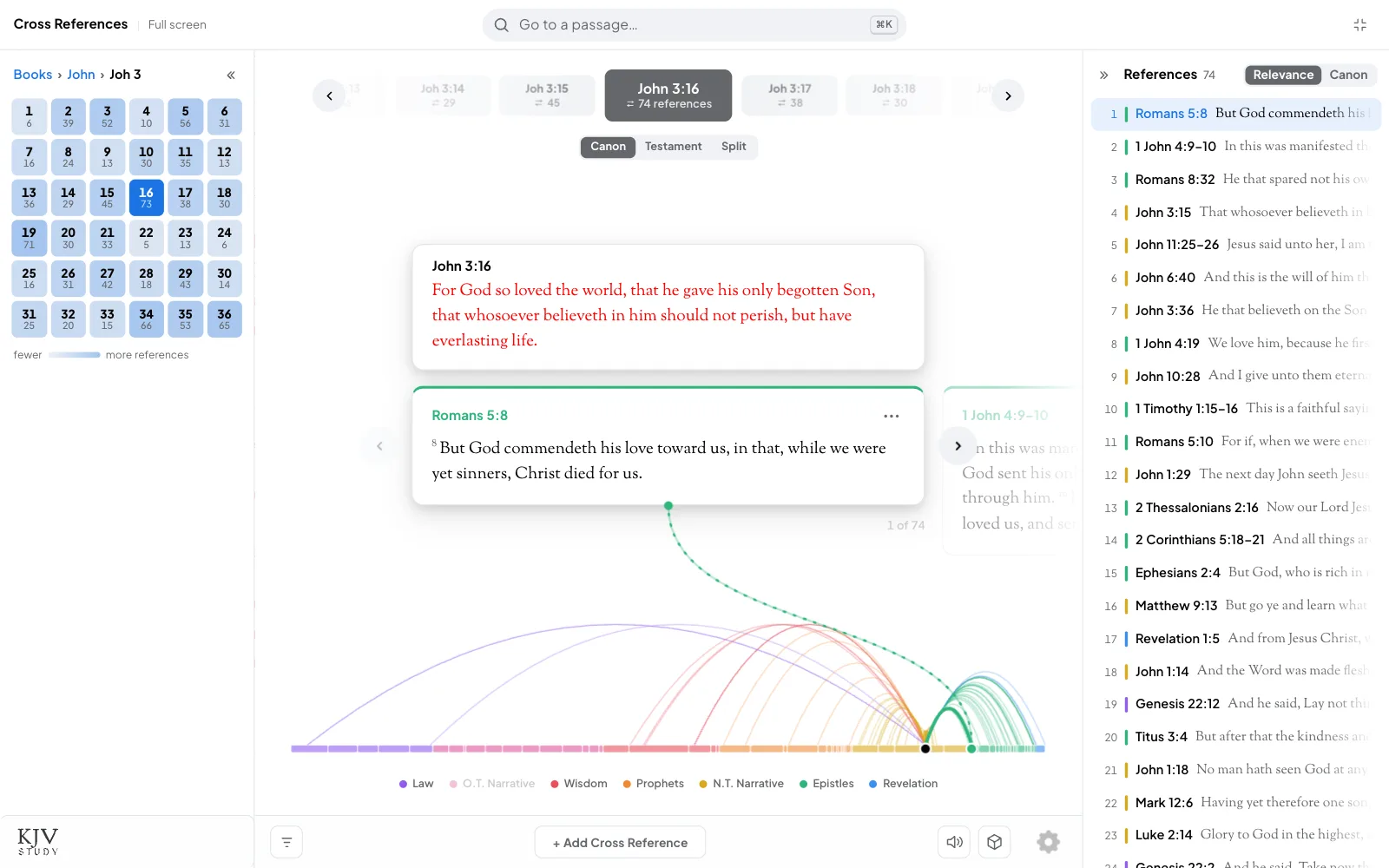
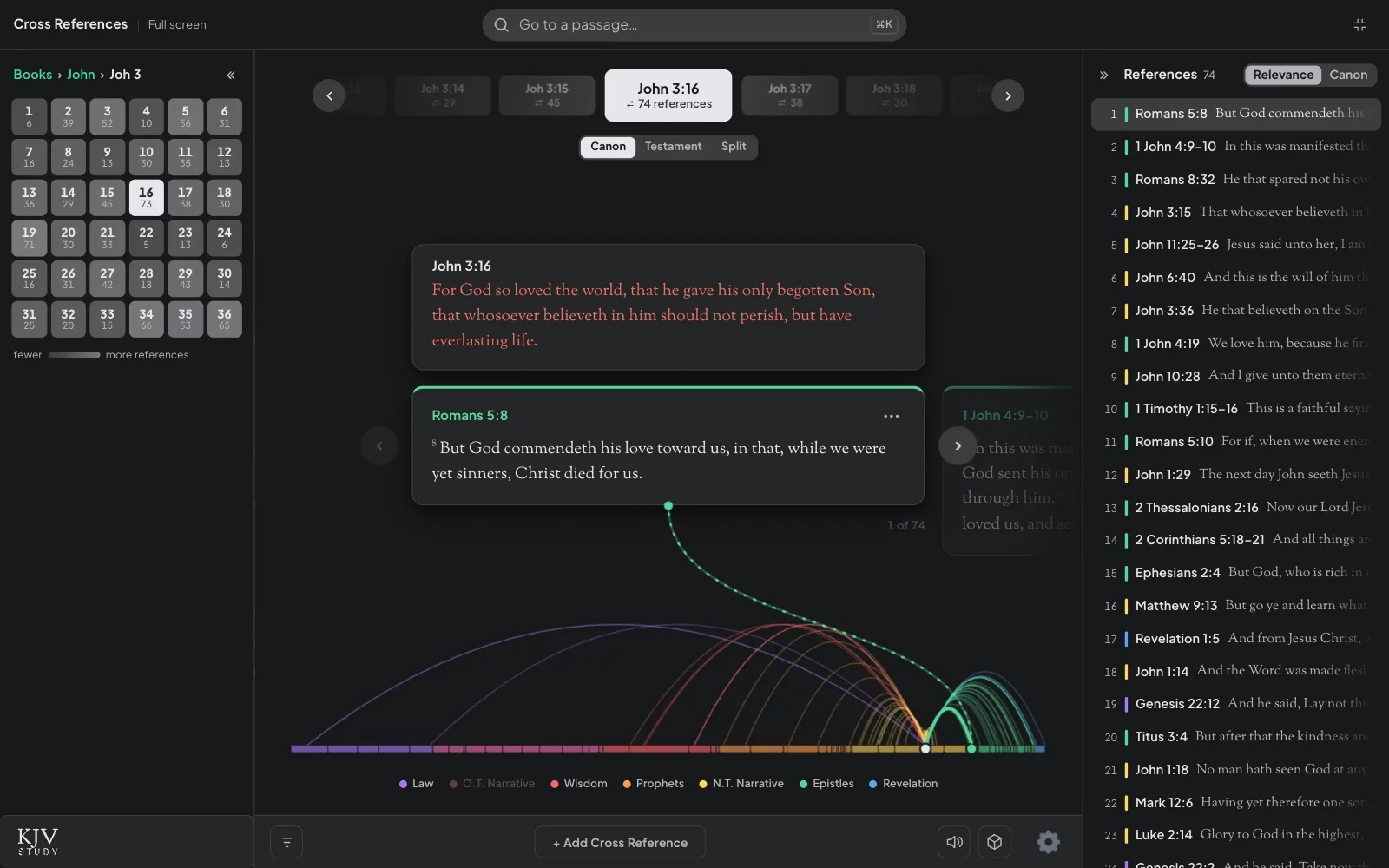
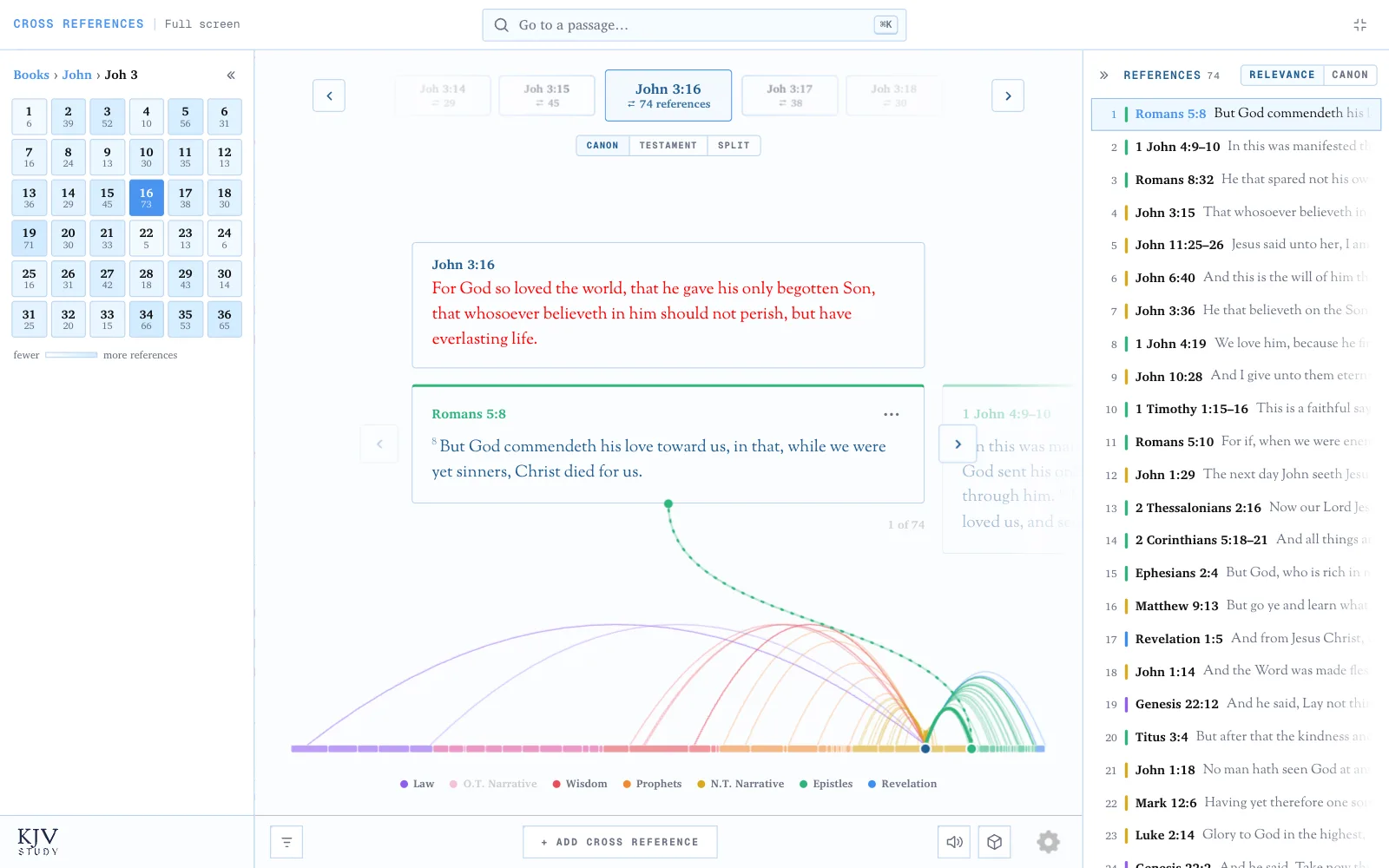
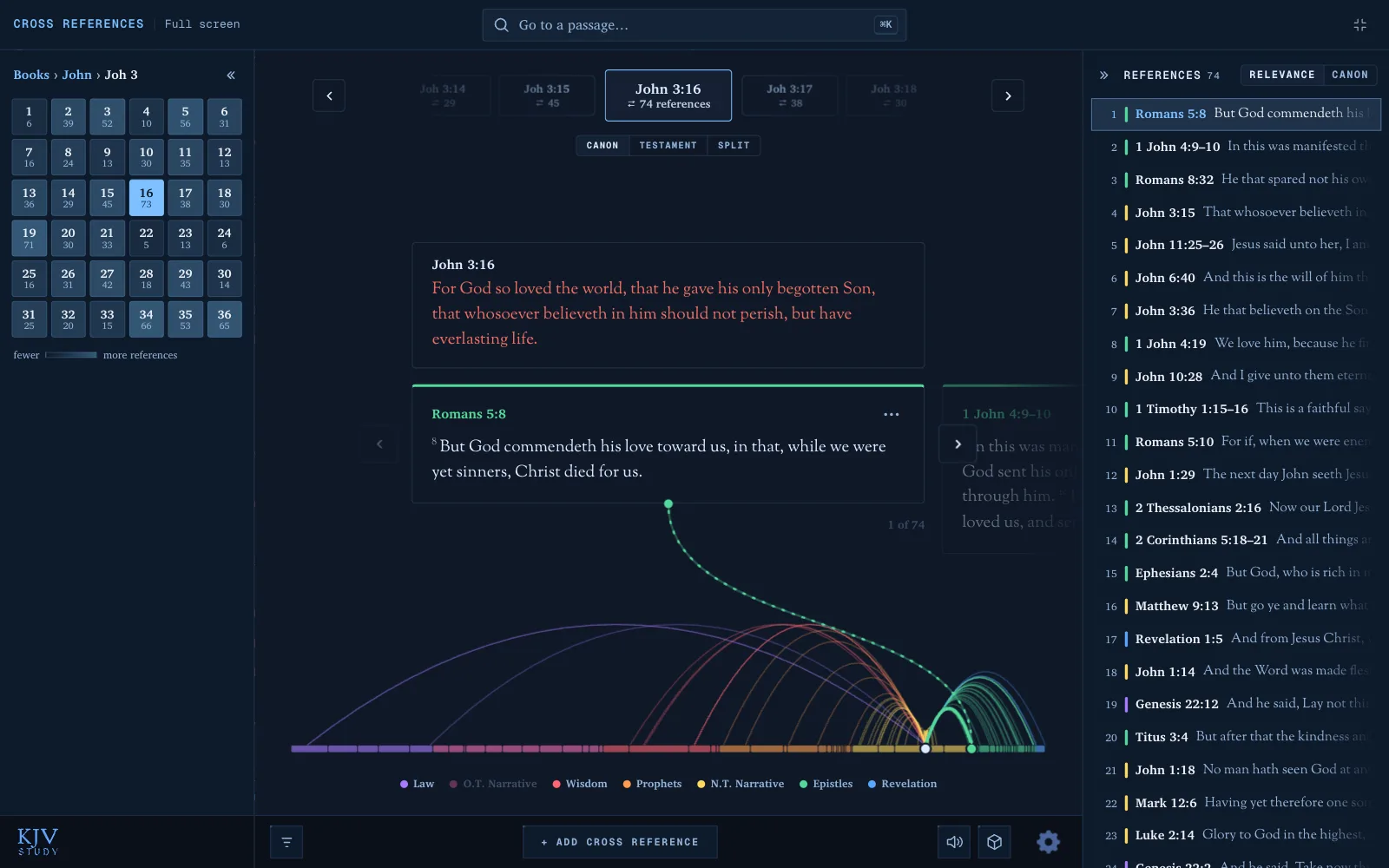
On a computer, press Full screen in the top-right corner of the open cross references pane. The full window shows books, chapters and verses on the left, the Slide view in the middle, and the reference list on the right. The verses on the left are shaded according to how many references they have.
Use Go to a passage… at the top to jump to another passage. Ctrl+K, Cmd+K, or / takes you to that box. Leave full screen with the close button, the logo, or Escape.
Adding your own When you're signed in, press + Add Cross Reference at the bottom of the pane.
When you're signed in, press + Add Cross Reference at the bottom of the pane.
- Single: search for a verse, tick the ones you want, and press Add Reference.
- Bulk: paste a list, such as "John 1:1, Ps 33:6, 2 Cor 4:6", and press Add Refs.
Your references are visible only to you and marked Yours. Each is added in both directions, so the other passage also points back to this one. To suggest a single reference for everyone, turn on Submit to community suggestions before adding it. Suggestions are anonymous, and offered only while Community References is on in Settings.
Editing, reordering and hiding When you're signed in, press Edit.
When you're signed in, press Edit. You can drag cards into your preferred order, hide a card with the eye button, or use its menu to make it a Primary Reference, change who is speaking, or move it up or down. Press Save when you're finished.
Delete reference in a card's three-dot menu hides it for you without removing it for other readers. Your changes appear in My Cross References, where you can undo them.
Community suggestions References suggested by other readers appear under Community Suggestions.
References suggested by other readers appear under Community Suggestions. When you're signed in, choose Keep or Reject for each suggestion. Enough votes in either direction decide the result. If a reference looks wrong, choose Flag this reference in its three-dot menu to let the team know.
Hearing them read aloud Press Play cross-references aloud in the pane's bottom bar to hear the references one after another.
Press Play cross-references aloud in the pane's bottom bar to hear the references one after another. The current reference is marked, and arrows let you skip back or forward.