Verse Chests
Gather verses on a subject, share them, work on a collection together, and keep other readers' chests close at hand.
What a Verse Chest is A Verse Chest is a collection of verses with a title, such as "Deity of Christ" or "Promises for the weary".
A Verse Chest is a collection of verses with a title, such as "Deity of Christ" or "Promises for the weary". You can arrange verses in groups, highlight words, add a description, and organise the chest by topic. Keep it private, share it by link, or publish it for everyone to find.
You need an account to create chests. Anyone can read a chest that's shared or published.
Where your chests are On a computer, choose Verse Chests from the Splitscreen menu or My Verse Chests from the main menu.
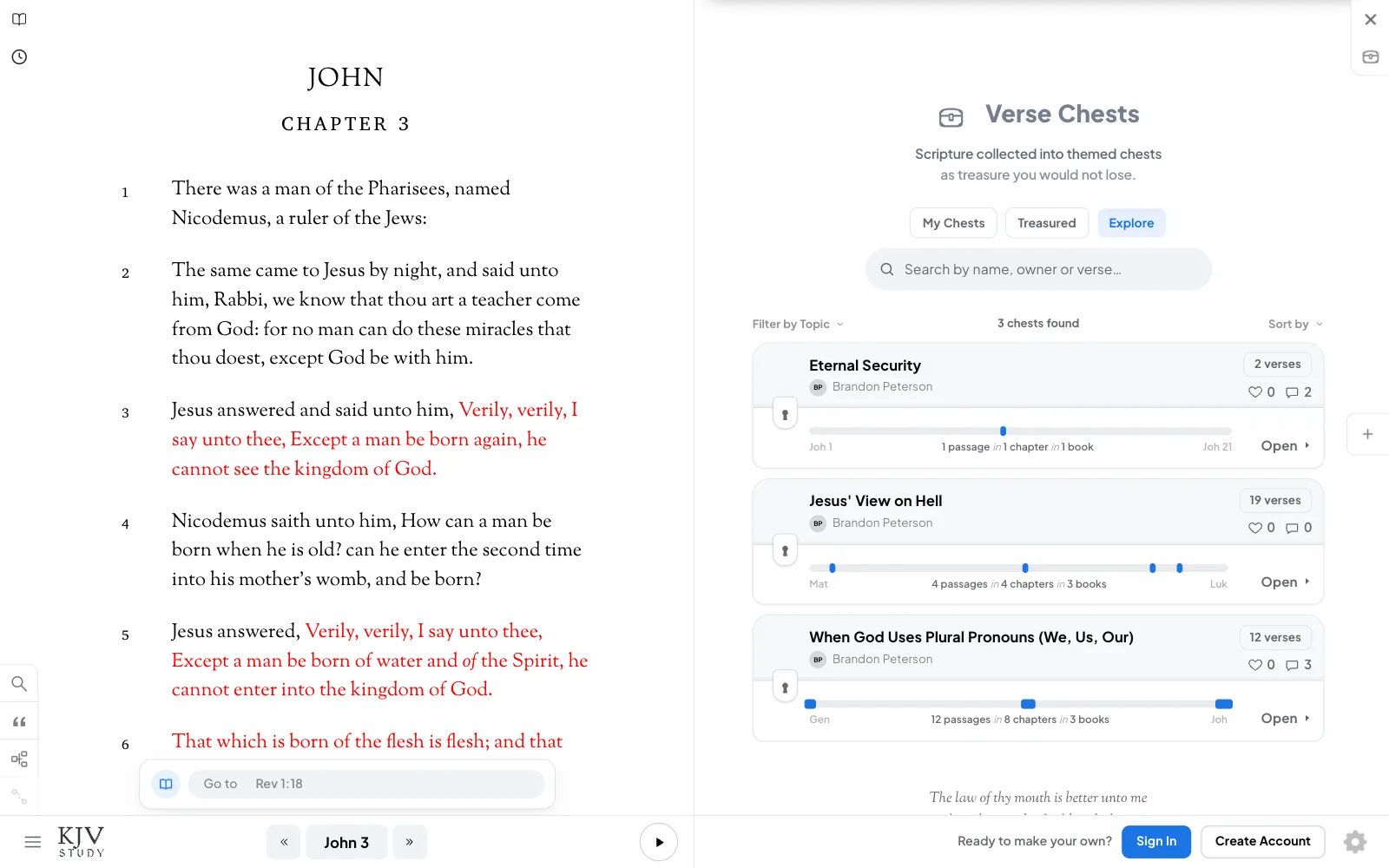
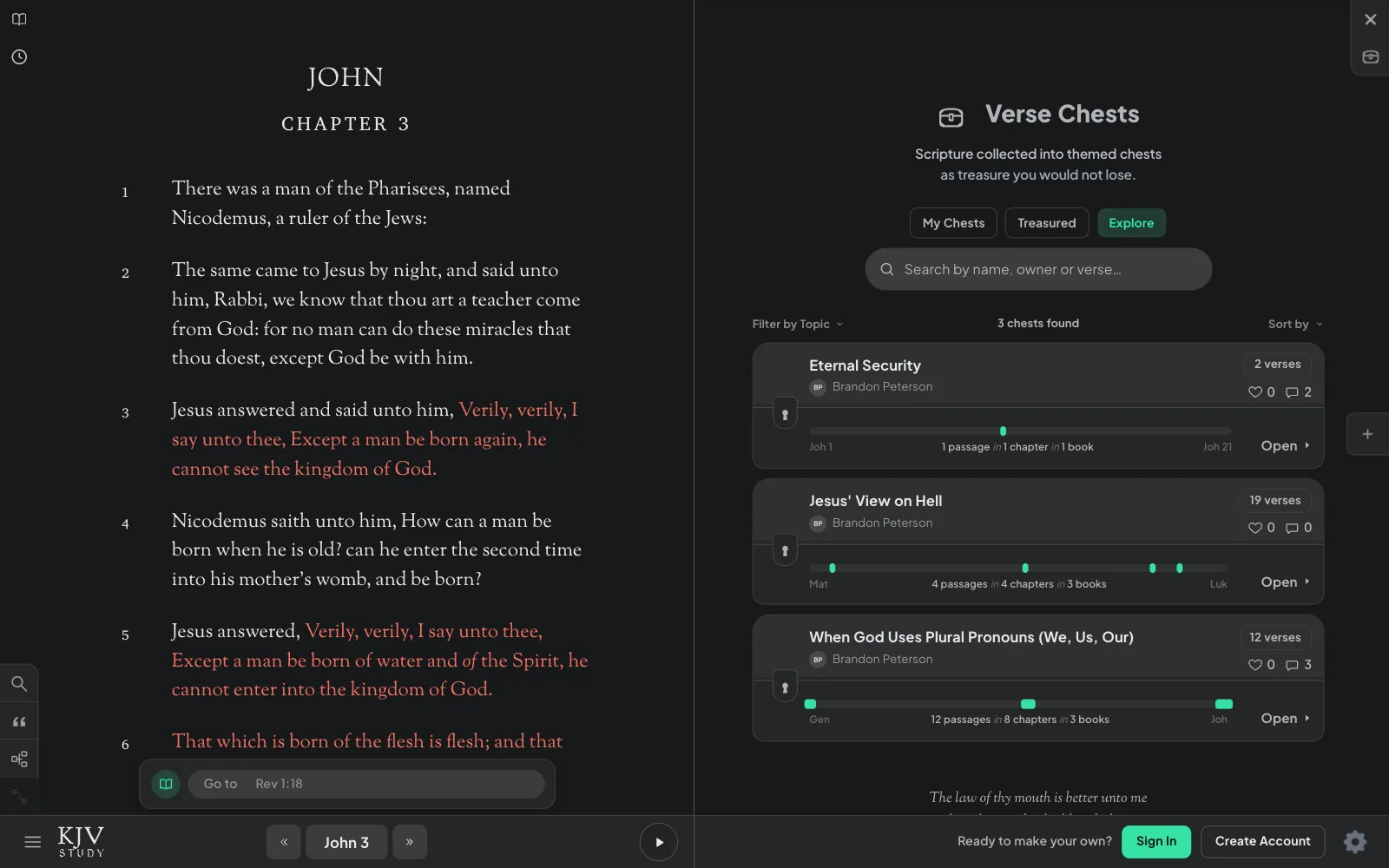
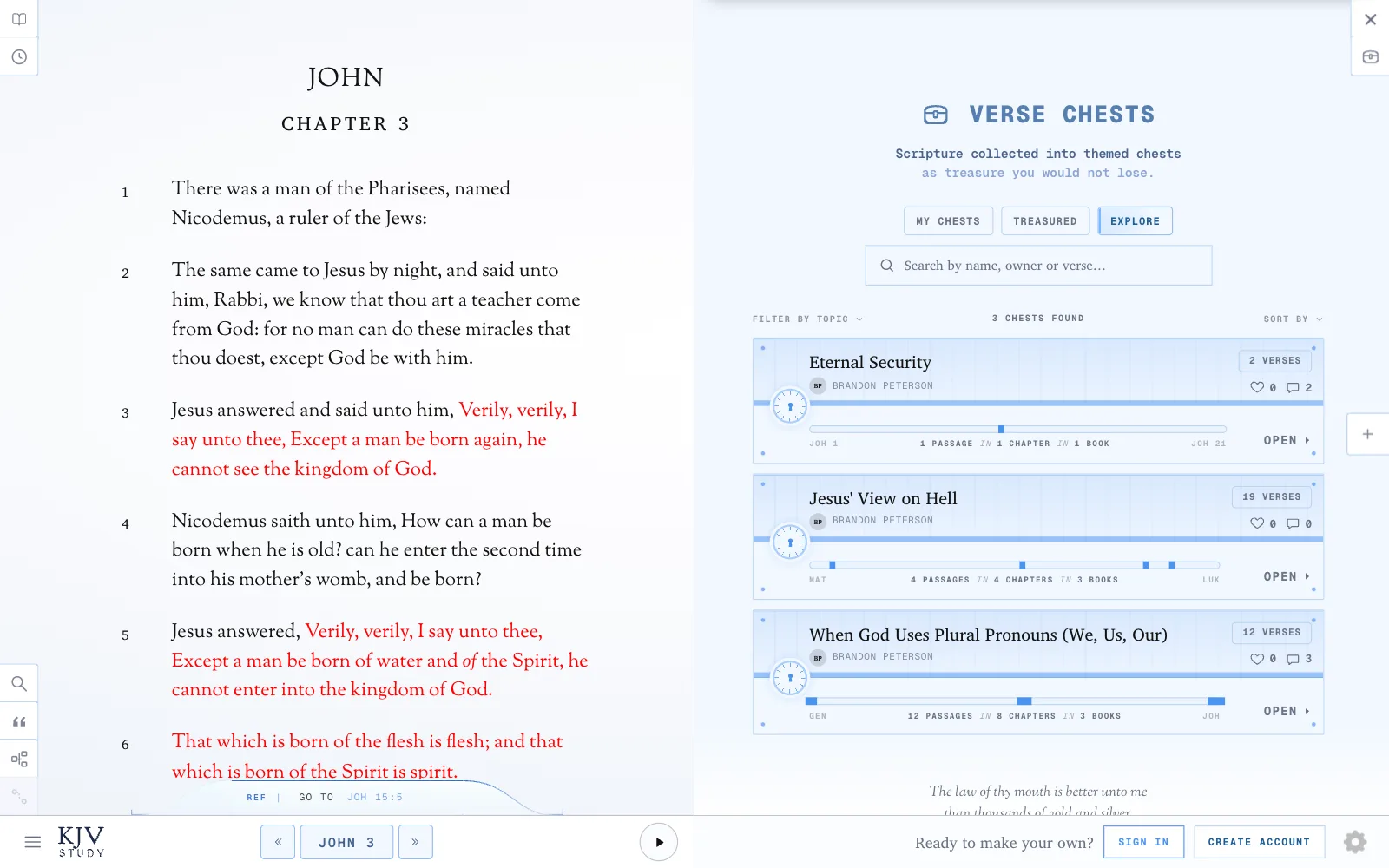
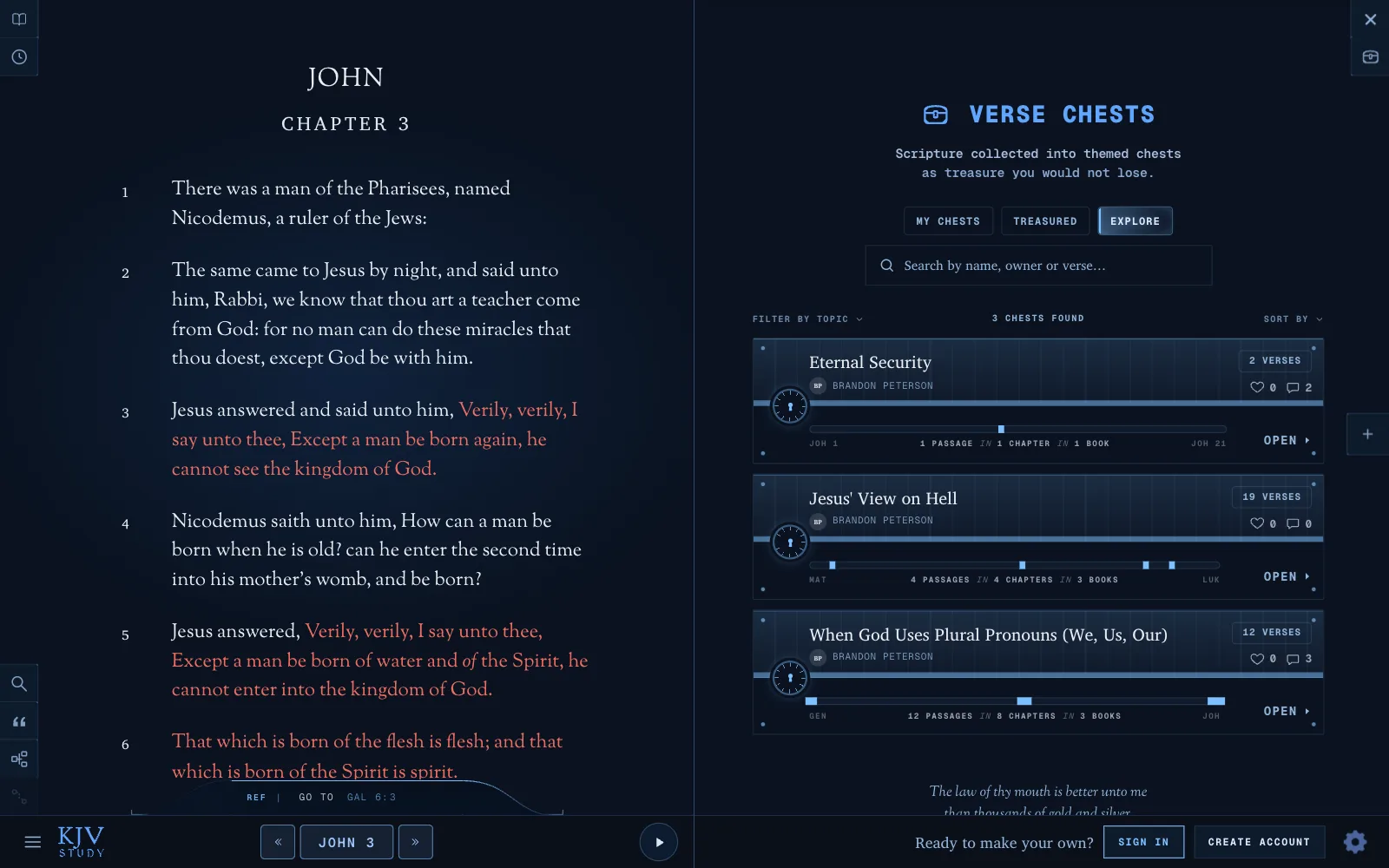
On a computer, choose Verse Chests from the Splitscreen menu or My Verse Chests from the main menu. On a phone, open Library, then Verse Chests.
- My Chests: your chests, with filters for Starred, Private, Unlisted or Public. Sort by date, name, visibility or size, and star a chest to keep it at the top.
- Treasured: other readers' chests you've marked with a heart.
- Explore: chests other readers have made public.
- Activity: comments, invitations and changes to chests you're part of.
Making a chest Press + New Verse Chest.
- Press + New Verse Chest.
- Give it a name. You can change this later.
- If you like, add verses, a description of up to 500 characters, and topics. Use More options to add collaborators and choose who can see the chest.
- Press Create Chest, or Publish if you've chosen Unlisted or Public.
Adding verses From the reading, right-click or select a verse and choose Add to Verse Chest.
- From the reading, right-click or select a verse and choose Add to Verse Chest. Choose a chest, or type a name to create a new one.
- From a cross reference, choose Add to Verse Chest in the card's menu.
- Inside a chest, press Edit Chest and enter a reference, such as "Gen 1:1", in the quick-add box. Press Done Editing when you're finished.
While editing, you can select words in a verse to highlight them within the chest.
Organising a chest Each verse's three-dot menu lets you change its range, group it with another verse, move or copy it to another chest, open the passage, add a note, or remove it.
Each verse's three-dot menu lets you change its range, group it with another verse, move or copy it to another chest, open the passage, add a note, or remove it. You can rename, colour and move groups. New verses go, in the chest's details or Settings, chooses whether verses are added at the top or bottom.
Who can see a chest Private (the default): only you.
- Private (the default): only you.
- Unlisted: anyone with the link.
- Public: anyone, with the chest also listed in Explore.
Change this in Edit chest details, where you'll also find Copy Link and the chest's web address. To share without displaying your name, turn on Hide my name in Settings. Shared links will show "Anonymous".
Working on a chest together Open the chest's menu and choose Collaborators.
Open the chest's menu and choose Collaborators. Enter a username or email and press Send Invite, or use Copy Invite Link. Each invite link lets one person join and expires after 7 days.
Collaborators can add, remove and reorder verses, and their names appear as co-authors. Only the owner can change the chest's name and details. The owner can Remove a collaborator, cancel an invitation, or choose Make Owner to transfer ownership. Invitees can Accept, Decline, or Decline and Block. Members can Leave chest at any time.
Hearts and Treasured Press the heart on another reader's chest to keep it in your Treasured tab, where you can easily find it again.
Press the heart on another reader's chest to keep it in your Treasured tab, where you can easily find it again.
Comments Unlisted and public chests can have comments beneath them.
Unlisted and public chests can have comments beneath them. The owner can turn off Allow comments. Private chests don't have comments.
Sharing, printing and copying Use the chest's menu to Memorize it, Print chest, Copy all references (one per line), Duplicate chest, or View on its own.
Use the chest's menu to Memorize it, Print chest, Copy all references (one per line), Duplicate chest, or View on its own. People you share with can read the chest without editing it. They can use Make a Duplicate to keep their own copy or QR Code to open it on another device.