Going to a passage
How to choose a chapter, enter a reference, turn pages, and return to a passage you've read.
The chapter picker Press the chapter's name in the middle of the bottom bar, such as Genesis 1.
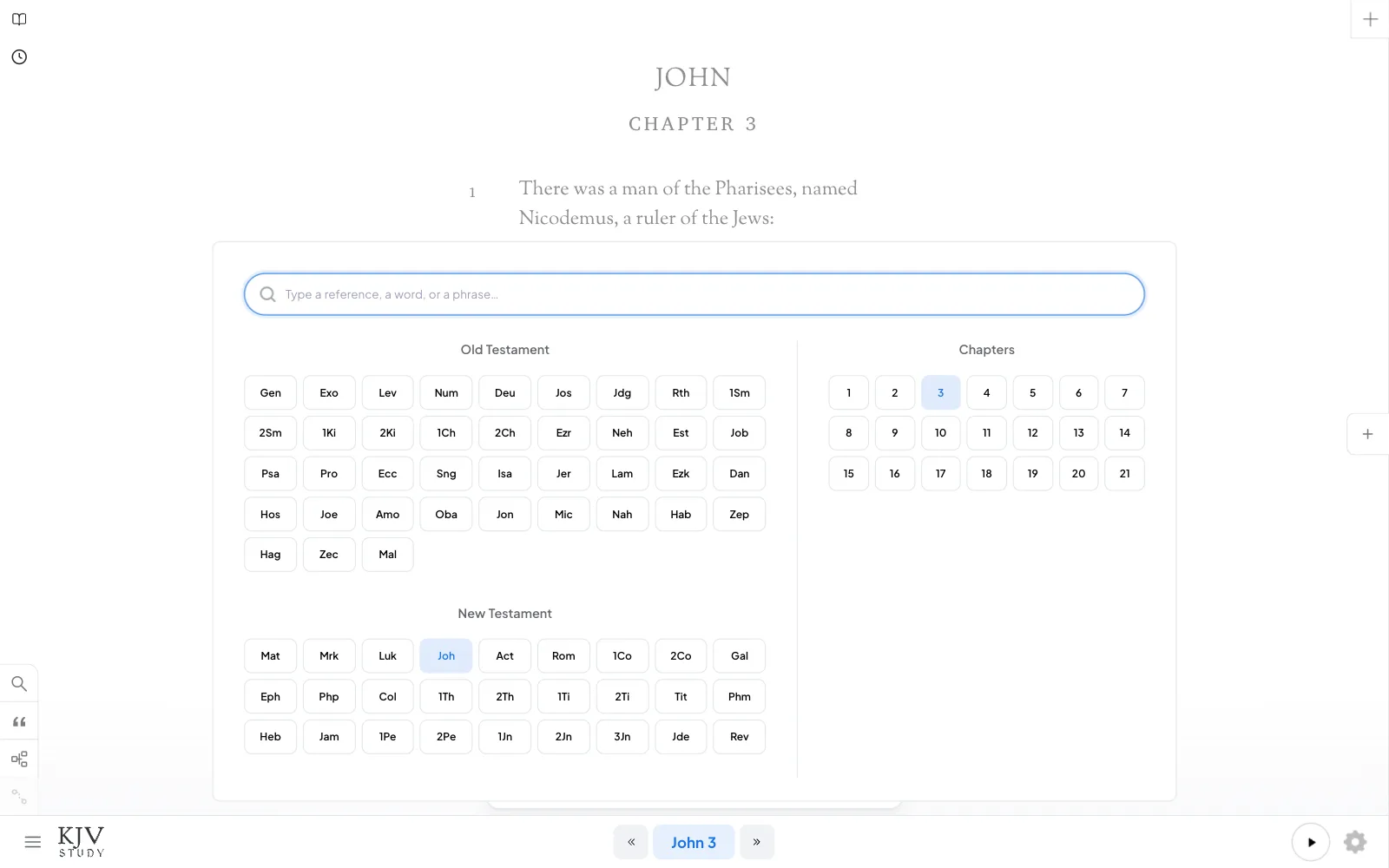
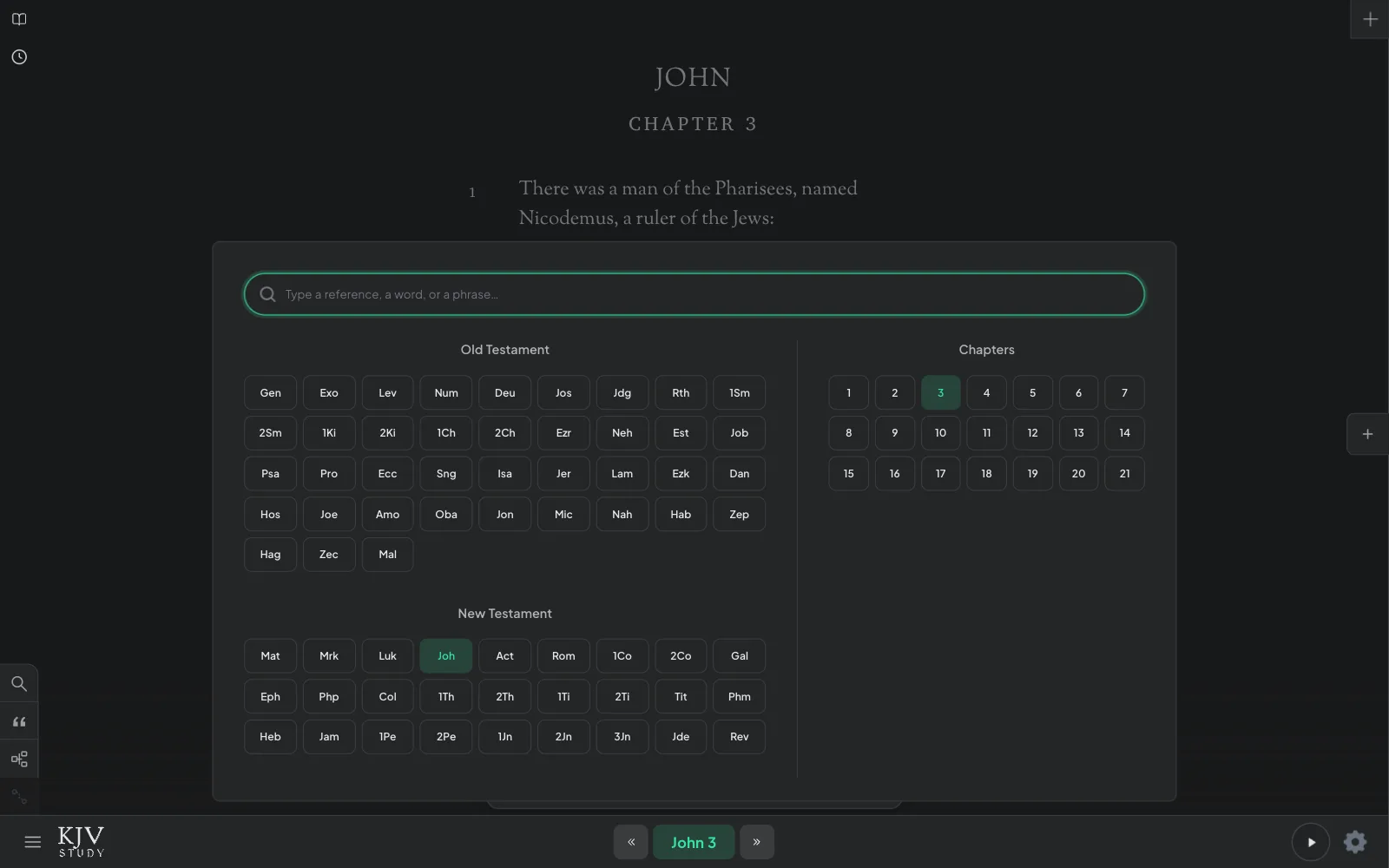
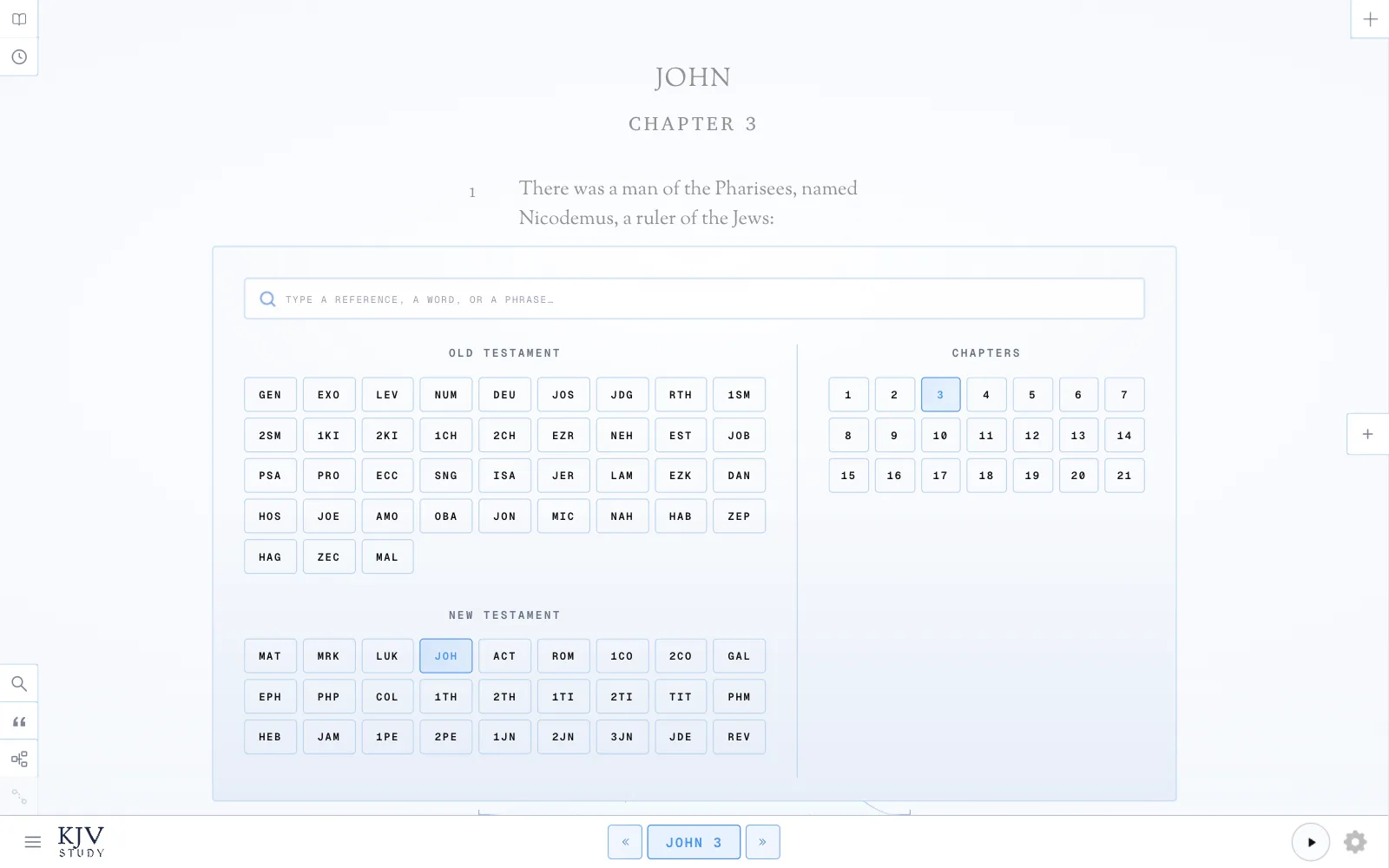
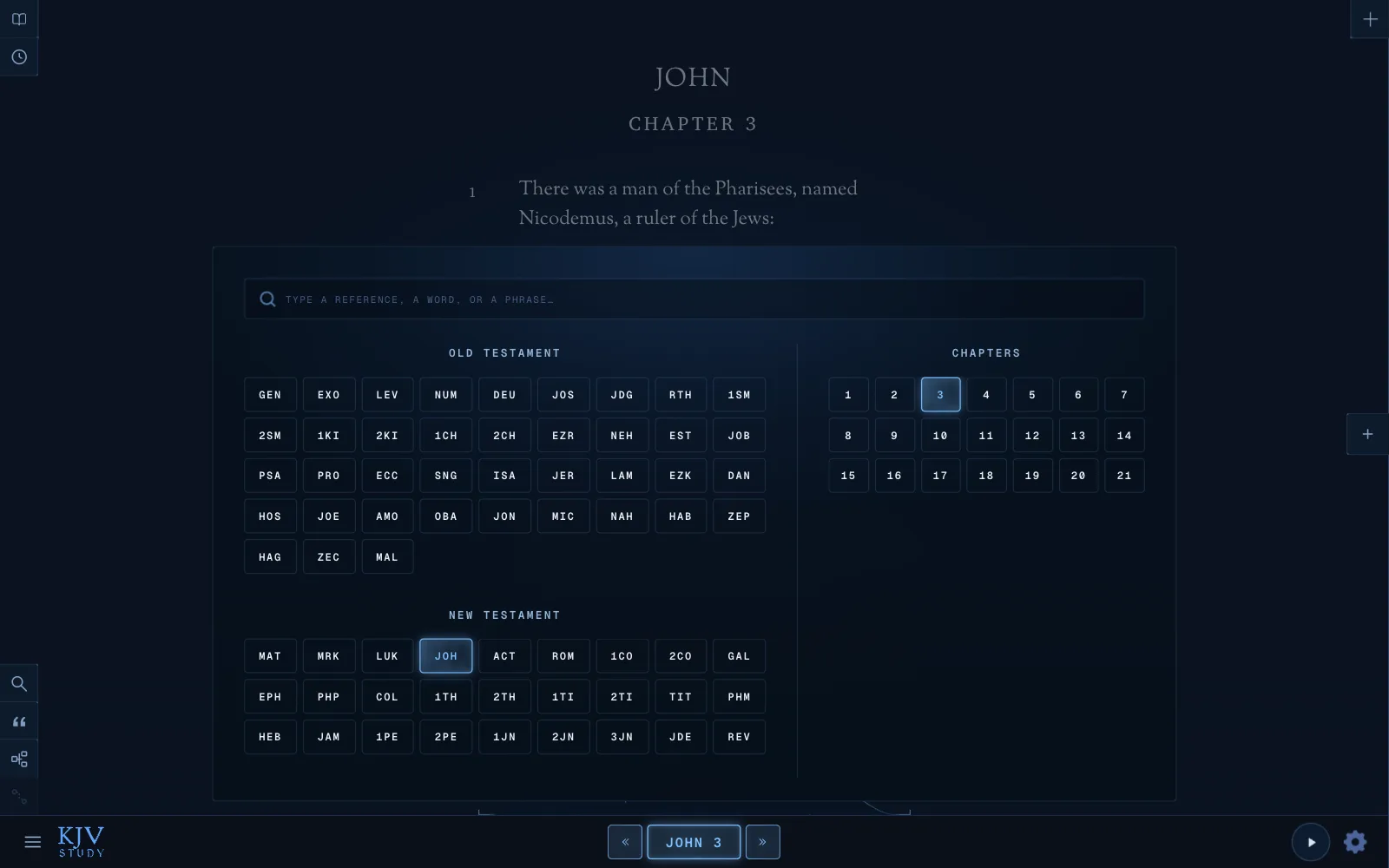
Press the chapter's name in the middle of the bottom bar, such as Genesis 1. The chapter picker opens with all the books of the Old and New Testaments.
- Click a book to see its chapters.
- Click a chapter to open it.
- Books with only one chapter (Obadiah, Philemon, 2 John, 3 John and Jude) open as soon as you choose them.
- Double-click any book to open its first chapter.
- Enter a reference, word or phrase in the search box at the top. Press Enter to open the first result.
Turning the page The « and » arrows beside the chapter's name take you to the previous or next chapter, continuing from one book into the next.
The « and » arrows beside the chapter's name take you to the previous or next chapter, continuing from one book into the next. On a computer, the left and right arrow keys do the same. On a phone, swipe sideways.
The Go to box On a computer, the Go to box sits just above the bottom bar.
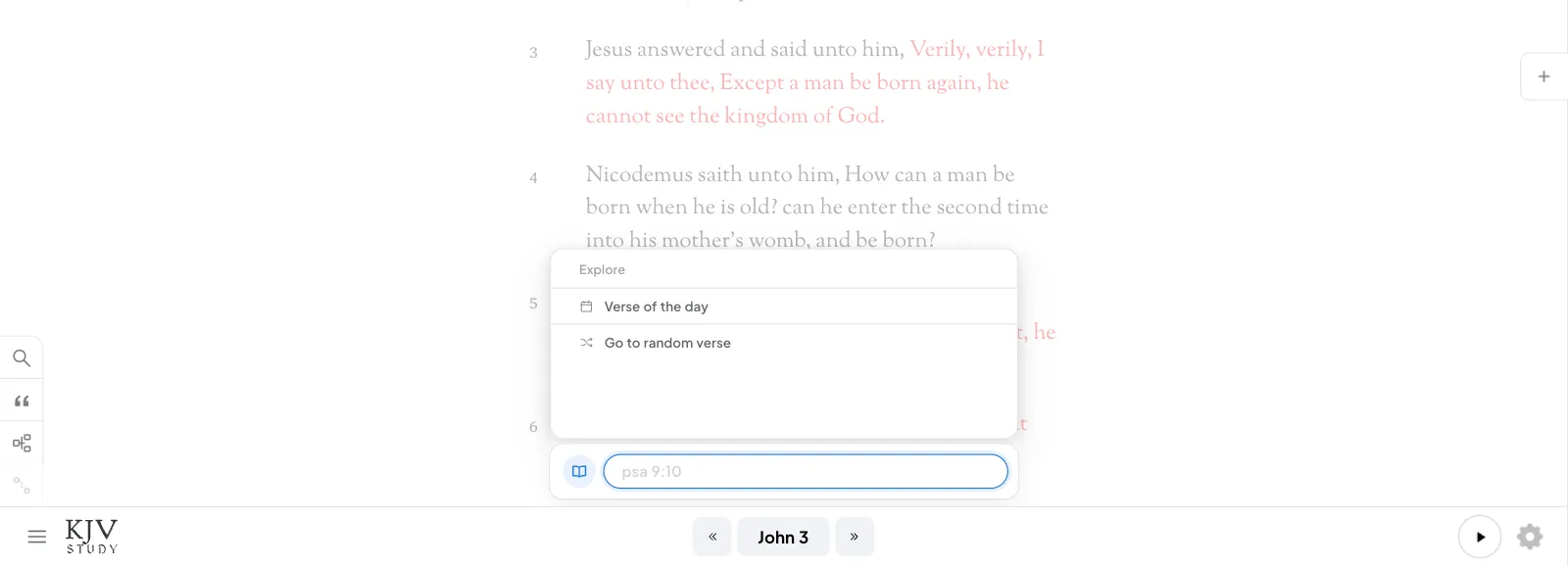
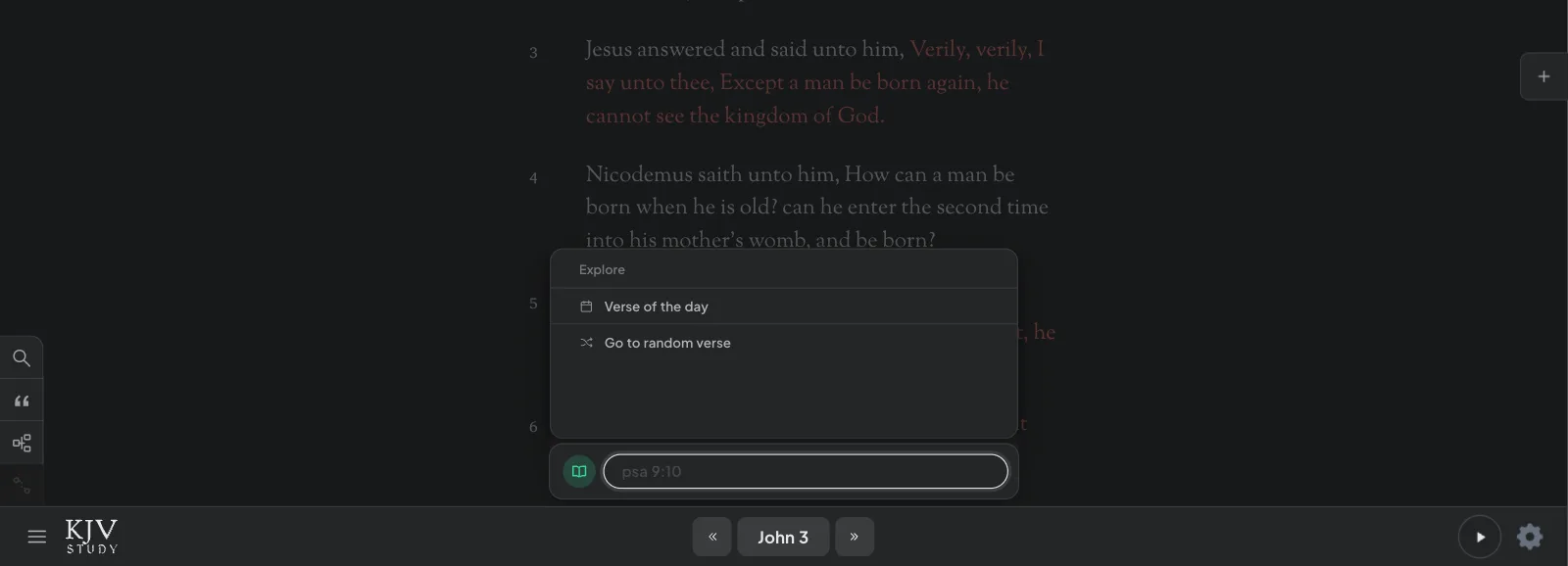
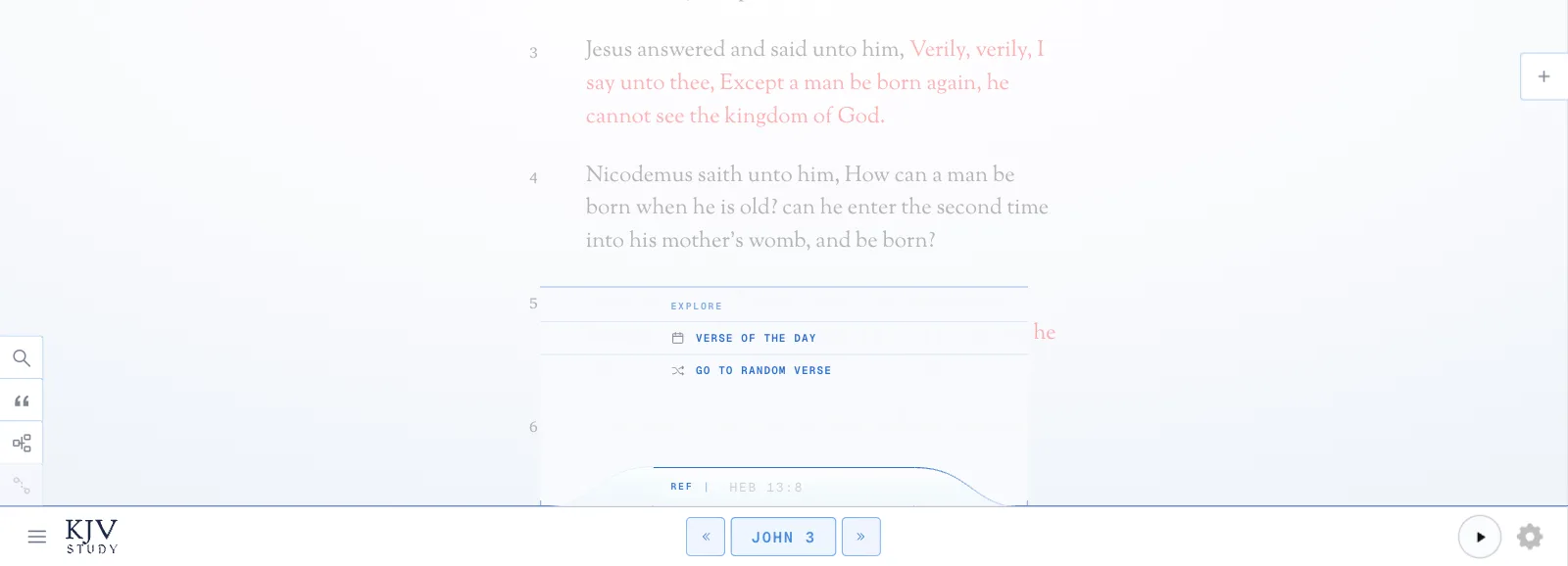
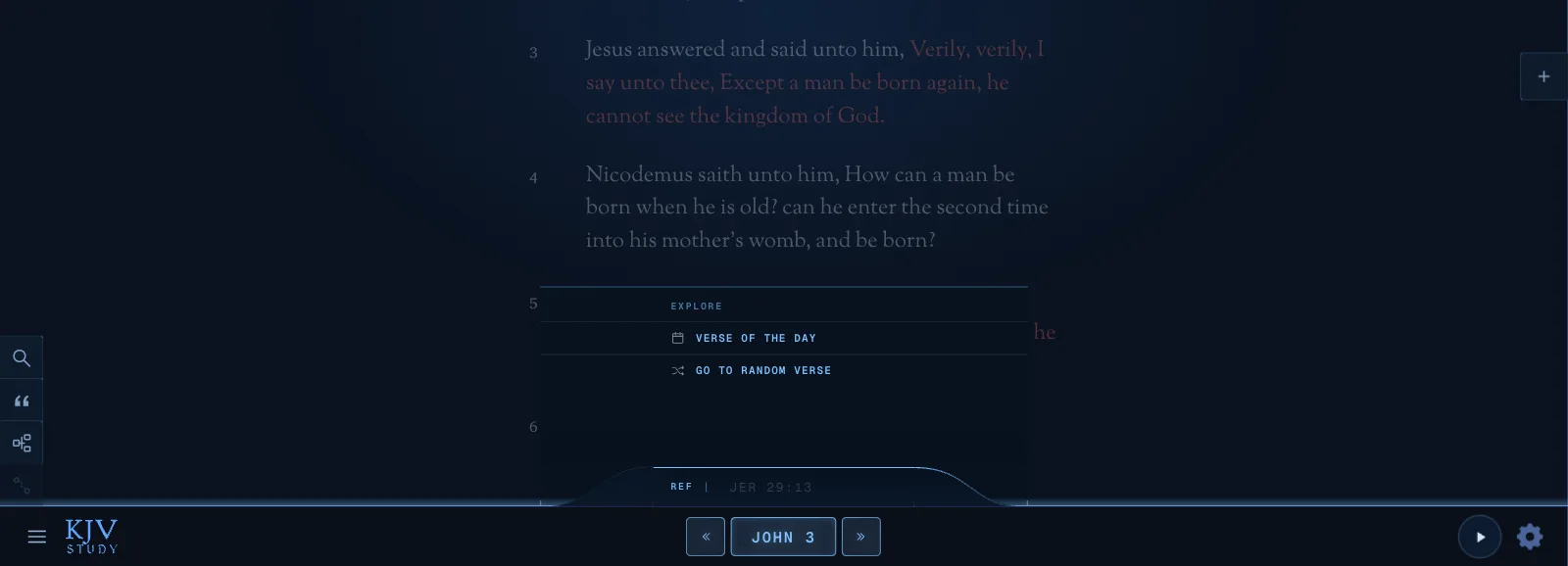
On a computer, the Go to box sits just above the bottom bar. It's off by default; turn on Show Navigator in Settings to show it.
Click the box, type where you want to go, and press Enter. You can write a reference in several ways:
- A book: Gen, 1 Co, I Sam, Revelation. A book name on its own opens chapter 1.
- A chapter or verse: John 3, John 3:16, Jn 3.16.
- Lists and ranges: Luke 4:25,26, Rom 8:28-39.
- A Psalm's title or an epistle's closing note: Psa 3 SS, Rom 16 Col.
- A word or phrase to search for.
Clicking the empty box also shows Explore (the verse of the day or a random verse), your Recent passages, and any ribbons in your Bible.
Press Tab in the empty box to use the faint example shown there. Escape clears what you've typed; press it again to leave the box.
History The clock in the top-left corner shows the chapters you've read and the verses you've highlighted, most recent first, with times such as "2m ago" or "Yesterday".
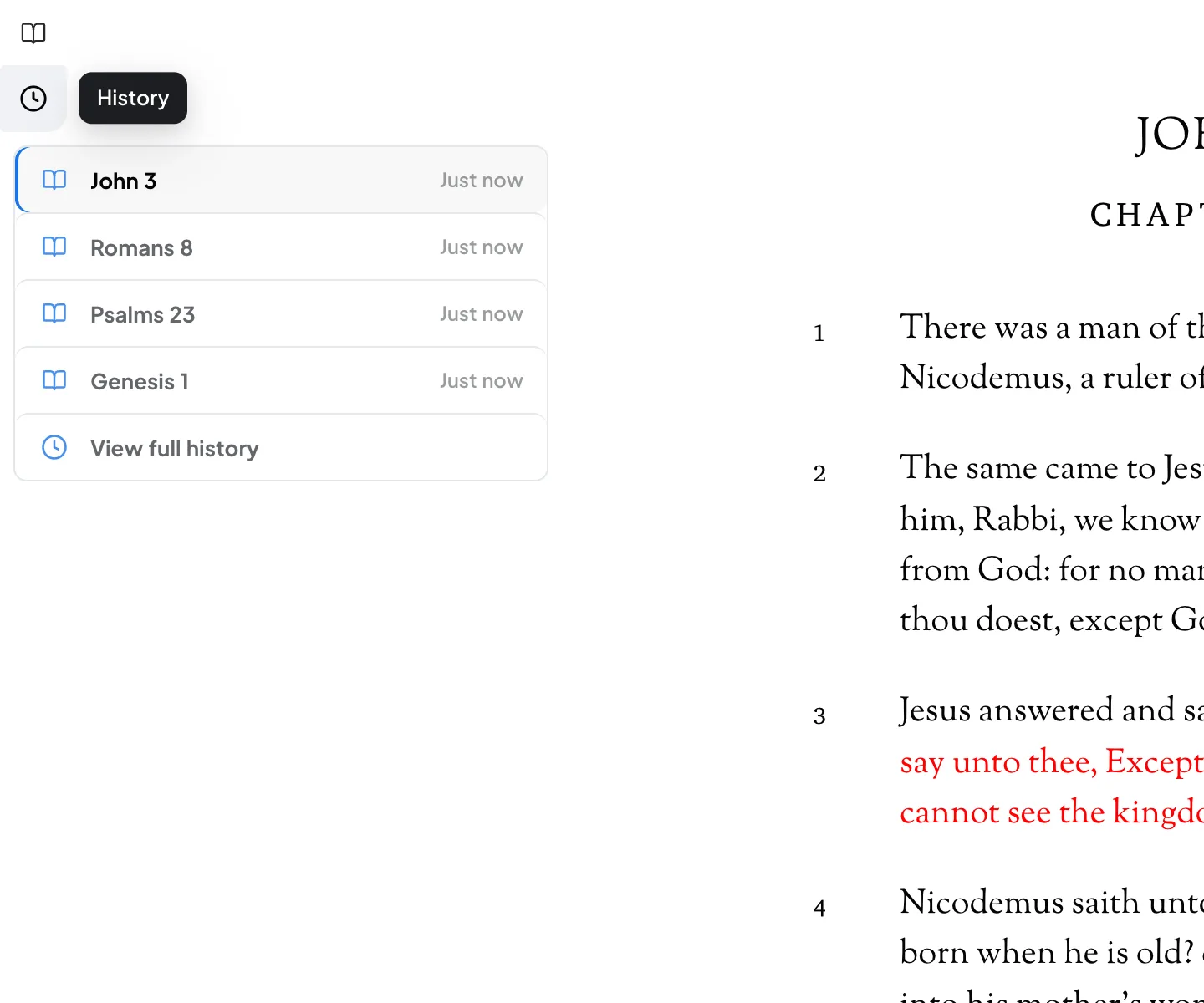
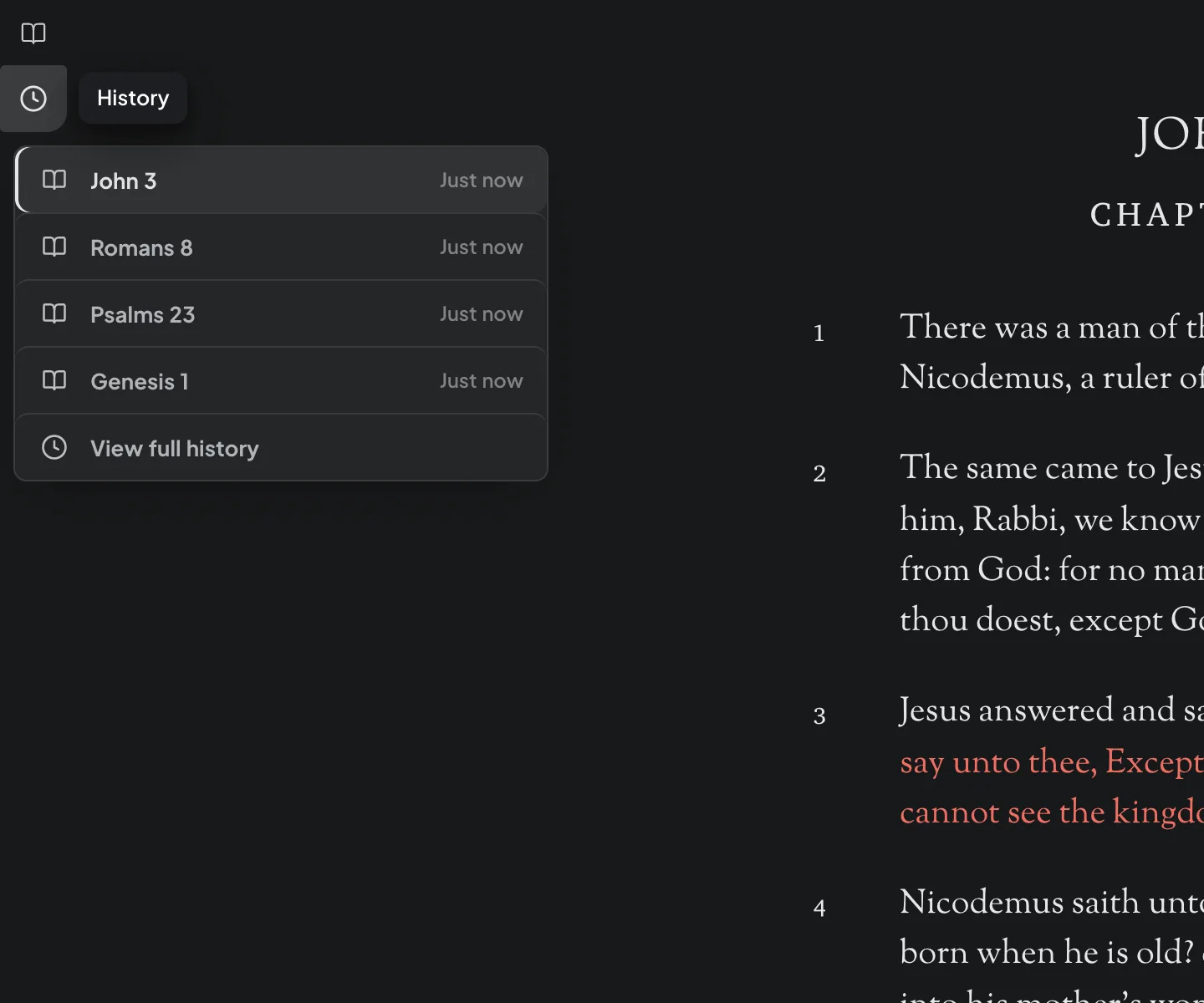
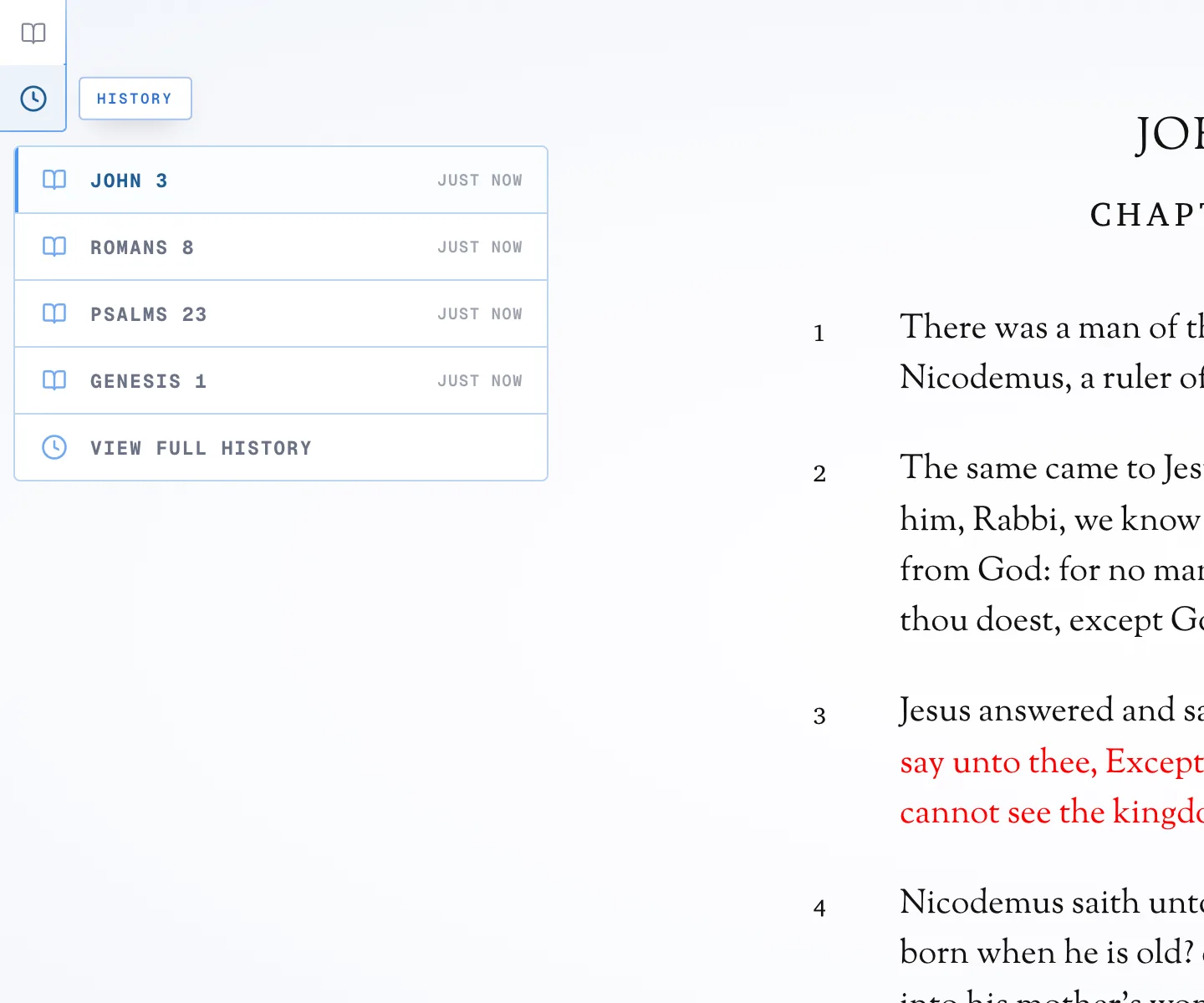
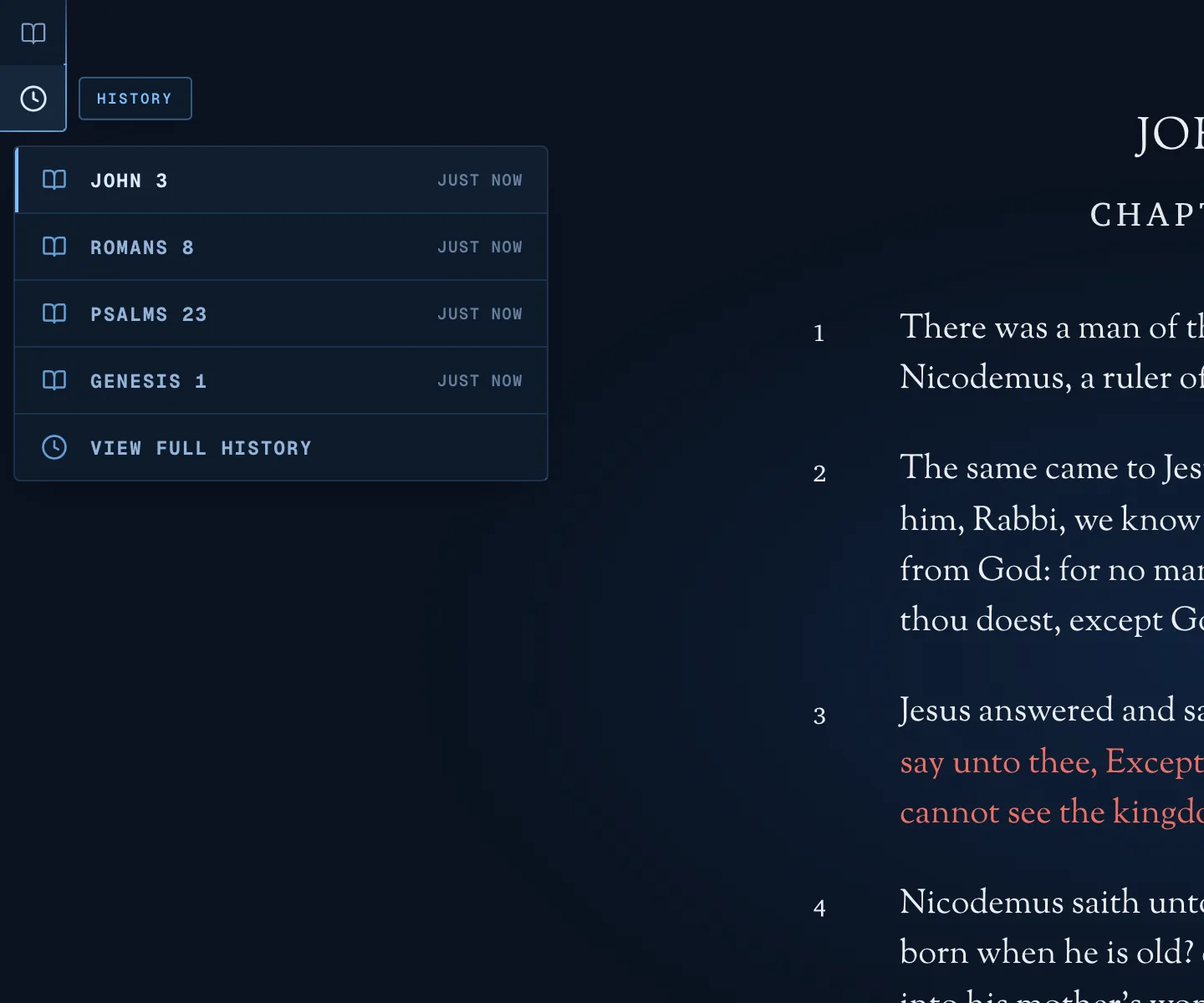
The clock in the top-left corner shows the chapters you've read and the verses you've highlighted, most recent first, with times such as "2m ago" or "Yesterday". Click an entry to return to it.
View full history opens the full list. Filter it to View All, History, or Highlights, or use Go To to jump to Today, Yesterday, a month, or a year.
When you're signed in, your history is saved to your account. When you're signed out, it stays in this browser.
The verse of the day A new verse appears each day in the menu, beneath the cross.
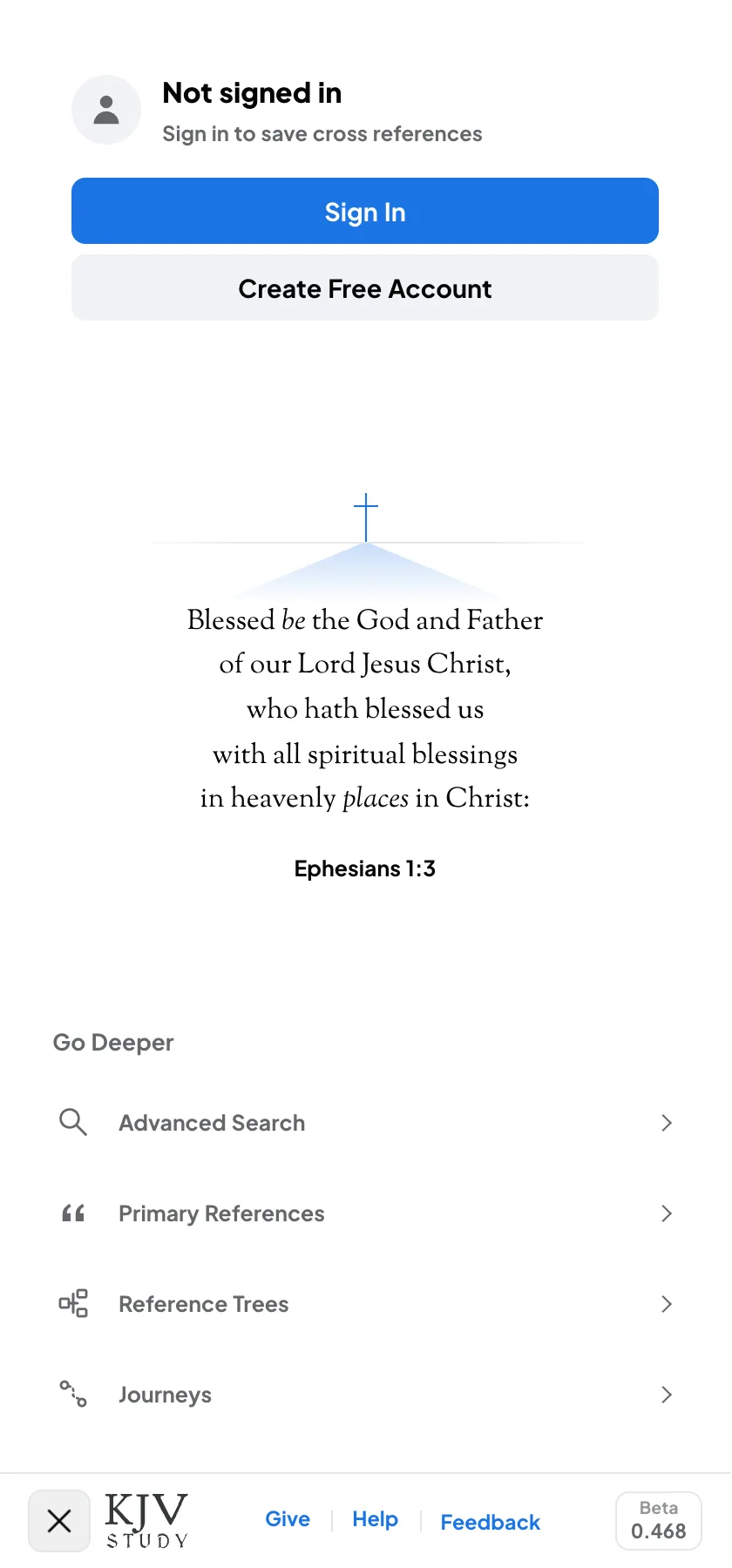
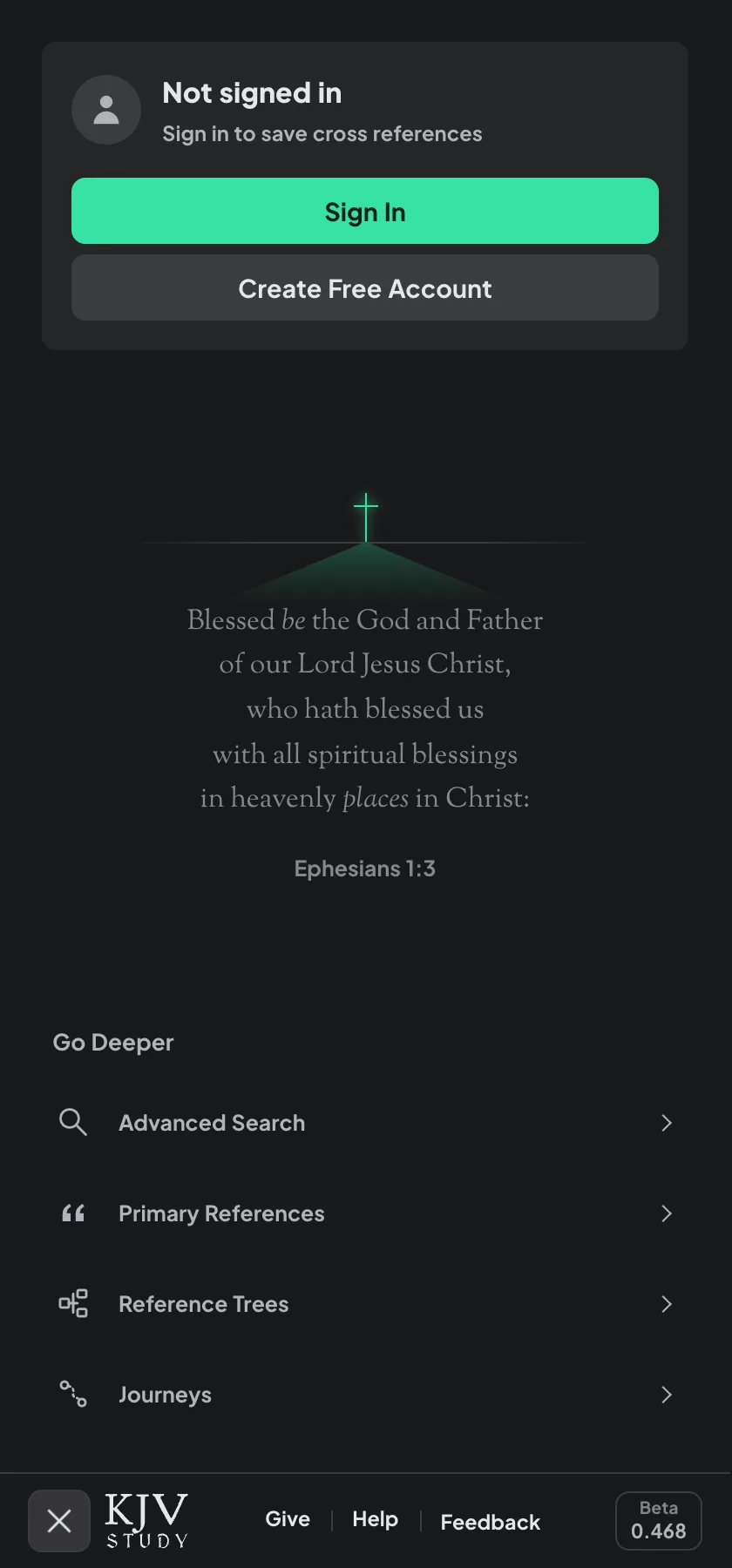
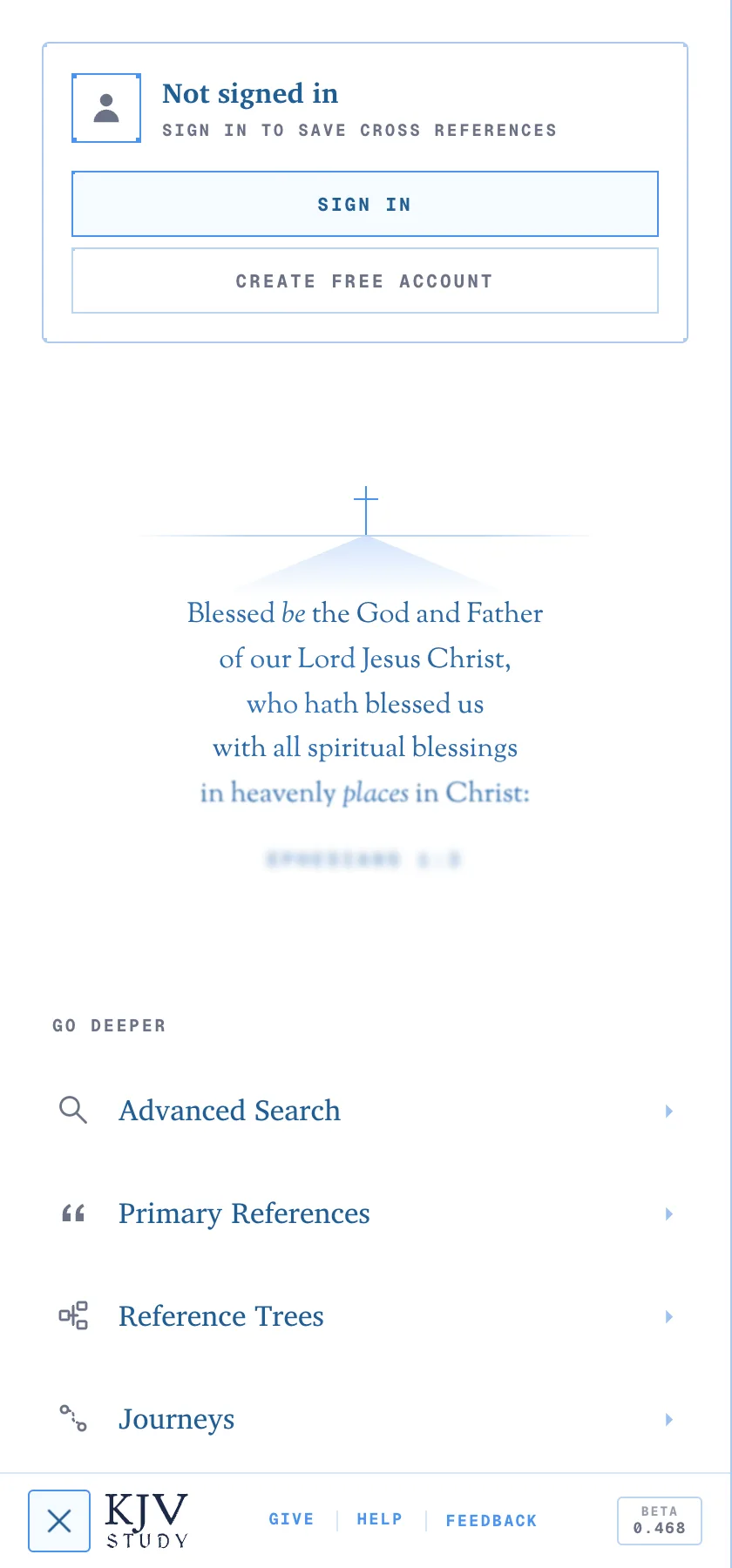
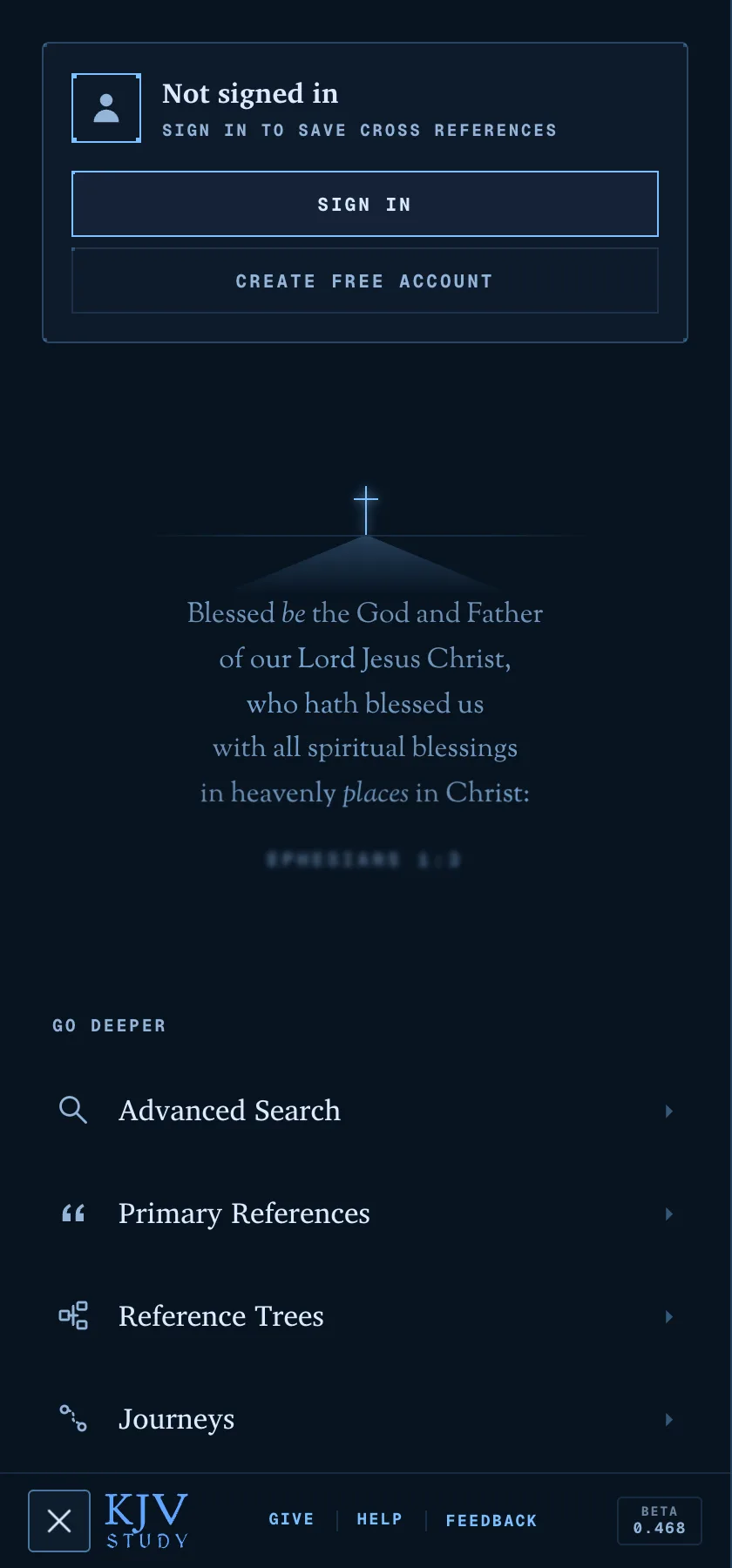
A new verse appears each day in the menu, beneath the cross. Click it to open the verse in your reading.