The Community
Ask questions, share, pray, and connect with other believers, with tools for reporting concerns and blocking people.
Opening the Community On a computer, choose Community from the Splitscreen menu.
On a computer, choose Community from the Splitscreen menu. On a phone, open Feed for the Community and Inbox for notifications.
Anyone can read the feed, comments, profiles and public groups. Sign in and join to post, comment, react or pray.
Joining Press Join, tick I agree to our Community Guidelines, then press Join Community.
Press Join, tick I agree to our Community Guidelines, then press Join Community. You'll need an account and must be 13 or older. If the guidelines change, you'll be asked to read and agree to them again.
Read the Community Guidelines for guidance on grace and truth, handling disagreements, and what isn't allowed.
The feed Public: posts from across the Community, with your friends first.
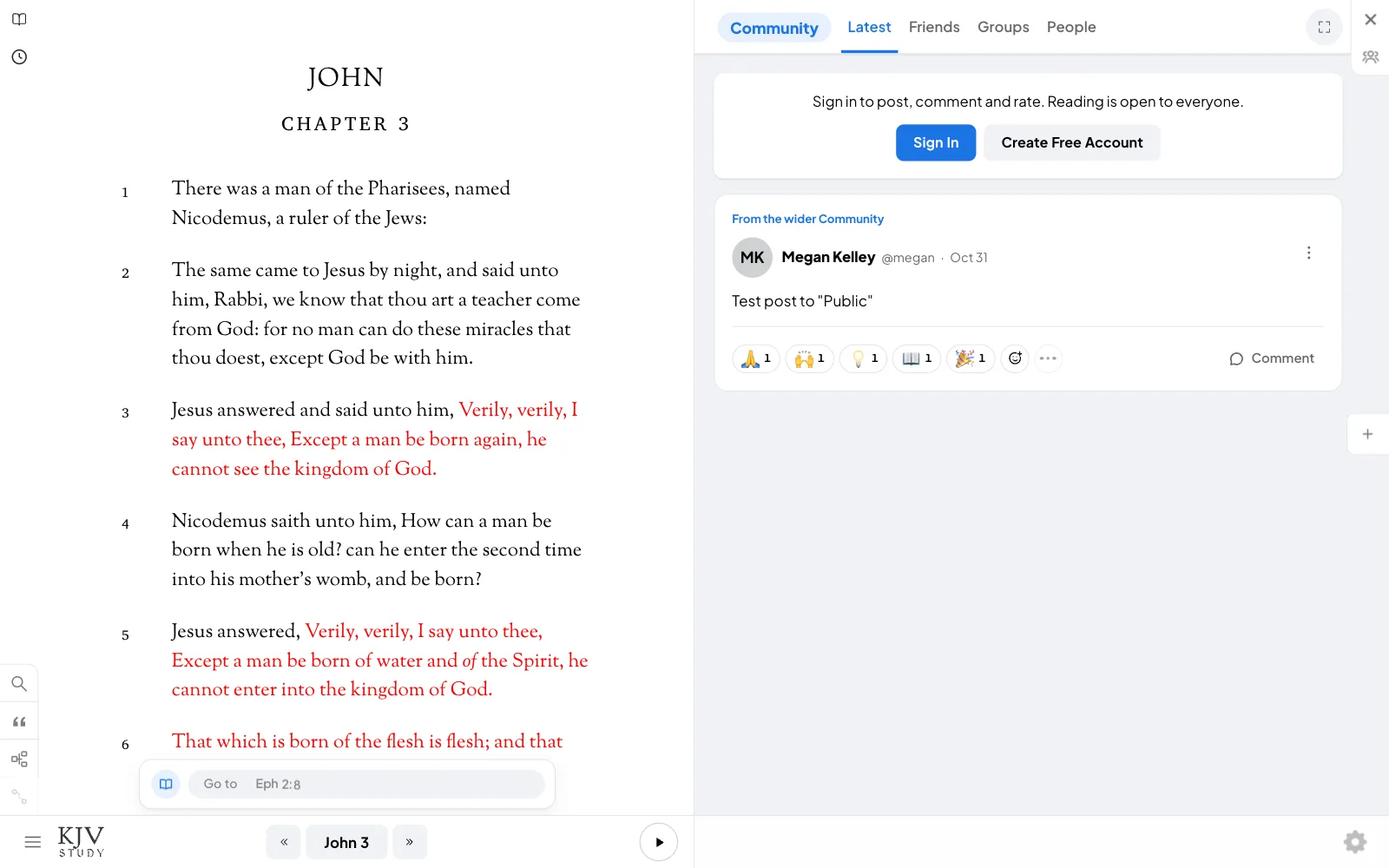
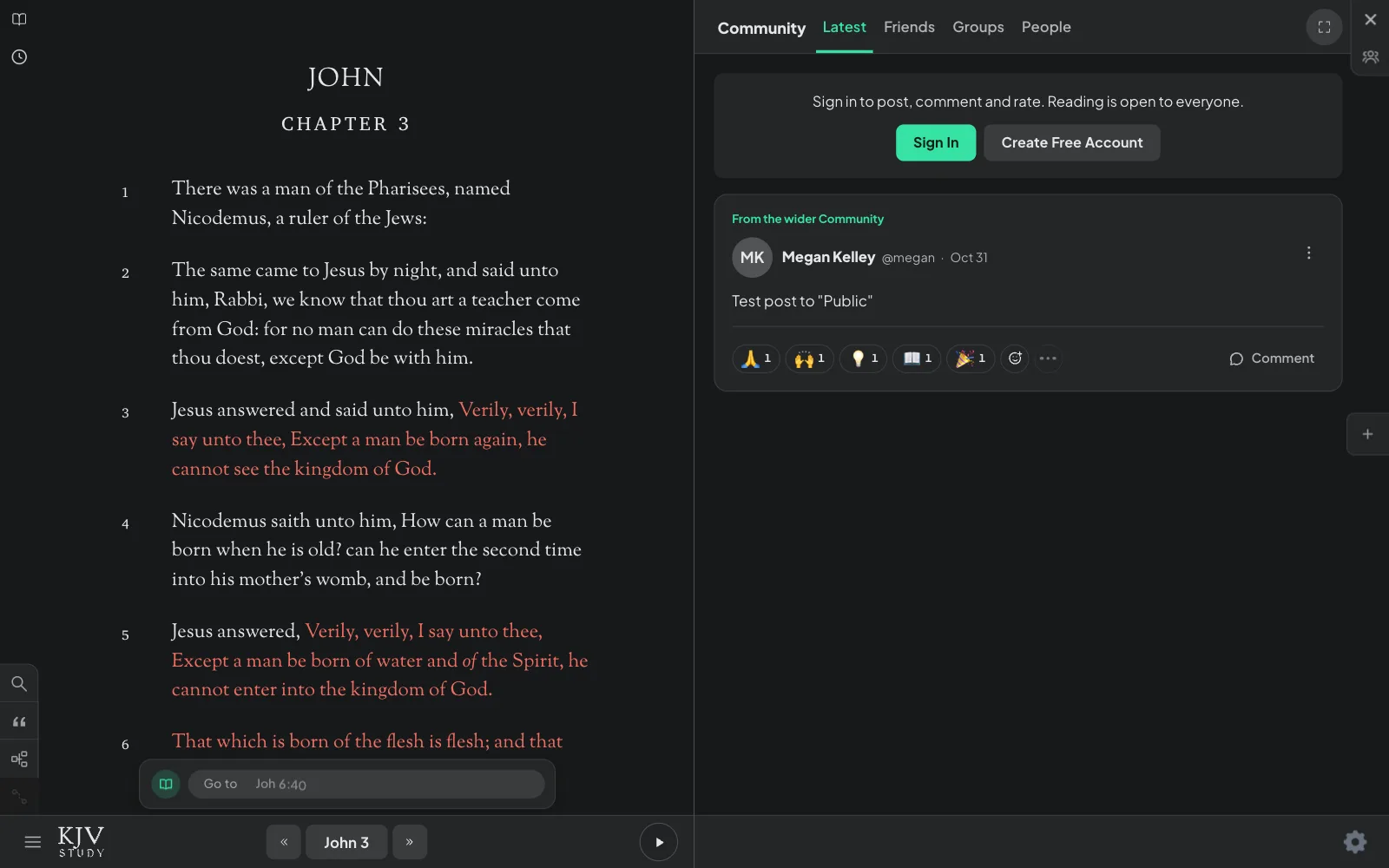
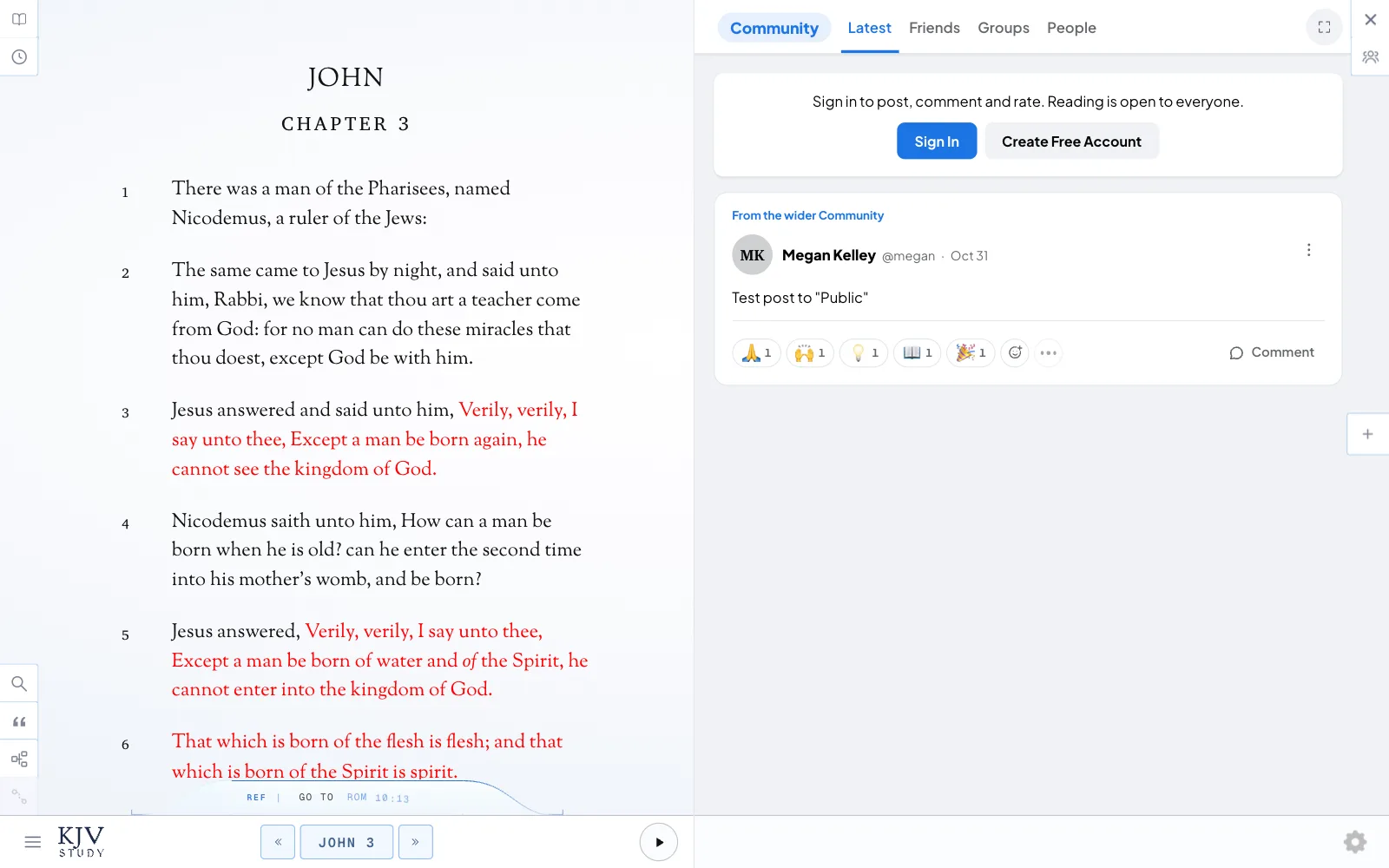
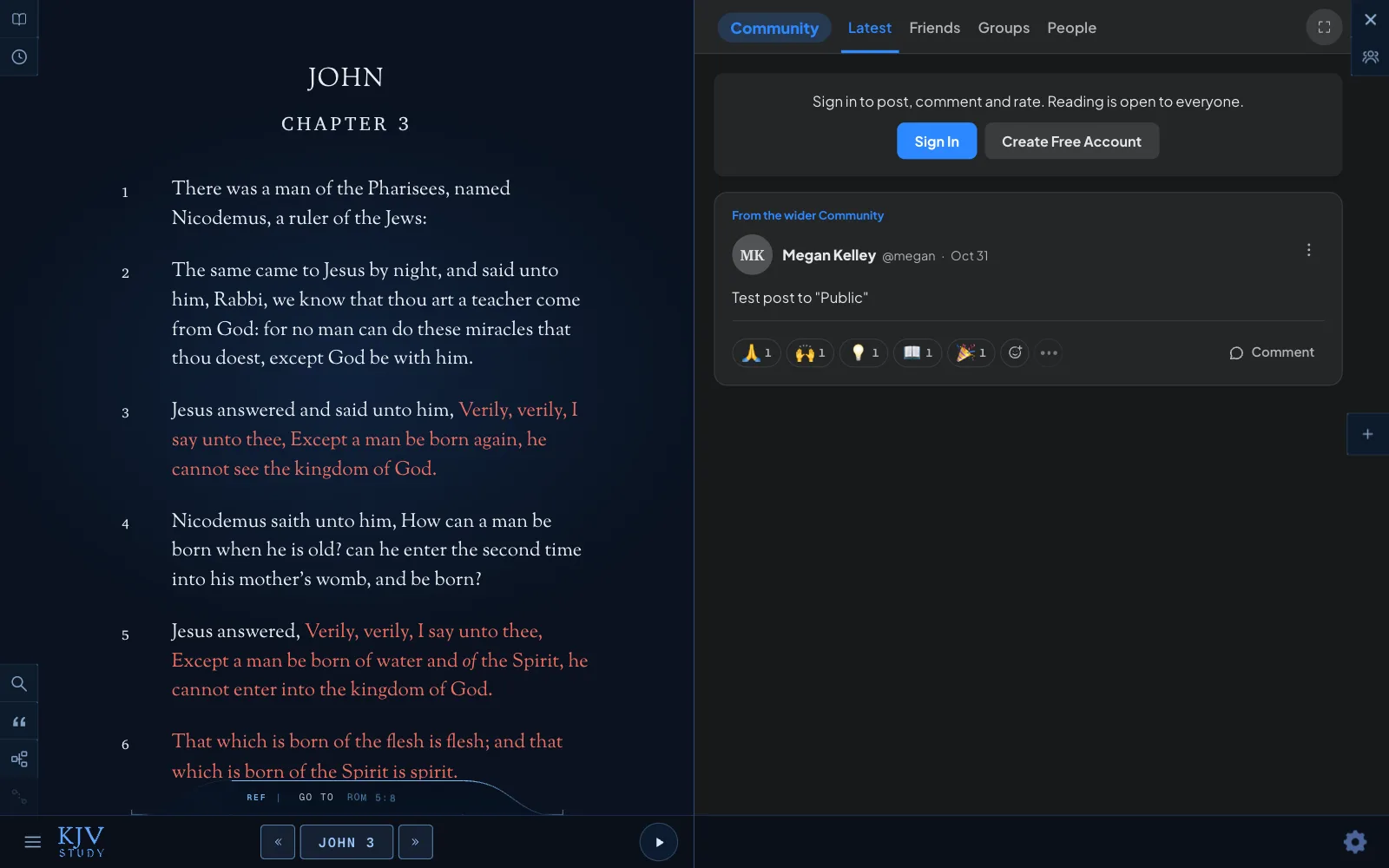
- Public: posts from across the Community, with your friends first.
- Friends: posts from your friends.
- Groups: groups you've joined and others to discover.
- People: friend requests, your friends, and people you've blocked.
Search finds people and posts. Open your picture's menu for Saved Posts and Prayed For, which are private to you.
Posting Choose Share, Question or Prayer Request, then
Choose Share, Question or Prayer Request, then:
- Add verses, such as "John 3:16" or "Psalm 23", and display the first as a picture if you like.
- Add up to ten photos, verses, a poll, or one of your shared Verse Chests or Bible Paths.
- Choose who can see the post: Public, Community, Friends or Only Me.
You can also share a verse directly from your reading by selecting it and pressing Post.
New accounts can't post links during their first three days.
Reactions, comments and prayer React with 🙏 Amen, ❤️ Love, 🙌 Praise God, 💡 Insightful, 📖 Edifying or 😢 Mourning.
- React with 🙏 Amen, ❤️ Love, 🙌 Praise God, 💡 Insightful, 📖 Edifying or 😢 Mourning. Use the more button to see additional reactions.
- On a prayer request, press I Prayed. After a week, a follow-up asks whether the prayer was answered. The person who posted the request can Mark as Answered.
- Choose Comment to respond to a post, or reply to an existing comment.
- A post's three-dot menu lets you copy its link, share it, or save it. On your own posts, you can also edit or delete them.
Friends and following On someone's profile, Add Friend sends a friend request.
On someone's profile, Add Friend sends a friend request. Follow brings their public posts into your feed without adding them as a friend. You can also Pray for them or Message them if you're both old enough. See Messages.
Under People, you'll also find Accountability Partner, which links two adults so each can view the other's account without making changes, and Family, which links a parent to their teen.
Groups Choose Create Group, or look for a group under Discover Groups.
Choose Create Group, or look for a group under Discover Groups. Groups can be Public, Private (request to join), or Hidden (invitation only). Some ask you to agree to their rules. Alongside posts, groups may include events, prayer requests, sermons and teaching, a reading plan, a statement of faith, and a members list. To leave, choose Leave Group in the group's three-dot menu.
Reporting and blocking Use Report in the three-dot menu on a post, comment, profile or group.
Use Report in the three-dot menu on a post, comment, profile or group. Choose a reason, add a note if you like, and press Send Report. The person you report won't be told who submitted it, and our moderators review every report.
If you Block someone, neither of you can see the other's posts, comments or profile, or send messages to the other. Blocking also ends a friendship. You can unblock someone under People.