Bible Paths
Guide someone through Scripture with a series of statements and passages, then share the path.
What a Bible Path is A Bible Path guides a reader through Scripture one step at a time, with statements and the passages that support them.
A Bible Path guides a reader through Scripture one step at a time, with statements and the passages that support them. Use a path to explain the gospel, answer a question, or prepare a study. Steps are lettered (a, b, c…) so you can refer to a particular step.
Everyone can read "The Gospel" path, with or without an account.
Reading a path Press Enter Path, then use Next and Prev to move through the steps.
Press Enter Path, then use Next and Prev to move through the steps. The rounded verse buttons open passages within the path. At the end, you can Add to Favorites or Leave a Comment. Choose Open in 3D to read the path as a 3D book.
Your paths On a computer, choose Bible Paths from the Splitscreen menu or My Bible Paths from the main menu.
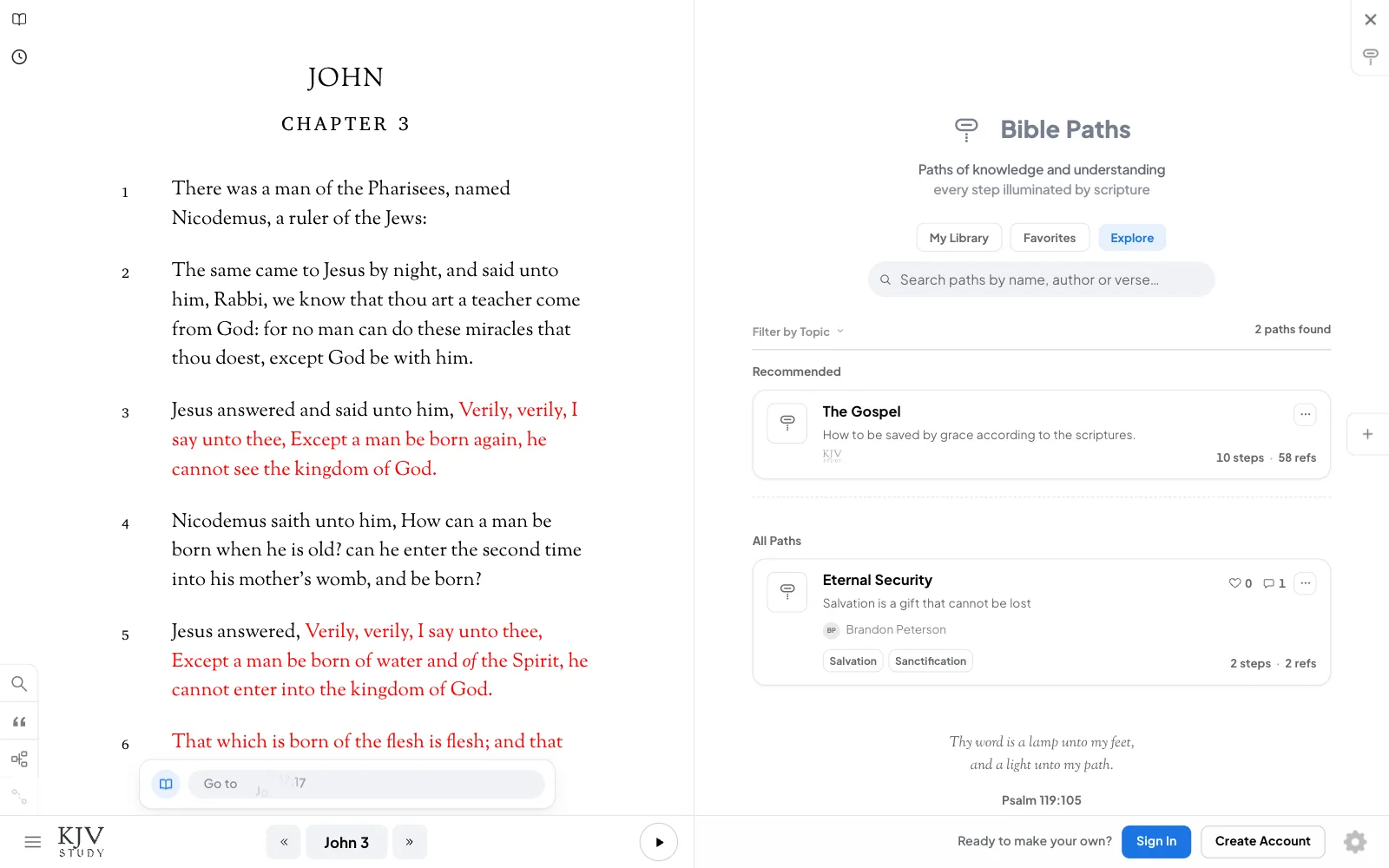
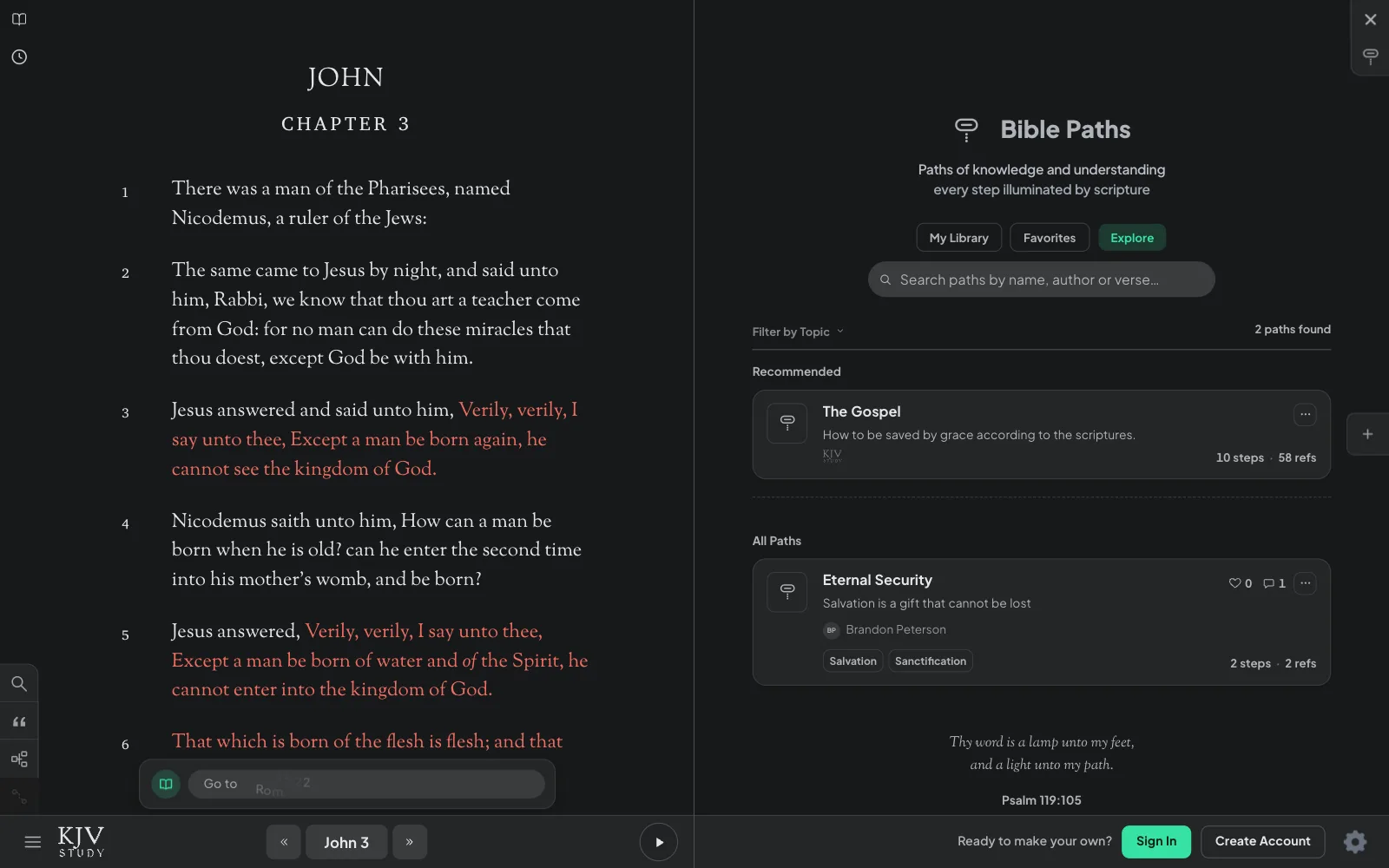
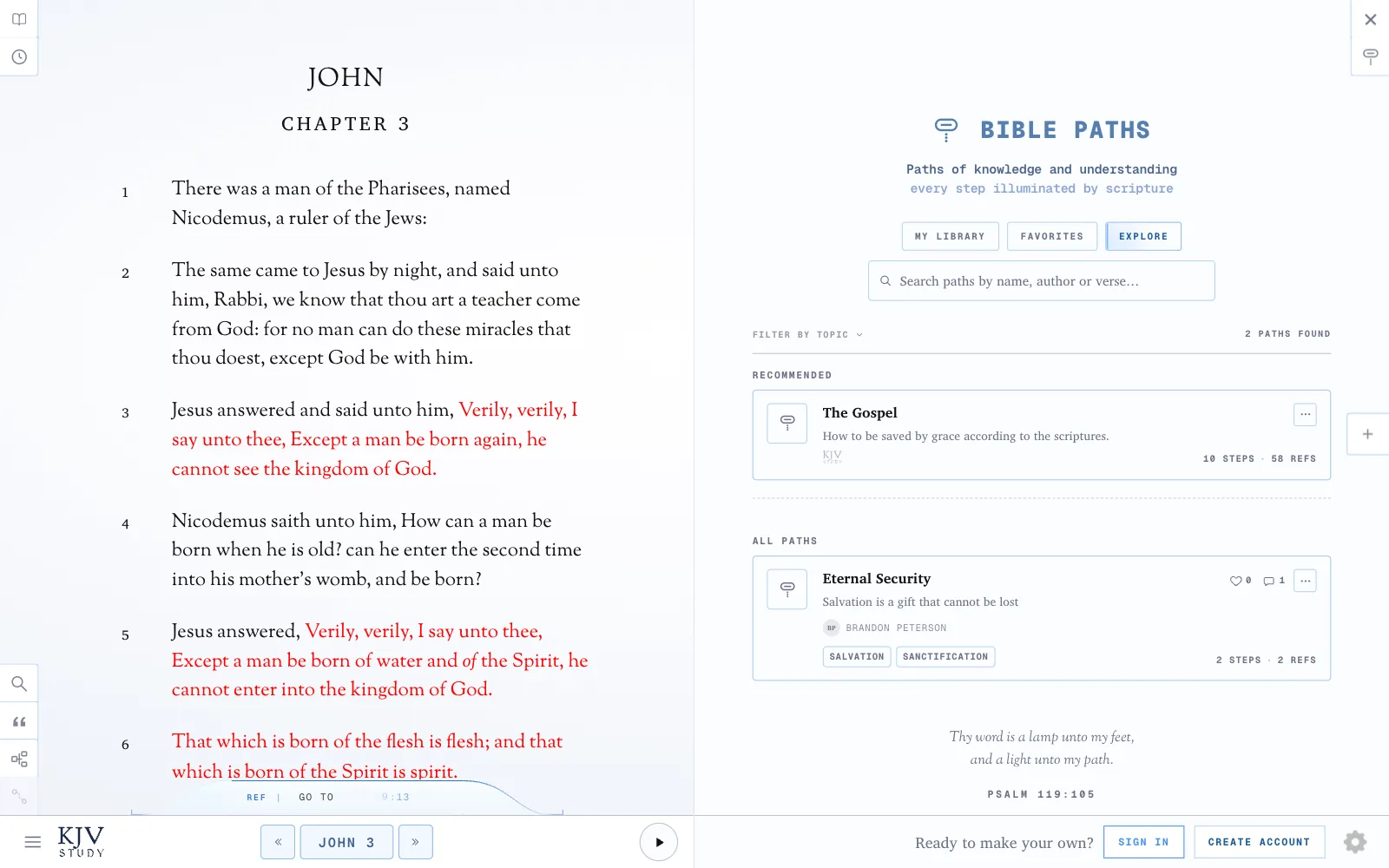
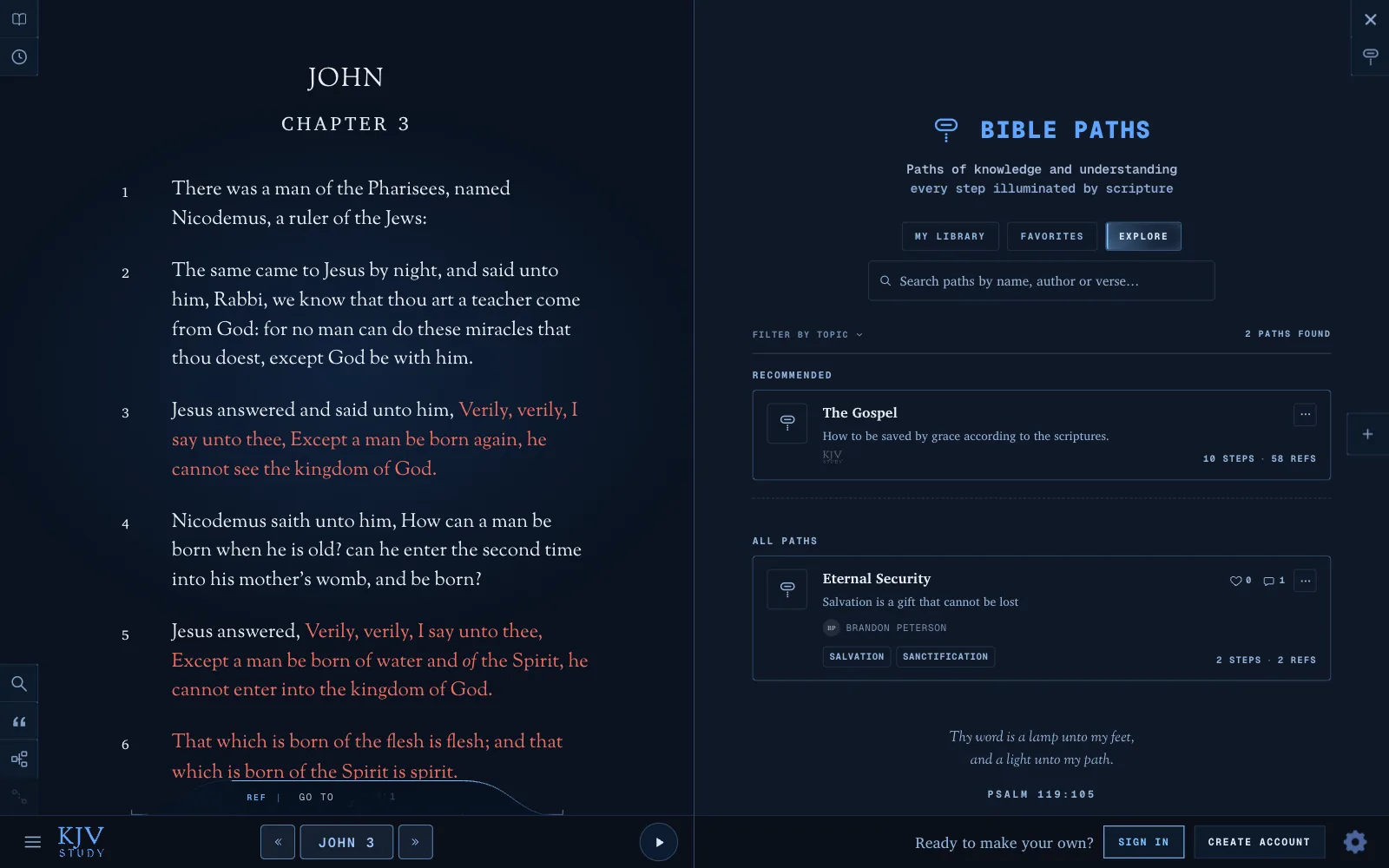
On a computer, choose Bible Paths from the Splitscreen menu or My Bible Paths from the main menu. On a phone, open Library, then Bible Paths. The tabs are My Library, Favorites, Explore (paths others have published) and Activity.
Building a path Press + New Bible Path to open the Path Builder.
- Press + New Bible Path to open the Path Builder.
- Give your path a name.
- Press + Add step and choose Statement, Standalone Scripture, or Context. Add verses by entering a reference, such as "John 10:28; Psalm 50".
- Add a section title above a step if you like. Use Insert step here to add a step between existing ones. A Context step can also include a link to a web page, video or article.
- Press Save Changes.
Who can see a path Private (the default): only you.
- Private (the default): only you. Use this while your path is still a draft.
- Unlisted: anyone with the link, without appearing in Explore.
- Public: anyone, with the path also listed in Explore.
Sharing a path A path's menu includes Copy Link for Unlisted and Public paths, Share to Community, Edit path, Rename path and Delete path.
A path's menu includes Copy Link for Unlisted and Public paths, Share to Community, Edit path, Rename path and Delete path. On another reader's path, choose Save a copy to make your own version to edit.